
Microsoft Graph API is a powerful tool that allows you to access and manage data across Microsoft 365 services such as Outlook, Teams, SharePoint, OneDrive and Planner. It enables direct interaction with Microsoft 365 resources, making it possible to retrieve information, perform administrative tasks, and leverage advanced features that may not be available through standard tools or interfaces.
In this article, you will learn the fundamentals of making requests to Microsoft Graph API, which can be leveraged in automations and integrations, including Power Automate flows.
What are APIs?
An API (Application Programming Interface) is a set of rules that allows different systems to communicate with each other. This communication usually happens through HTTP requests, where one application sends a request to a specific endpoint (an address similar to a URL) and receives a response containing data or confirmation that an action was executed.
HTTP requests: the pizza order
In the context of API integrations, you can imagine the HTTP requests interaction as a phone call:
- The caller represents the client
- The call recipient represents the server
- The phone number being dialed represents the endpoint, similar to a URL
An HTTP request may or may not include inputs, depending on the purposes of the request and the design of the API. Likewise, the HTTP response may or may not contain data depending on the case. Continuing with the phone call example, let’s assume that we’re calling a pizza restaurant:
- The request is the order placed by the caller and may require several inputs (How many pizzas? Delivery or pickup? Extra cheese? Payment method?)
- The response is the order confirmation, which may also include additional data such as the total price or estimated delivery time
API responses usually include HTTP status codes to indicate the result of the request. For example, a 200 status code means the request was successfully processed, while the a 404 status code indicates that the endpoint is invalid or was not found.
Finally, HTTP requests can use different methods, which are determined by the API architecture and will vary according to the performed operation. The most commonly used methods in Microsoft Graph API are:
- GET: Retrieves data and does not include a request body. This method is commonly used to fetch Excel records, retrieve file properties stored in SharePoint, or list events from an Outlook calendar.
- POST: Creates or changes a resource and supports a request body as input. This method is often used to send emails, create new items in SharePoint lists, or add a new worksheet to an Excel file.
- PATCH: Updates an existing resource. For example, it is used to modify a Planner task or update Microsoft 365 group metadata.
- DELETE: Removes a resource, such as deleting a calendar event or a page in OneNote.
What is Microsoft Graph API?
Microsoft Graph API is a unified REST API that allows developers and automation builders to access data and services across the Microsoft 365 ecosystem through a single endpoint. This centralization provides an easier integration experience, with a consistent documentation and a single place to manage the permissions for authenticated clients.
You can find the reference for the different Microsoft Graph API endpoints and respective expected parameters and response formats here.
Authentication for Microsoft Graph API: Azure App Registration
Just like when accessing Microsoft products through a user interface, authentication is required to interact with Microsoft Graph API. However, API connections follow a different approach than traditional user sign-in: instead of relying on the username and password (basic authentication), API connections rely on modern and secure mechanisms such as Oauth2 access tokens, managed identities or client certificates.
To access Microsoft Graph API securely, authentication is required, and this is typically configured through an Azure App Registration. An App Registration represents an application identity in Microsoft Entra ID and defines how your application authenticates and which Microsoft Graph permissions it is allowed to use. For example, you can restrict a particular App Registration to read Outlook email messages only or to post messages to a Microsoft Teams channel.
App Registrations can use different authentication flows depending on the use case, such as delegated permissions (the application to acts on behalf of a signed-in user) or application permissions (not tied to a specific user account).
Running tests with Graph Explorer
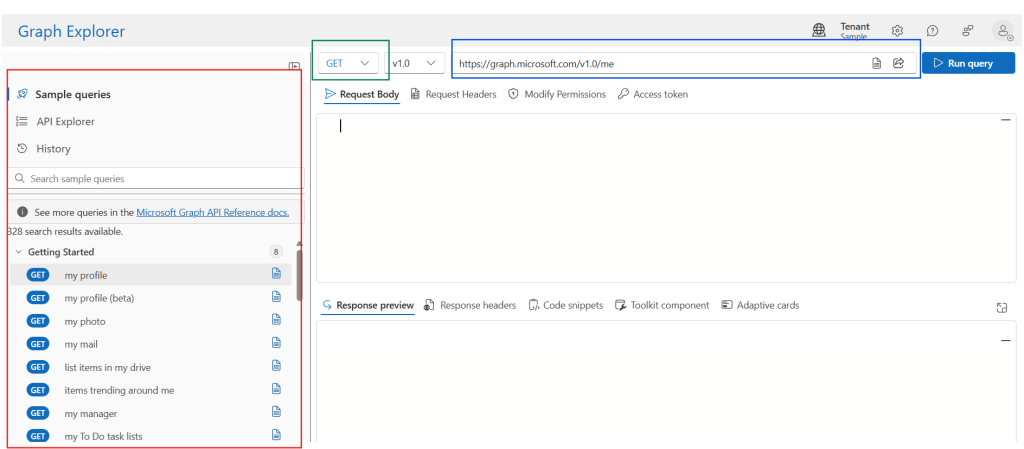
Although you can use different methods to send API requests, such as Power Automate and other automation platorms, Postman, or even from a command line interface, Microsoft provides Graph Explorer, a web-based tool that simplifies the Microsoft Graph API testing, allowing requests with a minimal configuration. Graph Explorer has an intuitive interface, including a gallery of commonly used endpoints (in red) and options to customize request URLs (in blue) or change the HTTP method (in green):
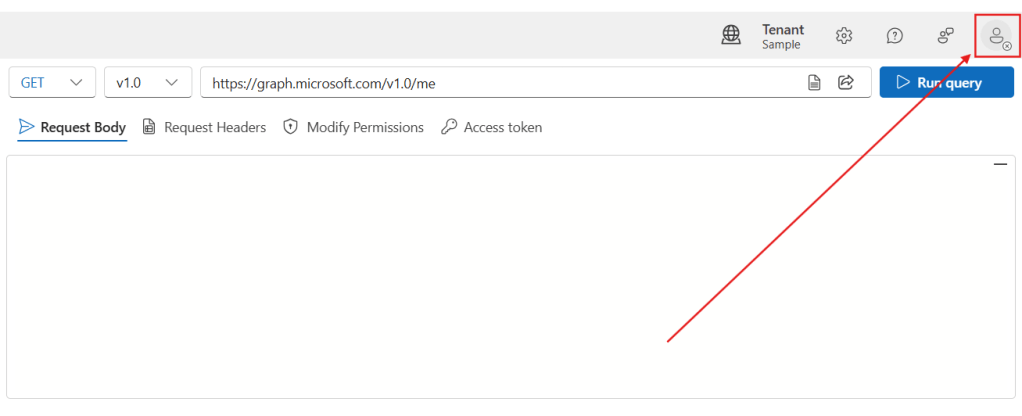
By default, Graph Explorer relies on sample data, but you can sign in to authenticate and execute queries against you own organization’s Microsoft 365 data:
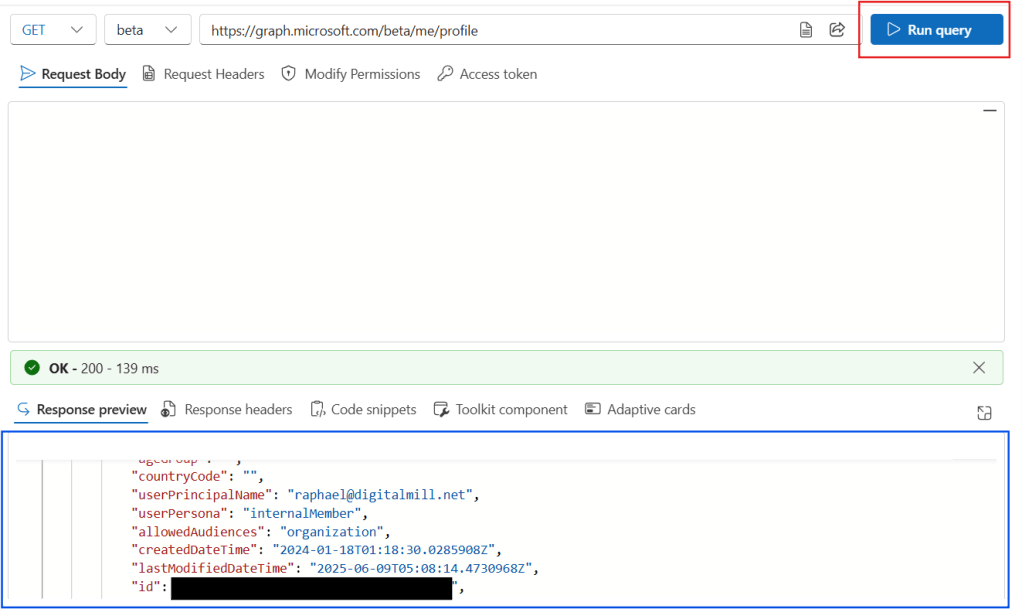
Bly clicking Run query, you can send the HTTP request, and the response will be displayed at the bottom of the page (in blue). The HTTP status code is also presented (200 status code in this case). In this example, a request is executed against an endpoint that returns information about the currently authenticated user:
Depending on the executed operation, the request may fail with a 403 Forbidden status code, indicating that the required permissions have not been granted:
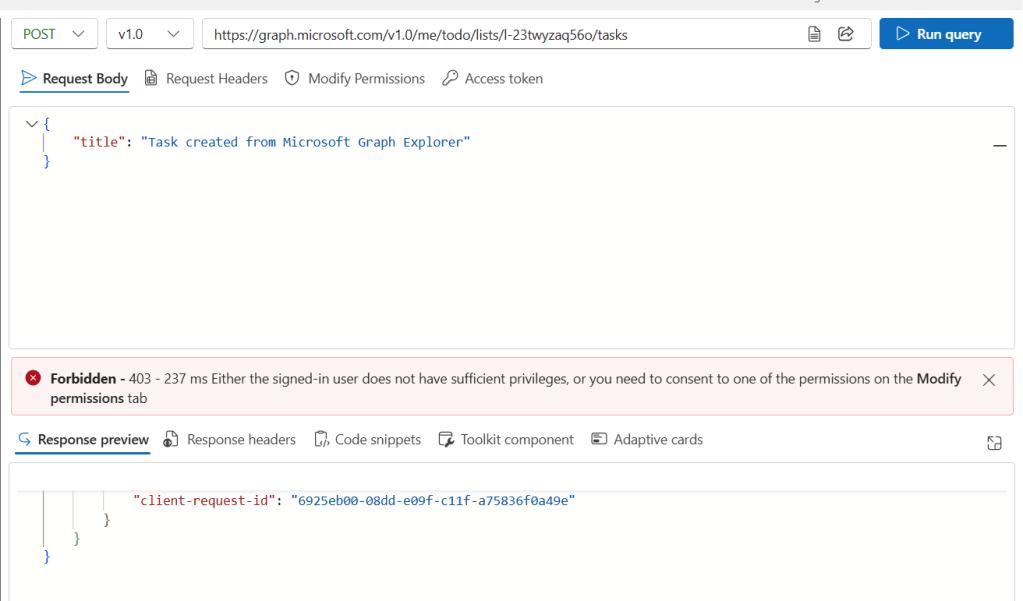
This happens when the signed-in user has not consent to the necessary Microsoft Graph permissions for the operation. To solve it, click Modify Permissions and grant consent to at least one of the permissions listed for the endpoint (in green):
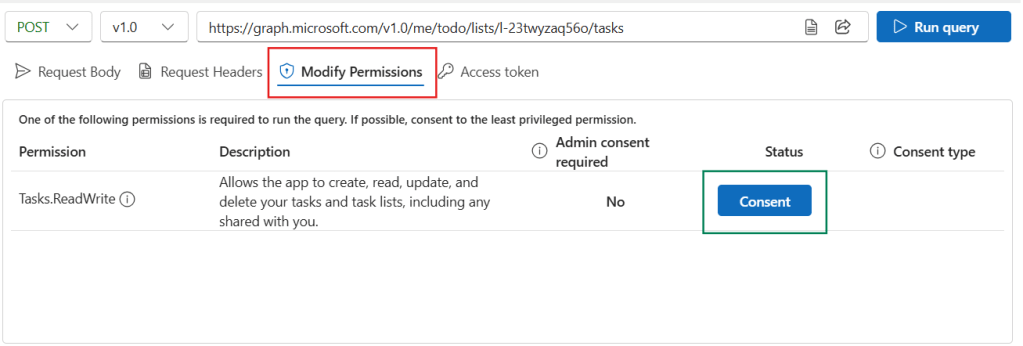
In real-world implementations, this permission assignment is handled through Azure App Registration rather than directly in Graph Explorer.
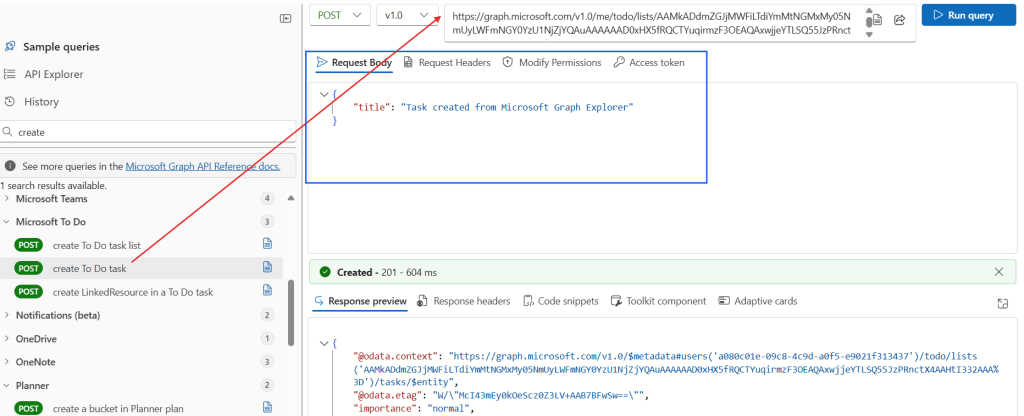
Depending on the endpoint, you may need to provide additional parameters or a request body. For example, if you select the create To Do task from the sample queries, a To-do List Id needs to be included in the endpoint (in red) and the request body must be populated with the task title (title property, in blue). After running the query, we receive a 201 status code, confirming the operation was successful:
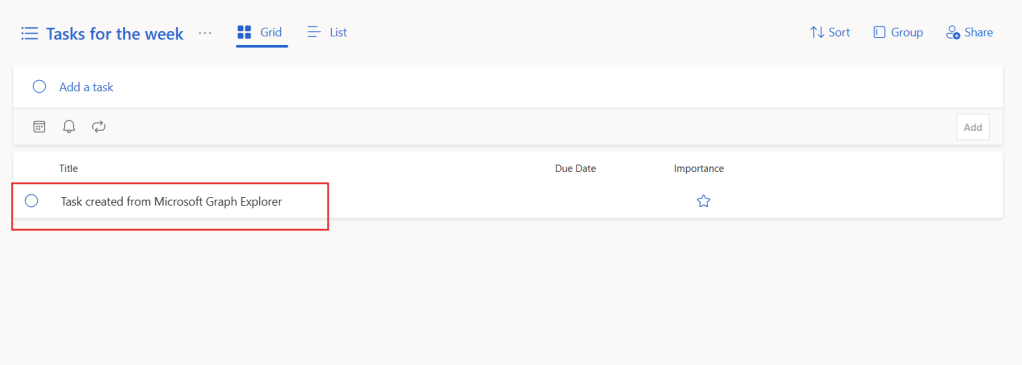
After executing this operation in Graph Explorer, you can verify the results directly in Microsoft To Do – a task was created in the selected list and with the informed title:
Conclusion
In this blog, we saw how to make requests to Microsoft Graph API and use the Graph Explorer. Let us know what do you think about this blog in the comment section, and don’t forget to check our website, our YouTube Channel or connect on LinkedIn!
 Digital Mill