
While Copilot Studio provides basic metrics to help us understand how an Agent is being used, its native analytics lacks a real-time monitoring and becomes limiting as soon as you need deeper visibility into user behavior or operational performance. Although the built-in Analytics tab may be sufficient for a basic usage of the tool, scaling your Agents demands a more flexible approach. This is where integrating Copilot Studio with Azure Application Insights becomes essential.
In this blog, we will cover the step-by-step to set up a connection between Copilot Studio and Azure Application Insights, which will give you access to real-time detailed logs of your Agent usage, plus other built-in analytics features.
There is also a video about this topic in our our YouTube Channel:
Overview of Copilot Studio Agents in Azure Application Insights
By using the solution described in this blog, you will be able to collect data related to your Copilot Studio Agent usage. The properties captured by Azure Application Insights will vary depending on the type of activity and on how you configure the integration between these tools.
By the end of this article, you will be able to collect interaction data from Copilot Studio similar to the example shown below. Let’s take this interaction as example, where we the user asks a question about the upcoming NHL games and the Agent responds based on information collected from a Generative Answers node:
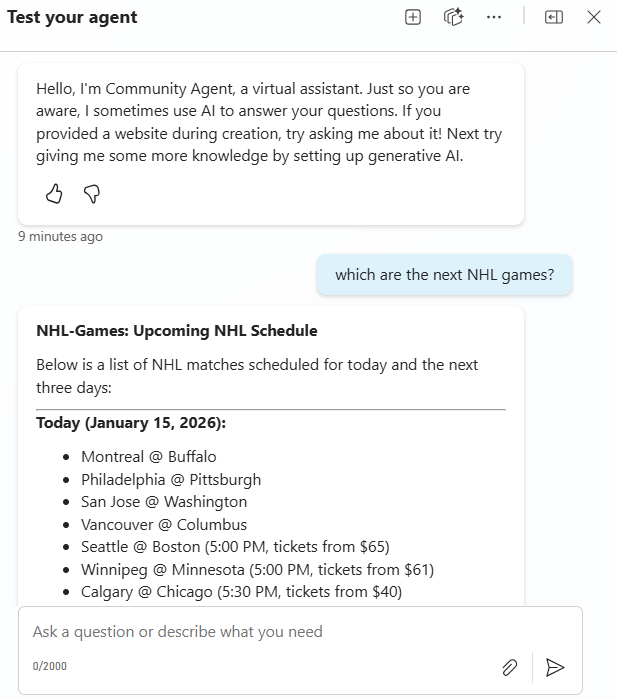
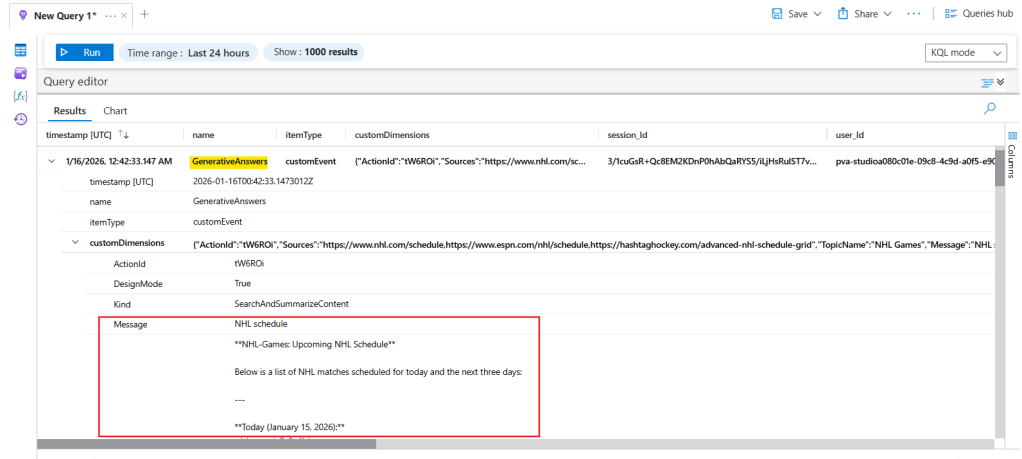
In the logs stored in Azure Application Insights, you can find detailed information about every step taken by the Agent to process this request, from the initial message received, through topic navigation, and even down to specific nodes within a topic. As shown in the image below, it is also possible to access the content generated by the Generative Answers node:
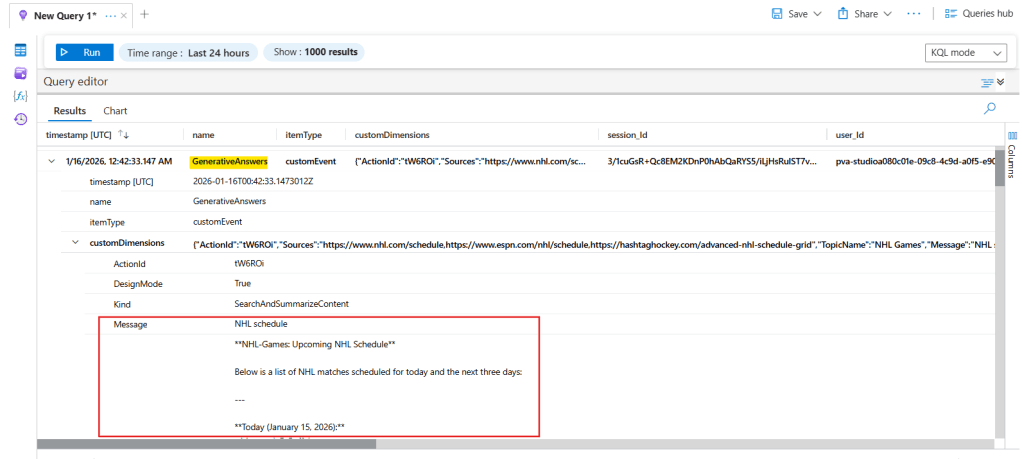
Note: The usage of Azure resources may incur costs depending on your subscription type and resource configuration. You can find more details about the pricing for Azure Monitor here.
Setting up Application Insights Resource in Azure
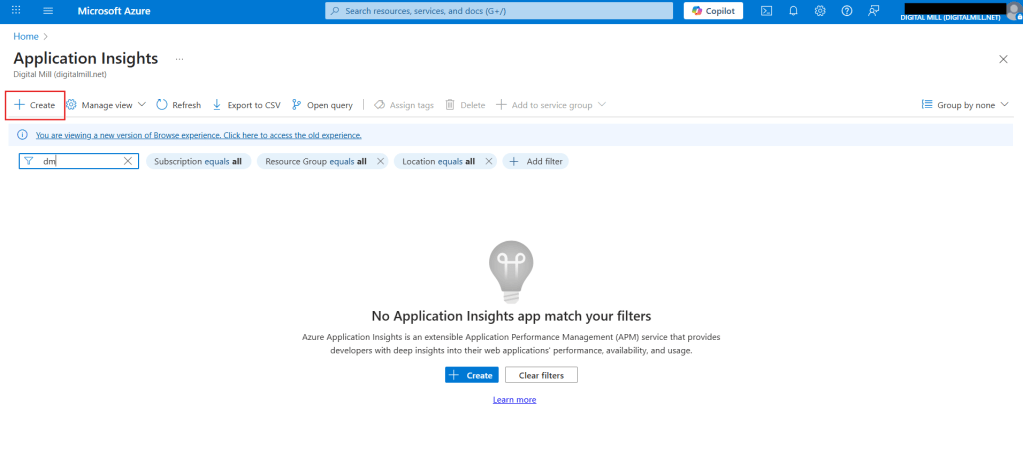
To connect Application Insights with Copilot Studio, the first step is to create a new resource in Azure. Go to the Azure Portal, search for Application Insights, and click Create (highlighted in red):
Next, select the Subscription, Resource Group, Region and Log Analytics Workspace where the Application Insights must be created, and assign it a Name:
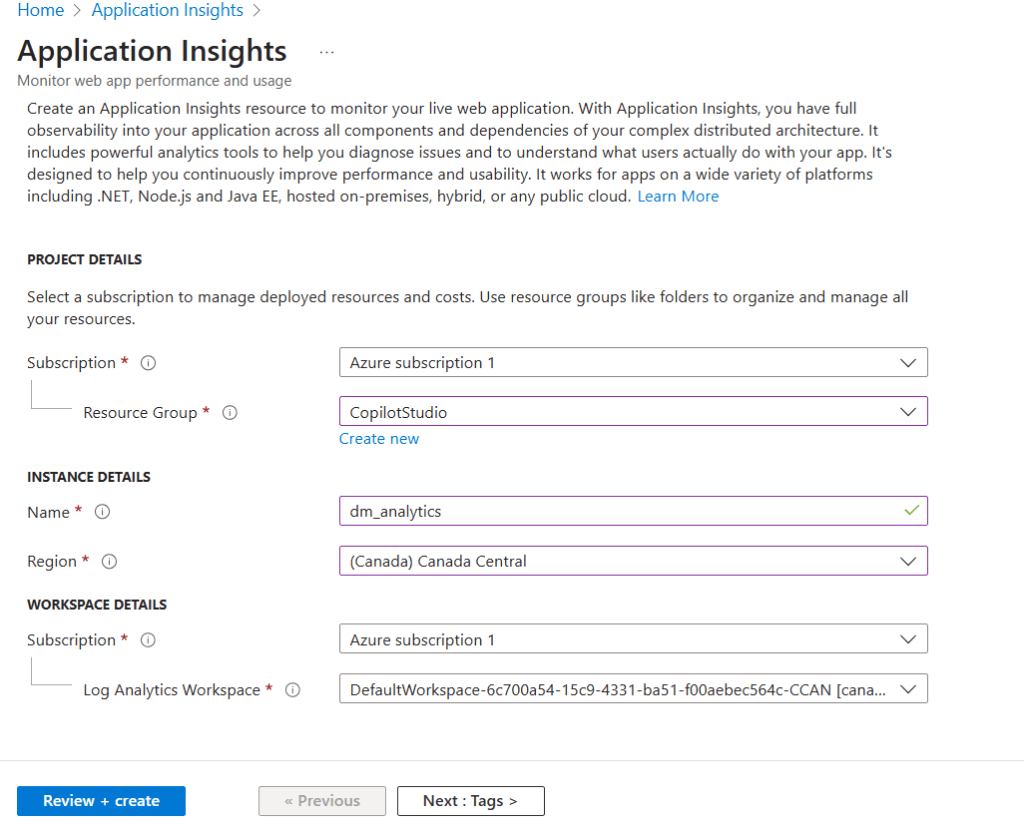
If this is your first time creating an Azure resource, you may need to create a new Resource Gorup, or a Log Analytics Workspace. There is no restriction in allocating your Application Insights instance in a region different from the Power Platform environment where your Copilot Studio Agent is located.
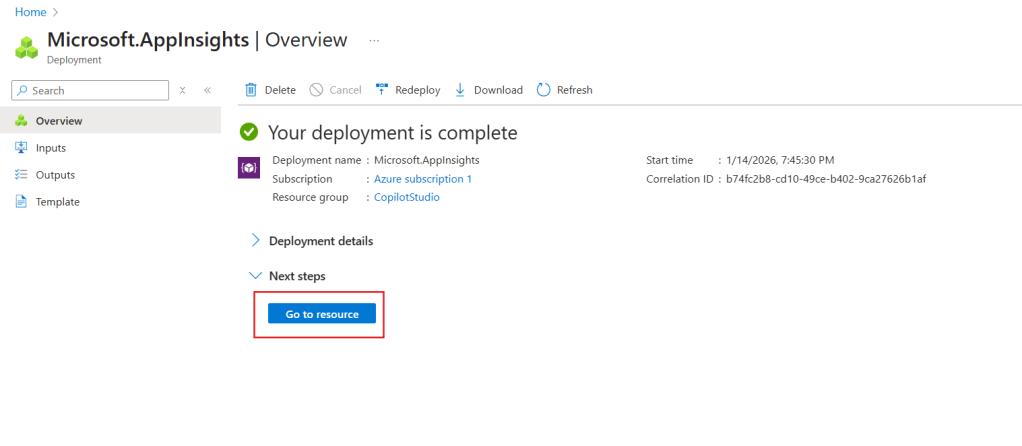
After clicking Review + create, the service will be deployed within a few seconds. Once it’s completed, you will see a confirmation screen where you can access the Application Insights instance by clicking Go to resource (highlighted in red):
Connecting Application Insights to Copilot Studio
In the Application Insights instance, you will find some general information about your resource. At the left side navigation menu, you can find the different Application Insights features, including Live Metrics, Alerts and built-in Dashboards.
Before you start to leverage these features, we need to first connect Application Insights to Copilot Studio, which requires the Connection string, available in the Overview page (highlighted in red):
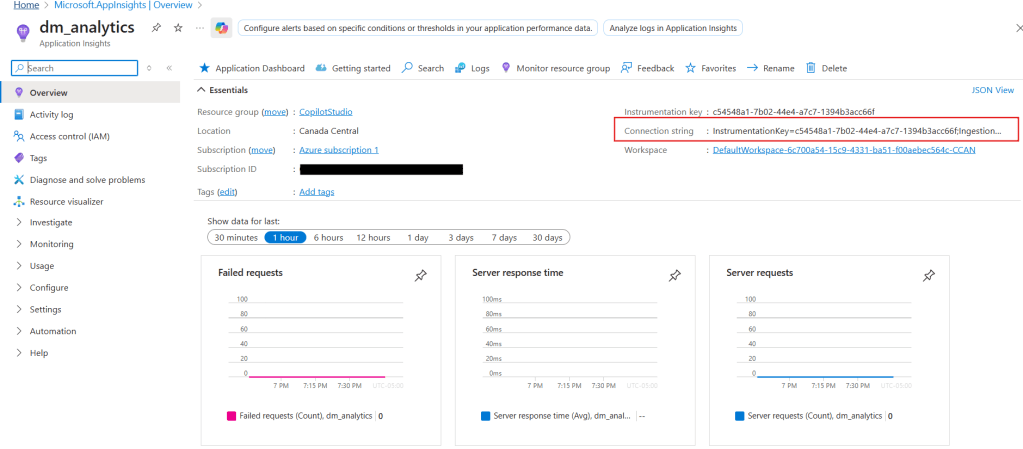
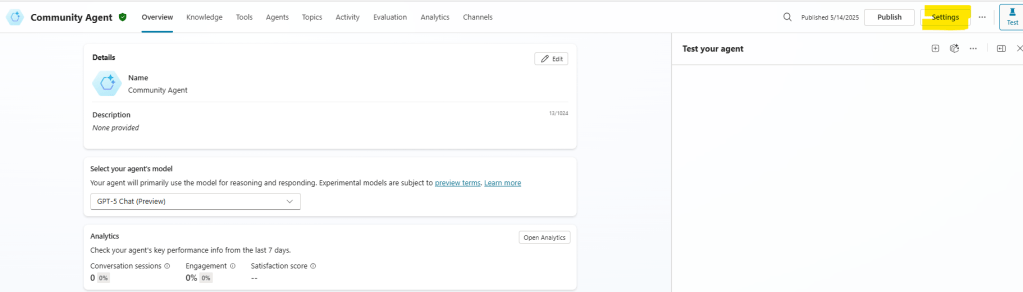
After copying the Connection string value, go to your Copilot Studio Agent and click Settings, at the top-right corner (highlighted in yellow):
From the left-hand navigation menu, select Advanced (highlighted in red) and then Application Insights (highlighted in yellow):
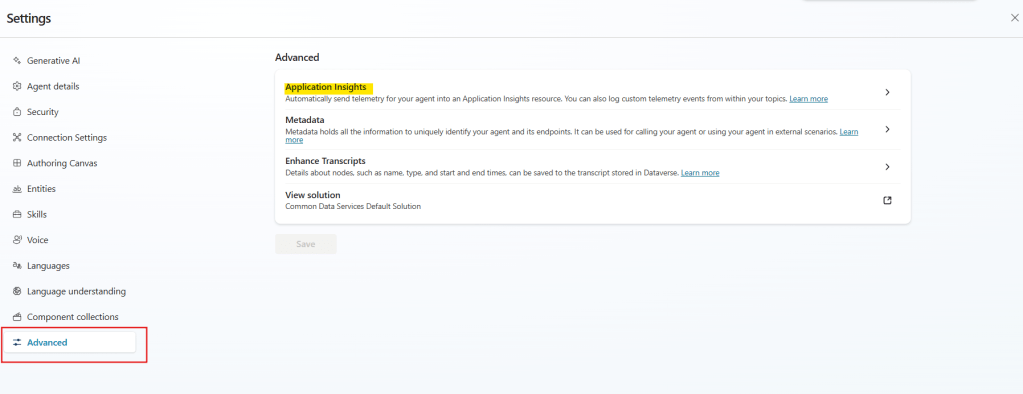
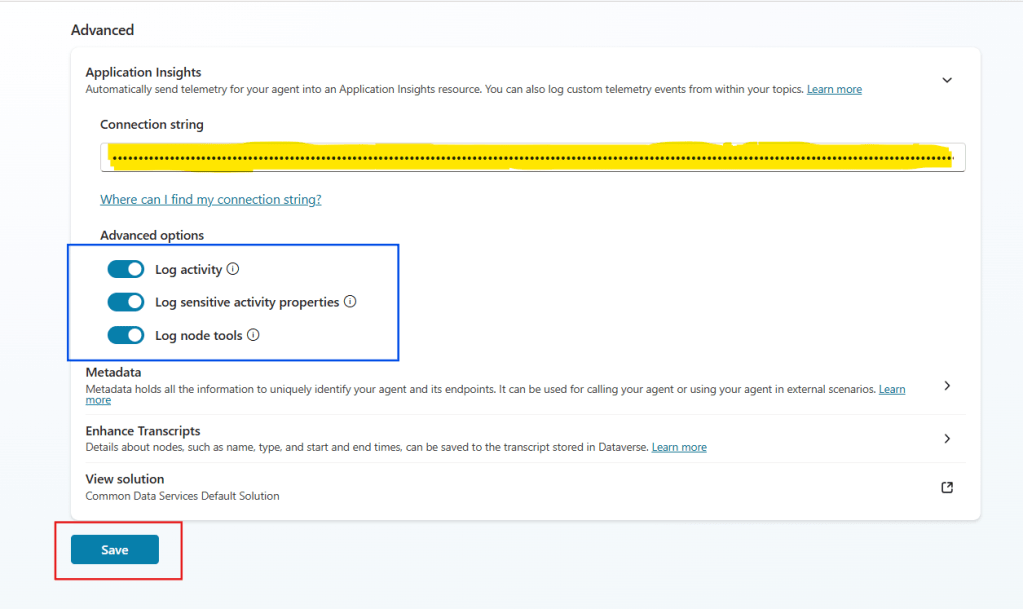
You will find an input field for the Connection string (highlighted in yellow): paste the value copied from Application Insights. Next, you can configure which kind of information must be sent to Azure, where you can include or remove the activities, sensitive activity properties or node tools (highlighted in blue). After configuring it, you can click save (in red):
Testing the solution
At this point, the integration is ready, and all Copilot Studio Agent interactions will be sent to Azure, including the messages sent in the test pane. To test it, let’s come back to Azure Application Insights, expand the Monitoring section (highlighted in red) and select Logs (highlighted in yellow) in the navigation menu:
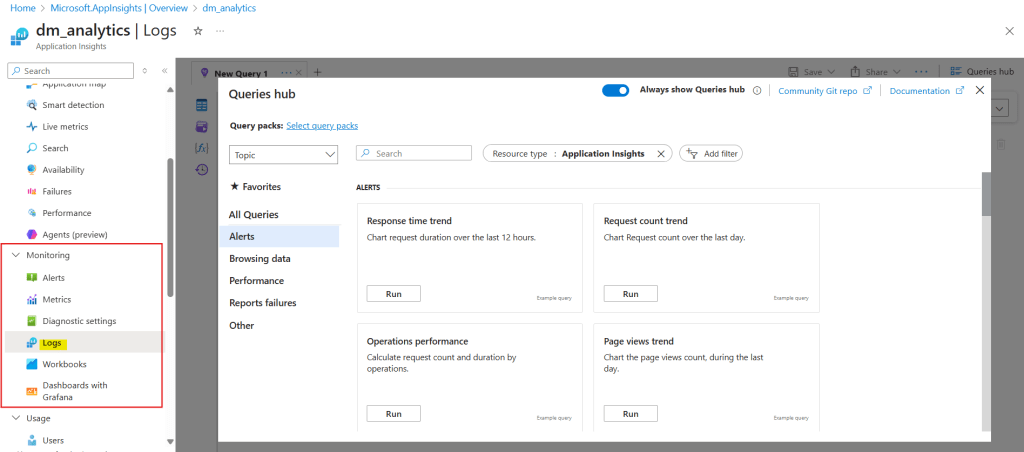
This will automatically open the Queries hub, where you can find some examples of queries that can be used to read the metrics logs related to the monitored application. You can close it.
Next, in the top-right corner of the page, expand the dropdown where you read Simple mode and select KQL mode (highlighted in yellow):
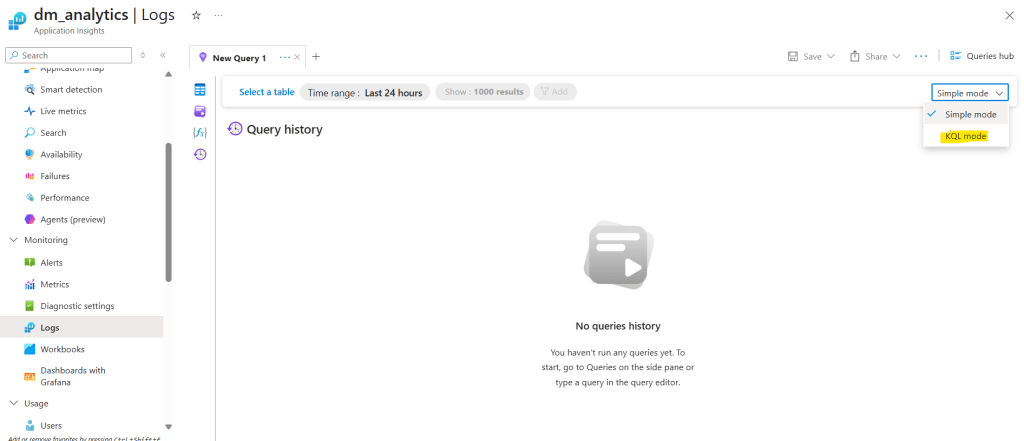
KQL (Kusto Query Language) is a query language used for searching, filtering, and analyzing time-based data, which is the case of the logs stored in Applications Insights.
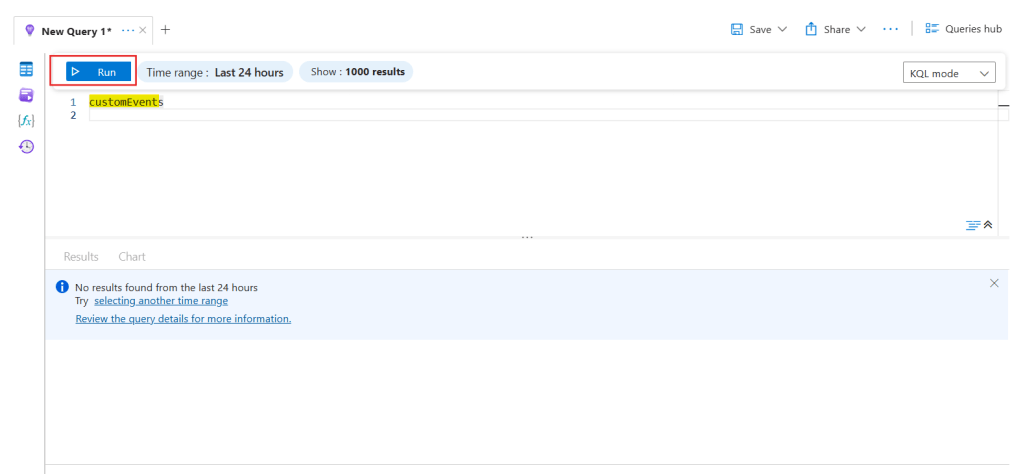
For this initial test, just type customEvents in the query input (highlighted in yellow) and click Run (highlighted in red). In the lower pane, you must see the logs of your Agent usage, if you had any interaction with it after setting up the connection. If you didn’t, you will see a message stating that “No results were found”, as it follows:
At this point, you can return to Copilot Studio and test your Agent via the test pane. For this test, we’re asking a specific question about the next NHL games (highlighted in red), which triggers a custom topic that responds using a Generative answers node (highlighted in green):
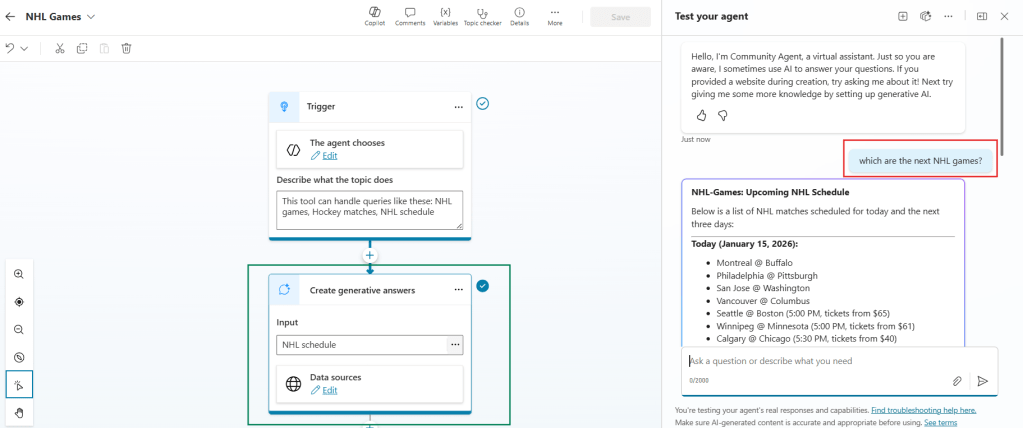
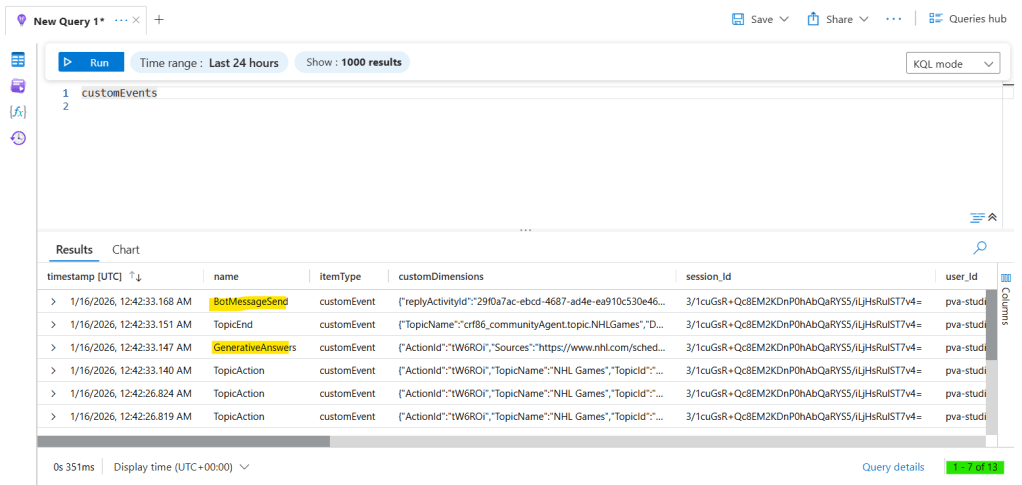
If you now come back to Azure and re-run the KQL query after a few seconds, you will see the logs corresponding to all steps taken by Copilot Studio to process the conversation, including a total of 13 activities (highlighted in green), such as BotMessageSend or GenerativeAnswers (highlighted in yellow):
If we expand the GenerativeAnswers record, we can find some details about this activity, including the content of the message generated by Copilot Studio (highlighted in red):
This is the most basic KQL query for Copilot Studio Agents telemetry: it’s possible to add some custom instructions to the code, so you can filter the logs, expand specific properties or perform aggregations.
Conclusion
In this blog, you learned more about the integration of Copilot Studio with Azure Application Insights, which can be very helpful for upskilling your Agent usage analytics. Let us know what do you think about this blog in the comment section, and don’t forget to check our website, our YouTube Channel or connect on LinkedIn!
 Digital Mill