
When reading data from Dataverse tables with Power Automate, you can use the filter queries to narrow down the records retrieved by referencing specific columns and values. However, filtering by lookup columns is not as straightforward, requiring an additional step to compose the query.
In this blog, you will learn how to perform this operation in a simple manner.
What is a lookup column in Dataverse?
A lookup column in Dataverse is a field that creates a relationship between two tables, allowing you to reference a row from another table. For example, the Activity table is related to the Account one through the Regarding property, which is a lookup column. You can identify the lookup columns in Dataverse by the relationship icon on header (highlighted in yellow):

Although we can usually visualize a user-friendly label on under this property (in this case, the Account name), the lookup columns store a link (the unique identifier) to a related record rather than plain data, like text or numbers.
This behavior is essential from a data modeling perspective, but can sometimes cause confusion reading or writing these columns in Power Automate – check this article to learn more about how to retrieve the actual values of lookup columns in Power Automate.
Accessing the Dataverse table logical name
When working with Dataverse tables in Power Automate, it is important to distinguish between display names and logical names. While the display names (in blue) are user-friendly labels to reference the columns, the logical names (in red) are the actual identifier to the table’s property (to learn more about logical names in Dataverse, check this blog):
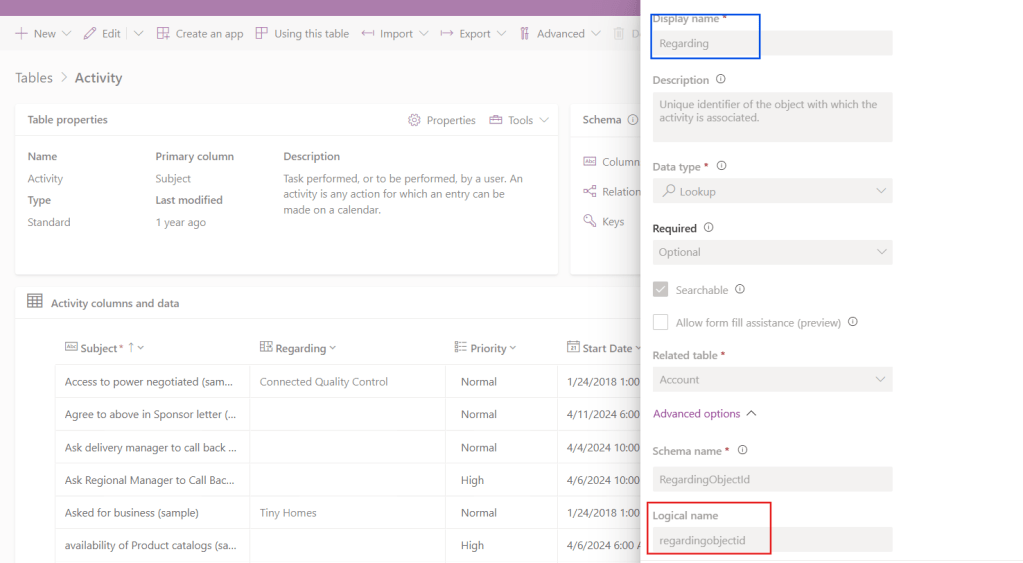
In the example above, the logical name for the Regarding column is regardingobjectid.
Filtering Dataverse lookup columns in Power Automate
At our Activity Dataverse table, there are only 3 records with the Regarding value set to the Connected Quality Control account:

Let’s try to just copy the lookup column logical name (in yellow) and use it within a filter query of a List rows action in Power Automate, narrowing down the records that match the Connected Quality Control account’s id:
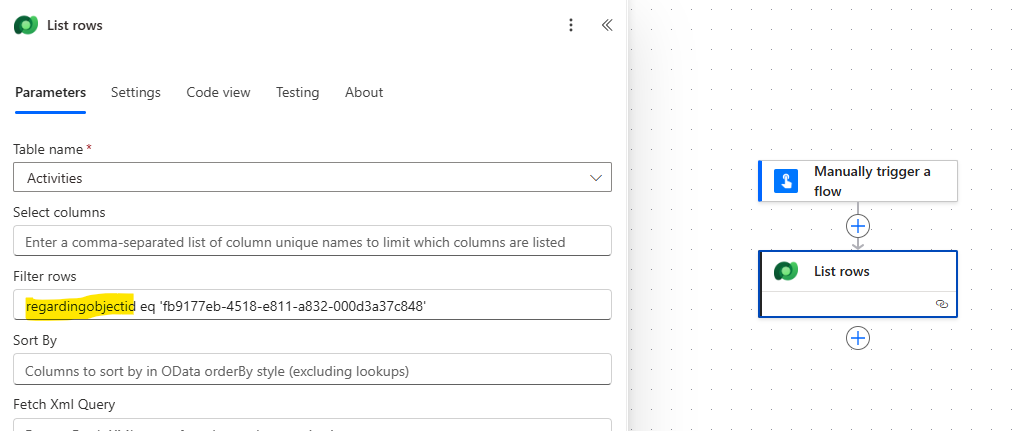
After running the flow, we will receive an error message saying that it was not possible to find a property with the Regarding logical name, even if it exists in our table:
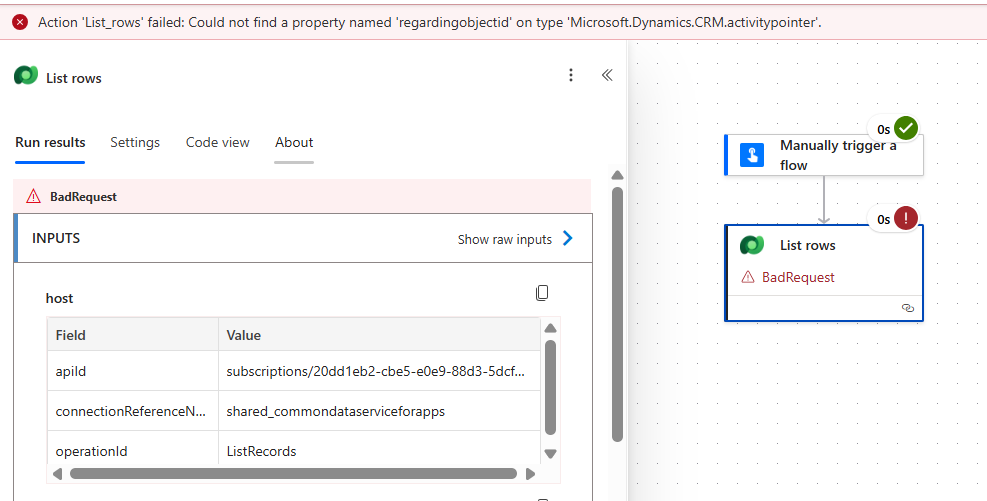
Because this is a lookup column, we will need to make a small adjustment to its logical name (in yellow), by adding an underscore (_) at the beginning (in blue) and _value (in green) at the end. This results in the property name _regardingobjectid_value:

If we now save the flow and test it again, the flow will run successfully, retrieving the 3 records that have the Connected Quality Control account in the Regarding column:

Another way to identify the adjusted logical name to be used when filtering lookup columns is to explore the raw outputs from a List rows or a Get row by id action from Dataverse connector. For example, here we have the outputs from the Account table, where we can find the correct logical name for lookup columns like Onwer, Transaction Currency and Primary Contact (highlighted in yellow):

Conclusion
In this blog, we saw how to filter lookup columns when reading Dataverse tables with Power Automate in a simple manner, so you can have an experience similar to a VLOOKUP Excel formula within your flows. Let us know what do you think about this blog in the comment section, and don’t forget to check our website, our YouTube Channel or connect on LinkedIn!
 Digital Mill