
Copilot Studio allows organizations to build intelligent conversational Agents that can automate tasks, answer questions, and interact with users in natural language. One of the main features from Copilot Studio, is its capacity of integration with Power Automate, so you can initialize flows directly from an Agent.
But another possibility that opens a lot of room for integrating AI with automation, is to trigger a Copilot Studio Agent directly from a Power Automate flow. By taking this approach, you can use the AI Agent not as a simple chatbot, but as a part of your business process.
In this article, we will see how to start a Copilot Studio agent from Power Automate, step-by-step.
Copilot Studio Agent overview
For this demonstration, we will work with a scenario where we want to generate a daily report summarizing what’s new in the Power Platform and send it to a user via email. To create this report, we will use a simple Agent created with Copilot Studio, designed to go online and search for recent Power Platform discussions, and return a list of 3 to 5 relevant items. The user will trigger this report by asking “Power Platform report”, and may sometimes specify a particular tool to focus on, such as Power Apps or Dataverse (highlighted in yellow):
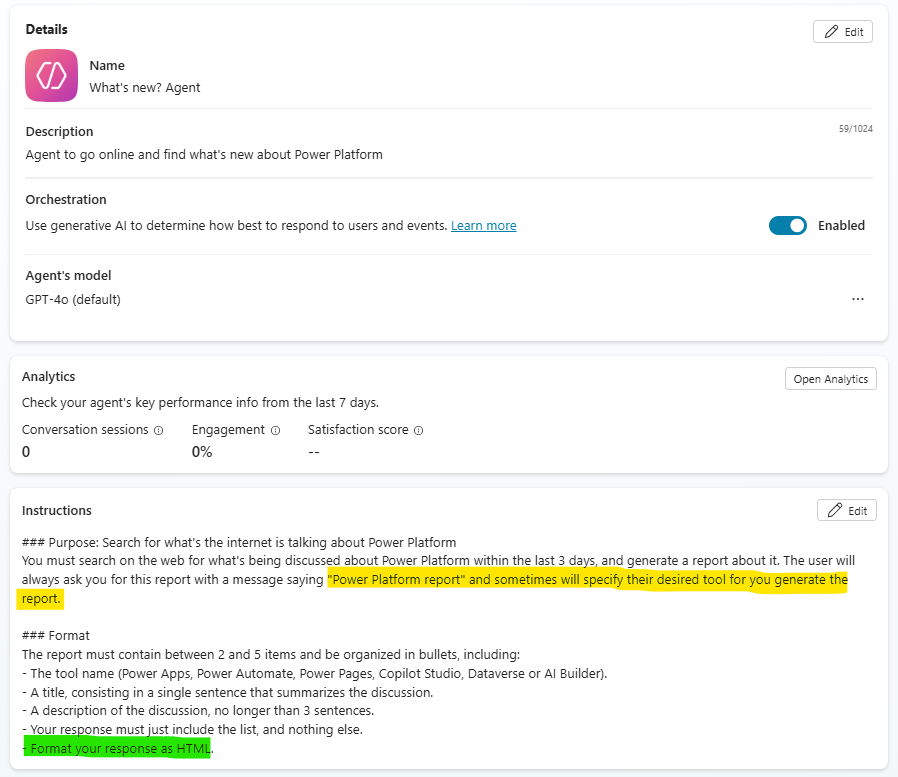
We’re also including an instruction to format the response in HTML, since the output Agent will be sent via email using the Outlook connector in Power Automate. Because the body of Outlook email messages uses HTML for formatting, this instruction ensures that the report’s content is properly styled and visually appealing when delivered to the recipient.
Since this Agent is designed to perform a search across public websites, we will also enable the “Web Search” option in the knowledge section – if you prefer to, you can replicate the same solution presented in this article with internal knowledge sources only.
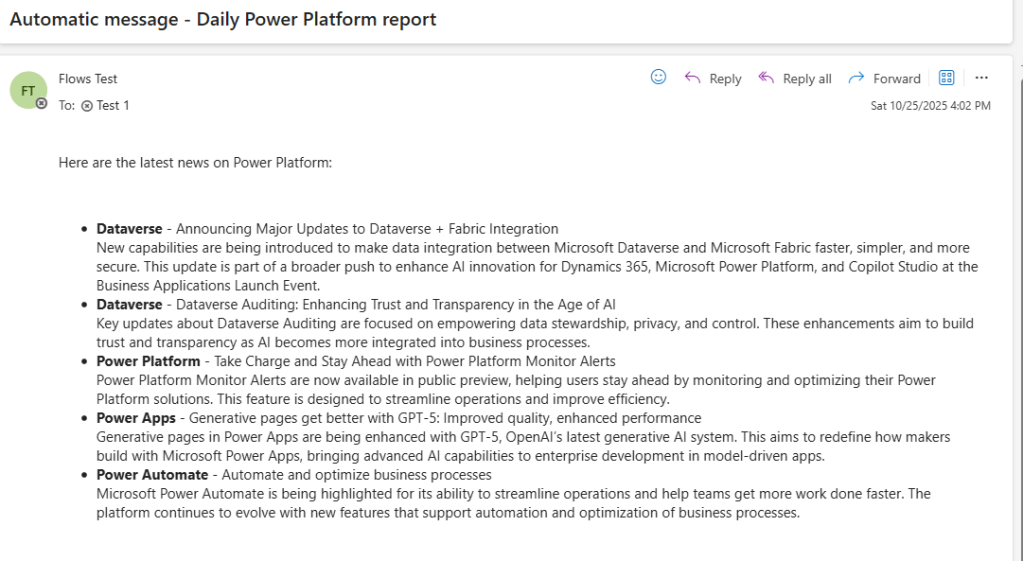
The expected outcome is an email message like this, which must be generated every single morning:

Recurrently running the Power Automate flow
After setting up the Agent, we can start to work on the flow. Since we want this automation to run on a daily basis, let’s create a flow with a scheduled trigger (learn more about the different types of flow in this blog), and set its frequency to once per day, at 6:30 AM:

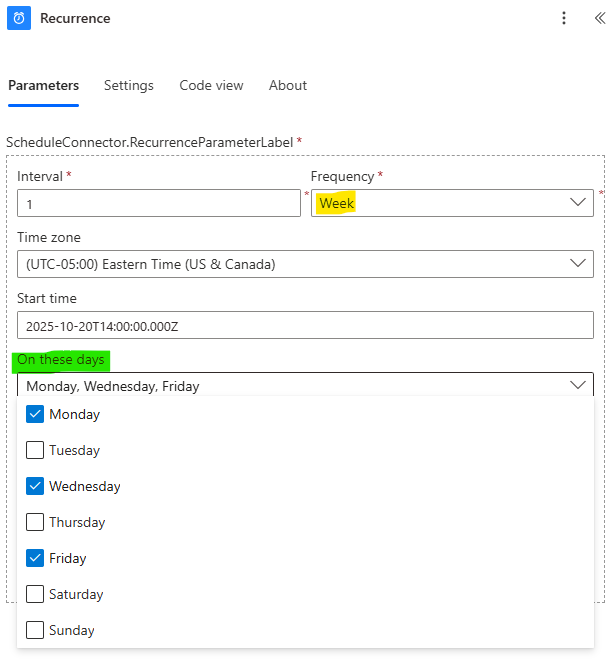
If you prefer, it is also possible to limit this flow to run only on specific days of the week by setting the Frequency to Week:
Starting Copilot Studio Agent from Power Automate
Next, we can call the Agent within the automation by using the Execute Copilot and Wait action, since we want to receive a response from Copilot Studio and process it further inside this same flow:

For the inputs, you only need to select the Agent to be executed and inform a message to be sent – in our case, we’re using “Power Platform report”, which will trigger the research according to the instructions defined in Copilot Studio. If you want to narrow the Copilot’s outputs to a specific Power Platform tool, you can include it in the Message input, even leveraging properties from previous steps of the flow by using the dynamic contents.
Another possible approach is to use the Execute Copilot action, and then handle the email notification logic inside the Agent via an Action or by initializing another Power Automate flow from Copilot Studio.
Sending an automatic email every morning with Power Automate
As the final step of this automation, we can send the email containing the summary of what’s new in the Power Platform. For this example, we’re using a shared mailbox to send the message, but you can apply the same logic with an individual mailbox by simply selecting the Send an email action.
In this step, you can customize the recipients, the subject line and the email body. Make sure to include the dynamic content from the Last response property in the message body (marked in red), and feel free to combine it with other dynamic or static content to enhance the email’s layout and context:

Testing the Power Automate flow
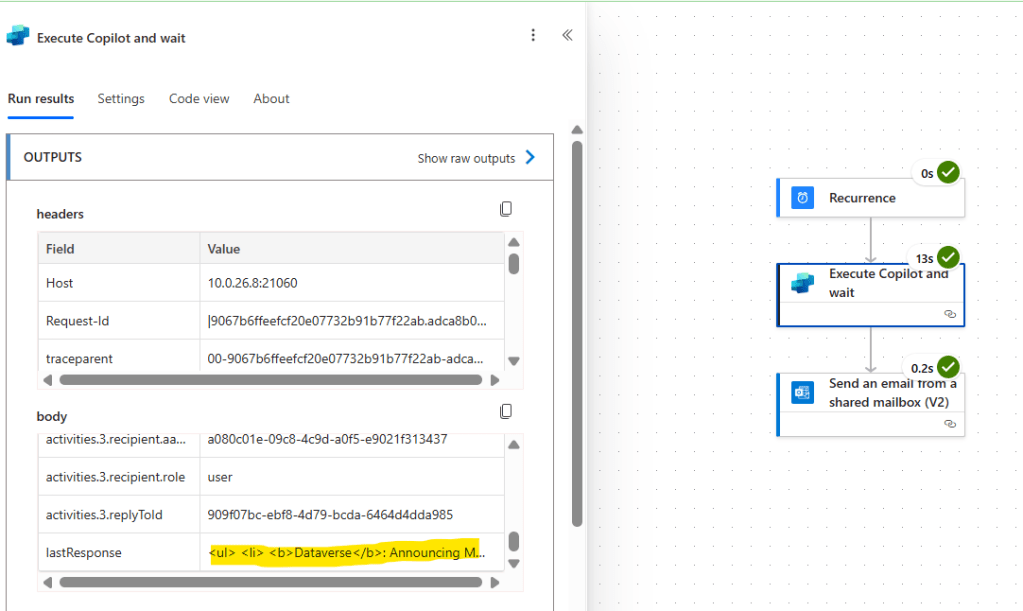
Now our automation is ready, and after running it and inspecting the outputs, we can see that the Last Response property is formatted as HTML, as expected:
And finally, you will also receive an email containing the summary on the Power Platform features generated by the Agent:
Conclusion
In this blog, we saw how to initialize a Copilot Studio Agent from a Power Automate flow, which is very useful for integrating AI features to your business processes. Let us know what do you think about this blog in the comment section, and don’t forget to check our website, our YouTube Channel or connect on LinkedIn!
 Digital Mill