
If you often receive important documents by email, you’ve probably noticed how quickly your inbox becomes a storage nightmare. Manually downloading and organizing attachments can waste valuable time and increase the risk of errors. Luckily, you can easily delegate this task with Power Automate, by automatically saving email attachments to SharePoint.
In this blog, we’ll walk through how to build a Power Automate flow that captures attachments from incoming emails and stores them directly in a SharePoint Document Library.
Solution overview
For the purposes of this post, let’s work with a scenario where we want to save all PDF files attached to an email message that lands in a shared mailbox. Any attachments from other formats must be ignored, and the flow must be triggered only if the keyword “PAYMENT REQUIRED” is included in the subject line:

You can also learn about this and many other automation strategies from scratch in our complete Power Automate Course at Udemy.
Monitoring upcoming emails in Power Automate
To get started, we first need to insert an automated trigger that monitors the Outlook mailbox where the attachments will arrive. For that, we can use either the “When a new email arrives” or the “When a new email arrives to a shared mailbox” triggers, as highlighted below:

For the purposes of this article, we will work with a shared mailbox.
During the trigger configuration, you can also set up a few conditions to limit which kind of incoming email must be monitored. For example, you can limit the flow to run only for the emails from an individual sender, those containing a certain keyword in the subject line, or the messages that include a particular address as CC. In this demonstration, we’re limiting the trigger to run only for emails that contain attachments (highlighted in blue) and include the keyword “PAYMENT REQUIRED” in the subject line (highlighted in yellow):

We’re also setting the Include attachments to Yes, which will capture the content of the files attached to the email in the trigger properties, avoiding the need of including a Get Attachment action in a later step of this process.
Accessing email attachments with Power Automate
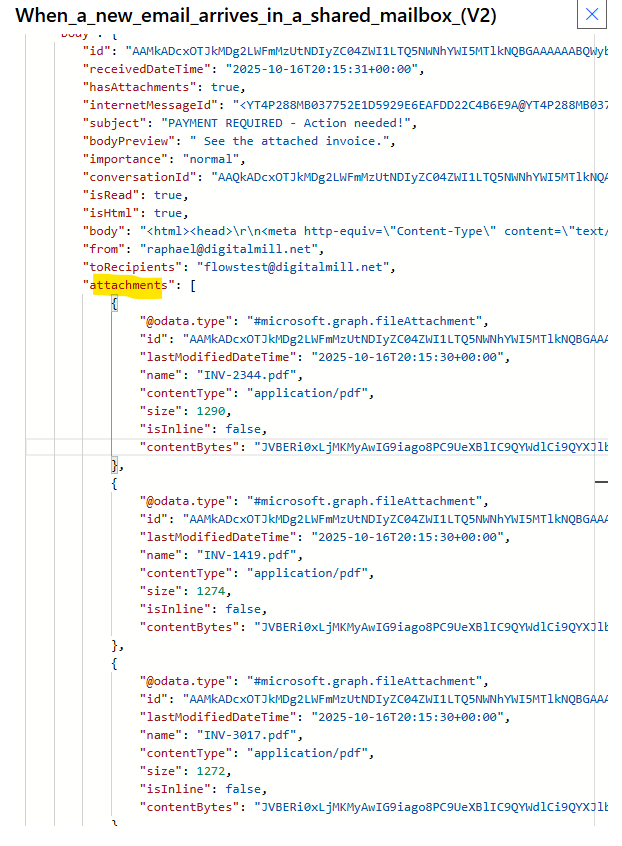
Because we set the Include Attachments property to Yes on the trigger, we’re receiving an array of objects containing the list of attached files and their content to the message, as we can see from the raw outputs of the trigger:
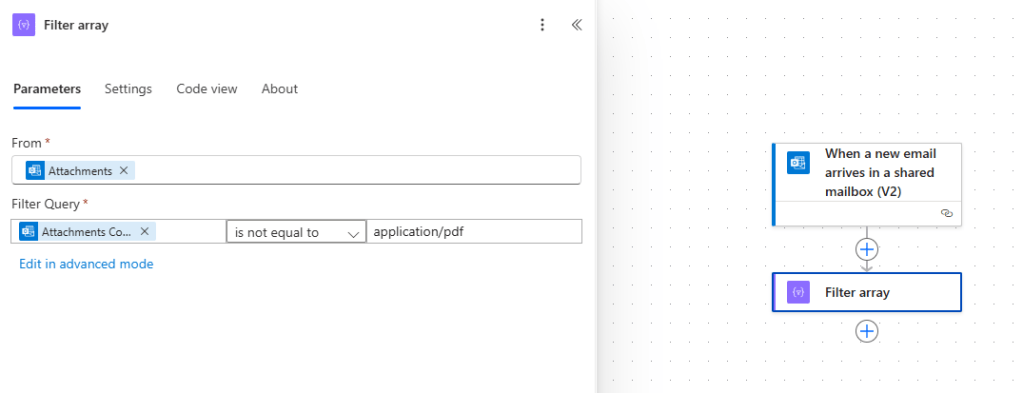
Now we can simply filter out all attachments that are not PDFs. To achieve it, we can include a Filter array action, passing the attachments dynamic content as a From input, and defining a condition to keep only the records with contentType property equals to application/pdf:
Saving documents to SharePoint with Power Automate
At this point, we have a filtered array of objects containing only the attachments that are PDFs. Now we can loop through this array by using an Apply to each:

And we can then include a Create file action inside this loop, so the PDF attachments will be saved to SharePoint.
After selecting the Site and the folder path where the attachments must be saved, we need to provide the file name and the file content. In this case, we can reference the same name from the attachment by using the expression item()[‘name’], and we must convert the file content to binary by using the base64ToBinary() function, passing the contentBytes from the currently iterated array item as parameter. As a value for the File Content, we’re using the expression base64ToBinary(items(‘Apply_to_each’)?[‘contentBytes’]):

Note: if you are planning to save attachments in plain text file formats, such as .TXT or .CSV, you must use the base64ToString() function, instead of base64ToBinary().
Testing the Power Automate solution
Now the flow is ready for testing, and to confirm that only the PDF files are being saved, let’s take the example of this email message, which includes the “PAYMENT REQUIRED” keyword (in yellow), three PDF attachments (in green) and a forth CSV attachment (in blue):

As expected, the flow ran successfully, and saved only the PDF documents in the SharePoint folder, ignoring the CSV:

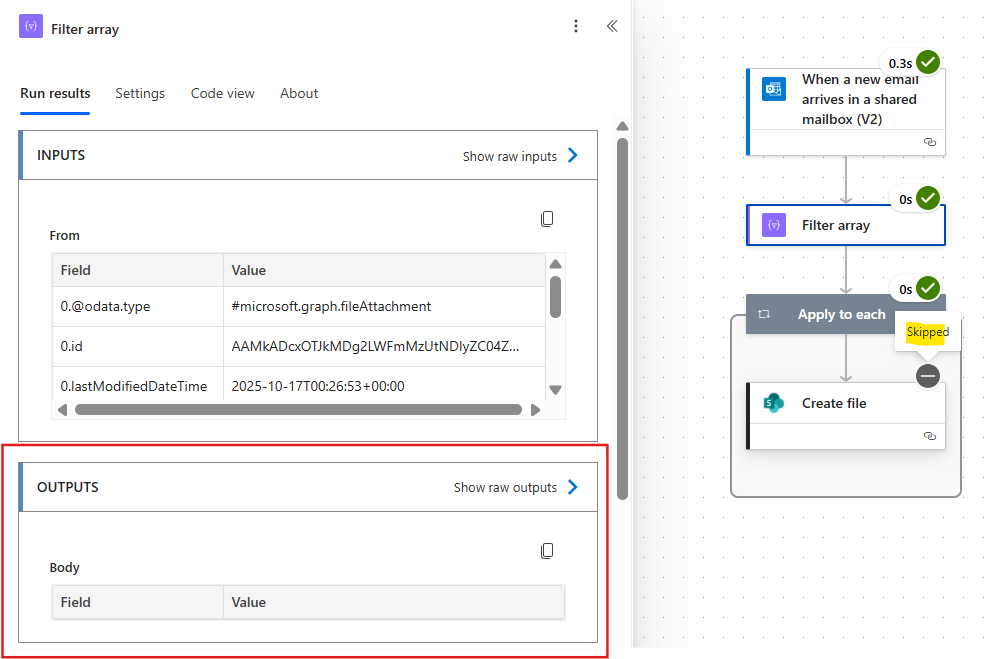
We can also test the scenario of an email message that contains the “PAYMENT REQUIRED” keyword in the subject line, but no PDF attachments:

In this case, the Filter array is retrieving an empty list of objects (in red), so no steps will be executed inside the Apply to each loop (in yellow):
Conclusion
In this blog, we saw how to automatically save attachments from incoming email messages to SharePoint with Power Automate. Let us know what do you think about this blog in the comment section, and don’t forget to check our website, our YouTube Channel or connect on LinkedIn!
 Digital Mill