
In a previous blog post, we saw how to use Power Automate to monitor changes made to a specific column from a SharePoint List. You can apply the same technique to Dataverse table, with the advantage of an even simpler process that will identify the modified column in the flow’s trigger itself.
In this blog, you will learn how to configure your trigger in Power Automate to capture changes made to a specific column (or more than one specific column) from a Dataverse table.
Trigger: When a row is added, modified or deleted
For monitoring events related to changes made to a Dataverse table records, we can use the When a row is added, modified or deleted trigger. This step requires us to specify a Change type, so the flow fires whenever rows are created, updated, or removed:

When we set up the trigger for monitoring any modification event, we can limit the flow to run only if the change is made to a few of the columns from the Dataverse table by using the Select columns property (in yellow):

Technically this setting could be set up also for Add or Delete change type, but since no column is modified in these two operations, it has no effect there – any rows added or removed from the table will trigger the flow regardless of which columns are selected.
Finding Dataverse column logical name
For populating the Select columns input, we need to provide a list of the logical name of every column you want to start the flow when modified. To get the logical name, you just have to go to the advanced parameters of the column that you want to monitor (for further instructions, check this article):

In this example, we will start the flow only when the Address 1: City column is modified, by informing its logical name in the Select columns input:

Testing the flow
Now we can make a few modifications to a table record, like setting a different Fax number or shipping method:

The flow will still not run. However, if we make changes to the city column, like the following:

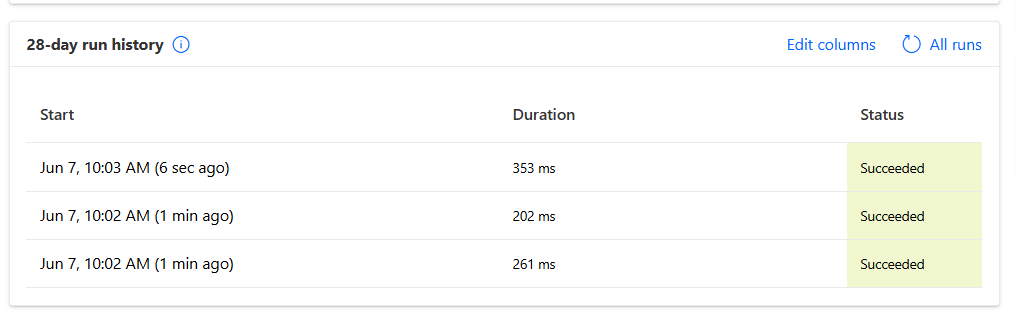
The flow will be triggered for each modification:
Conclusion
In this blog, we saw how to monitor changes made to a specific column from a Dataverse table in Power Automate. Let us know what do you think about this blog in the comment section, and don’t forget to check our website, our YouTube Channel or connect on LinkedIn!
 Digital Mill