
As a solution for automating tasks within Excel spreadsheets, Office Scripts can help you to interact and manage worksheets. These interactions with worksheets can also be triggered from Power Automate, enabling you to integrate Excel automations into your workflows.
In this article, you will learn how to perform a few useful tasks related to worksheets with Office Scripts, including:
- List the worksheets from a file
- Add new worksheets
- Duplicate a worksheet
- Delete a worksheet
- Change names of a worksheet
- Hide/show a worksheet
- Change the position of a worksheet
For real-world Office Scripts examples, you can also explore the templates available in the Office Scripts Gallery.
Accessing worksheets with Office Scripts
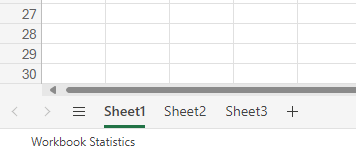
Let’s assume that we have a newly created Excel file containing only 3 sheets, named Sheet1, Sheet2 and Sheet3, arranged in this exact same order in the workbook:
There are a few different ways to access these individual worksheets with Office Scripts, all which involve methods from the workbook object. For example, to retrieve the currently selected worksheet, you can use the workbook.getActiveWorksheet() method (line 4). It’s also possible to access a worksheet by its name using the workbook.getWorksheet([name]) method (line 5), where you must specify the name as a string and enter it between the parentheses. Lastly, if you need to access the first or last worksheet in the workbook, you can use it by use workbook.getFirstWorksheet() or workbook.getLastWorksheet() methods (line 6):
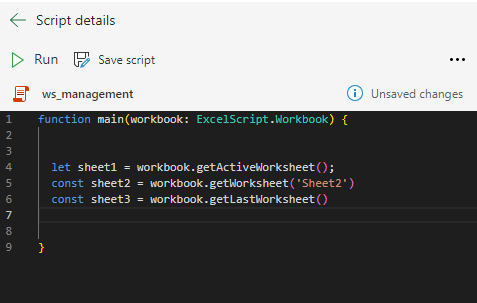
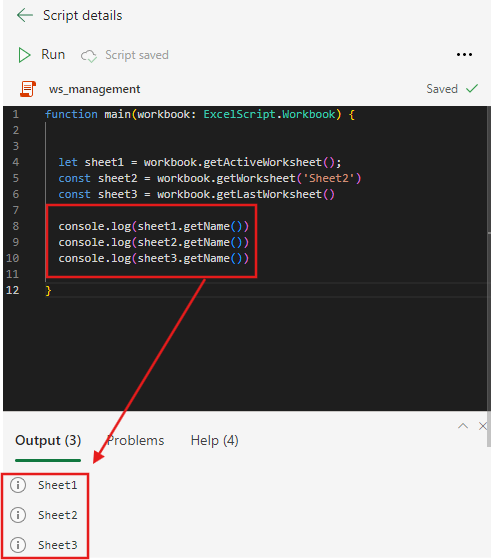
We are assigning these worksheet objects to variables (to learn more about variables in Office Scripts, check this article). Then we can interact with these variables in different ways, like printing their name by combining the .getName() method wrapped inside a console.log() (in red):
If you type a period after a worksheet object, which is the case of the variables that we’ve initialized so far, you will find a list of all methods associated with that worksheet. These methods represent all tasks that can be performed on the worksheet with Office Scripts, including actions like activate (for selecting the worksheet as active), findAll (for searching for data within the worksheet), getTable (to return a table positioned in the worksheet) and many others:

List worksheets with Office Scripts
To retrieve all the worksheets from a file, you can use the method getWorksheets() from workbook element. In the code below, we are accessing all worksheets from the Excel file and assigning them to a variable called allWorksheets (line 12). The getWorksheets() method returns an array of worksheet objects, and it is possible to access the properties from its individual sheets by using iteration methods, such as map(). For example, with a code like allWorksheets.map(ws => console.log(ws.getName()+” – “+ws.getPosition())), we can access each worksheet and print their name followed by its position index (line 13):

The map() method is available for any array, and it iterates through each of these elements, applying a specified function to it (for learning more about functions in Office Scripts, check this article). The function is passed as an argument inside the parentheses and receives one required parameter (the array item itself) and an optional second parameter (the iteration index of the current item, which is omitted in the previous example).
For our use case, we are working with an arrow function, where ws is the parameter representing each worksheet of allWorksheets variable. For each worksheet, we use the methods getName() and getPosition()concatenated within a console.log().
Add new worksheets with Office Scripts
To add new worksheets to the Excel file, we can use the addWorksheet() method from the workbook object, passing the name of the new sheet between the parentheses:

After running the Script, the new worksheet will be created:
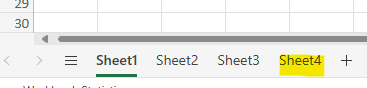
If you try to create a worksheet with a name that is already in use, the script will fail and no action will be taken.
Duplicate worksheets with Office Scripts
It is also possible to clone an existing spreadsheet, including all its data. To test it, let’s create a new sheet to represent a travel expense report template, where employees from an organization can enter data related to individual expenses incurred during a trip. We are naming this sheet as Expense report template:
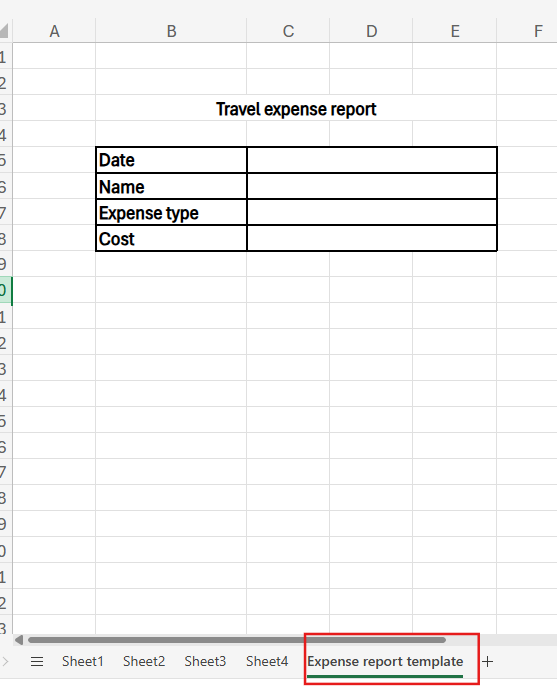
In Office Scripts, we can initialize a new variable capturing the data from the new spredhseet (line 16) and simply use the copy() command to duplicate it:

It will generate a duplicate of our template, with the same name with (2) added, and positioned at the beginning of the worksheets list:
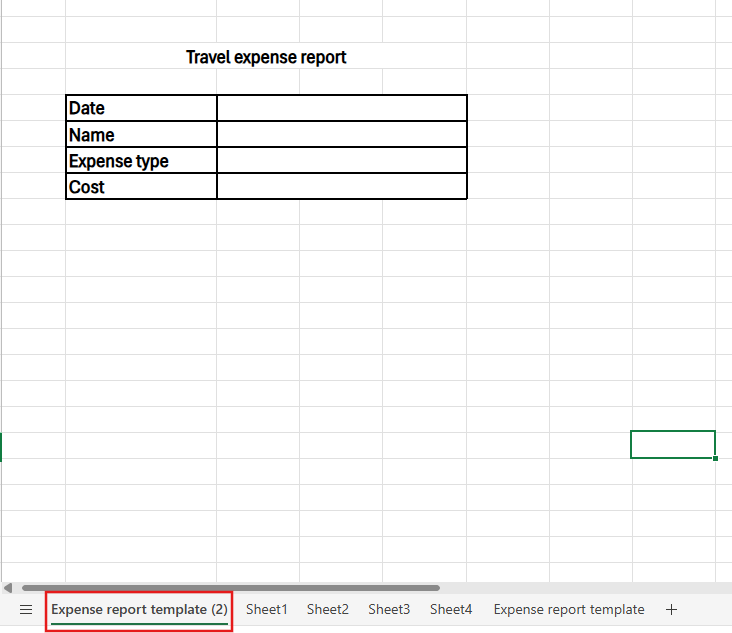
This operation is customizable. We can pass a few optional parameters between the parentheses of the copy() method to specify the position where the duplicate should be allocated. The first parameter represents this position, which can be set to after, before, beginning, end or none, and is specified using the ExcelScript.WorksheetPositionType.[position] property, as highlighted in green. Since this is an object property and not a string, you don’t need to use quotes for referencing this parameter. The second parameter is the existing worksheet relative to the position to be considered. We are using Sheet 2, as you can see by the reference to sheet2 variable (highlighted in blue):

After closing the parentheses for the copy() method, you can add new settings to the newly created clone by adding a dot and passing the methods you wish to customize. For our use case, we are renaming the sheet for something more meaningful like “Expense report – San Francisco”, by using the setName() method.
As a result, the new copy is positioned after the Sheet and is renamed according to the customization specified in the code:

Delete worksheets with Office Scripts
To remove worksheets from your Excel file, simply use the delete() method from the worksheet object corresponding to the sheet that you want to remove. No parameters are required for this method:

Rename worksheets with Office Scripts
We can rename existing worksheets using the setName() method, just like we did during the cloning process. The method is executed from a worksheet object, and the new name should be passed between parentheses:
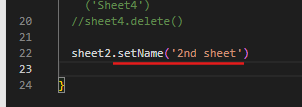
After running the script, the sheet will be renamed:

Hide/show worksheets with Office Scripts
Another possibility is to manage the visibility of the worksheets using the setVisibility() method from worksheet object. This method requires a sheet visibility reference as a parameter, which can be hidden, veryHidden or visible. For example, by using this command, we set the visibility of the “Expense report – San Francisco” sheet to hidden:

The difference between hidden and veryHidden is that you can manually unhide any hidden sheets, while the visibility of veryHidden ones can be controlled only through code (Office Scripts or VBA).
Reorder worksheets with Office Scripts
Lastly, you can change a sheet’s order by using the setPosition() method, passing the target position index as a parameter. Since the position is zero-indexed, you should use 0 to set the sheet at the first position, 1 for the second, and so on:

After running the code above, the “Expense report template” sheet will be reordered to the first position, as we set the index as 0:

Conclusion
Office Scripts provides a powerful set of methods for managing worksheets in Excel, allowing for enhanced control over spreadsheet elements. Similarly to VBA, Office Scripts allow you to automate several tasks related to the individual sheets, which can be very helpful for different scenarios.
 Digital Mill