
Power Automate is a great tool for managing approval processes, allowing you to create approval requests, wait for a response or cancel it. One of the main actions for handling approvals is the Start and wait for an approval, which creates a new approval request and keeps the flow running until it is responded.
However, when the approval request is canceled without a response, the flow stays running for up to 28 days, until it finally gets automatically terminated due to a timeout. These pending runs can lead to unnecessary complexity in managing your flows, since the runs history will include several flows with a “running” status, even though their associated approval requests have already been canceled.
Fortunately, it is possible to cancel any pending flow runs as long as we can capture its unique identifier. In this article, you will learn how to cancel Power Automate flows linked to approval requests as soon as the requests are canceled.
Note: this solution relies on a premium connector (Dataverse), so users that don’t have a Power Automate Premium license may not be able to implement it.
Use case overview
For the purpose of this blog, we will focus on a training management system where the employees can register for internal training sessions by submitting a Microsoft Form. At the same Form, the employee can withdraw their registration. To keep things simple, we won’t work with any data storage platform besides the default Dataverse Approvals table, and we will assume that an employee cannot enroll twice to the same course.
The Form is pretty straight forward and contains only 3 questions:
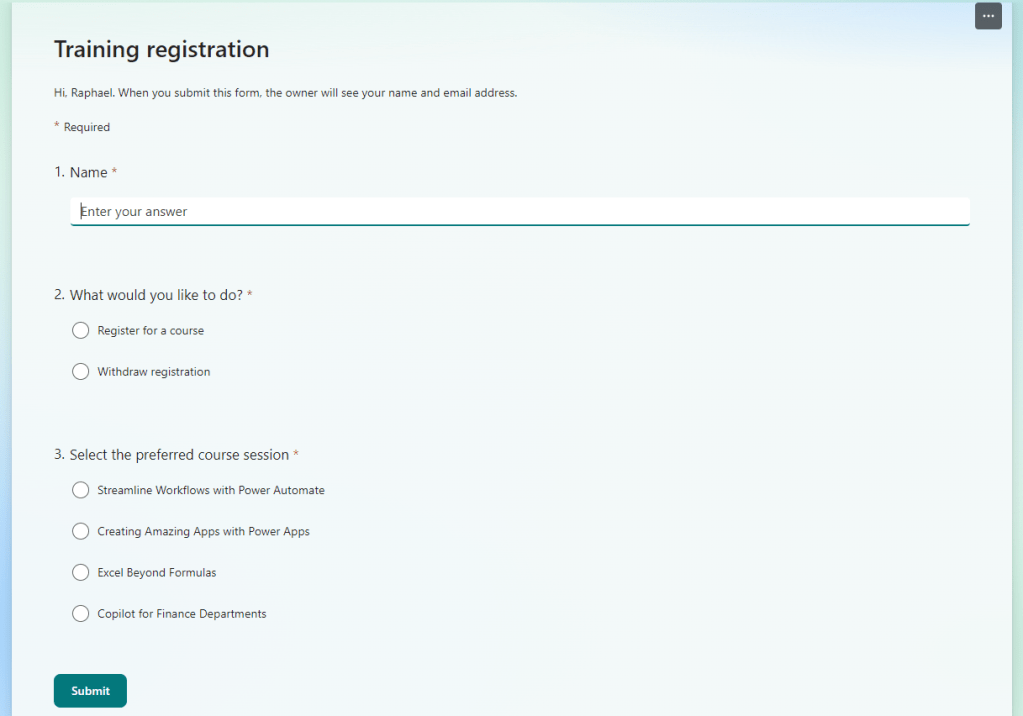
Once the Form is completed, a Power Automate flow is triggered with a conditional branching to determine whether the employee wants to register for a course or withdraw an existing registration (check this article to learn more on how to use conditions in Power Automate). If the employee chooses to enroll in a session, a new Approval request is created and waits for a response (True branch of the condition); if the employee withdraws their registration, the pending Approval request is cancelled (False branch of the condition), following the process described in this blog:

The approval requests follow a default title convention that includes the employee’s name and desired course, so we can use it in a filter query within the List Rows action when searching for the specific approval request to cancel when processing registration withdrawal requests:

Although this flow design cancels the approval request itself, the flow run that initiated it will remain active, since the Starts and wait for an approval action pauses the execution until the request is responded and a “Canceled” status doesn’t qualify as a valid response.
Accessing Power Automate flow run ID
We now want this flow to not only cancel the pending approval request, but also terminate the related flow run. To accomplish this, we will need to make a few changes to the current flow design to extract the current workflow run ID and store it in the Approvals table for future use in the withdrawal scenario.
To get the flow run ID, we need to use the workflow() expression, access the run property and then the name property. Since this is required only in the enrollment scenario, let’s add a Compose action within the True branch (before creating the approval), and set the expression workflow()[‘run’][‘name’] as input:

Inserting Power Automate flow run ID to approval request
To store the ID, we should include it in either the title or details of the approval request. Ideally, this information must be isolated from the rest of the text with a separator, so we can easily retrieve it when cancelling the flow run. The flow run IDs follow an alphanumerical pattern, where the letters are all in uppercase, so you can use any distinct separator like a special character or lowercase letter. For this example, let’s use the # and position the flow run ID at the end of the Details field in the approval request, by using the dynamic content from Compose action:

Cancelling pending Power Automate flow runs
At this stage we are already storing the flow run ID in the details of the corresponding approval request, so we can access it later from the False branch by simply adding a Compose action and using the expression last(split(outputs(‘List_rows’)?[‘body/value’][0][‘msdyn_flow_approval_details’], ‘#’)):

The expression accesses the Details property from the first record returned by the List rows action, splitting it by the “#” character and retrieving all content after its last occurrence. Since we positioned the flow run ID at the end of the Details text and right after a “#”, we can be sure the expression is accurately extracting it. For learning more on how to work with text expressions in Power Automate, refer to this article.
Finally, let’s add a Cancel Flow Run action, specifying the environment and the flow that we want to track and passing the Compose output as Run ID:

Testing the solution
Now it’s time to test our solution. We will start by submitting a new registration request:

As expected, a new approval request is generated, including the flow run ID at the end of the details:
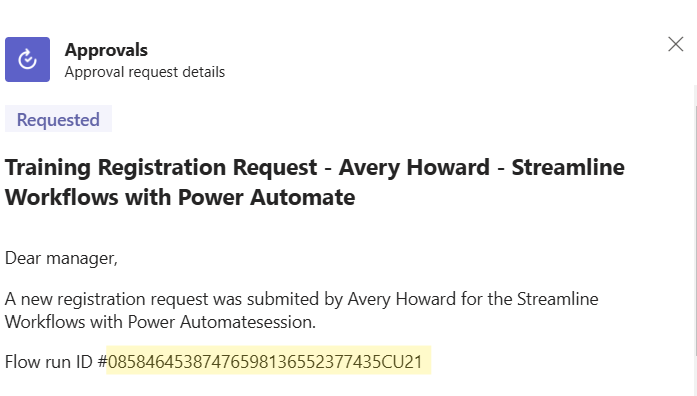
Since our flow design contains a Start and wait for approval action, the registration flow will remain active until we respond to the request. To test the cancel feature, submit another form for the same employee and the same course, but at this time withdrawing the enrollment:
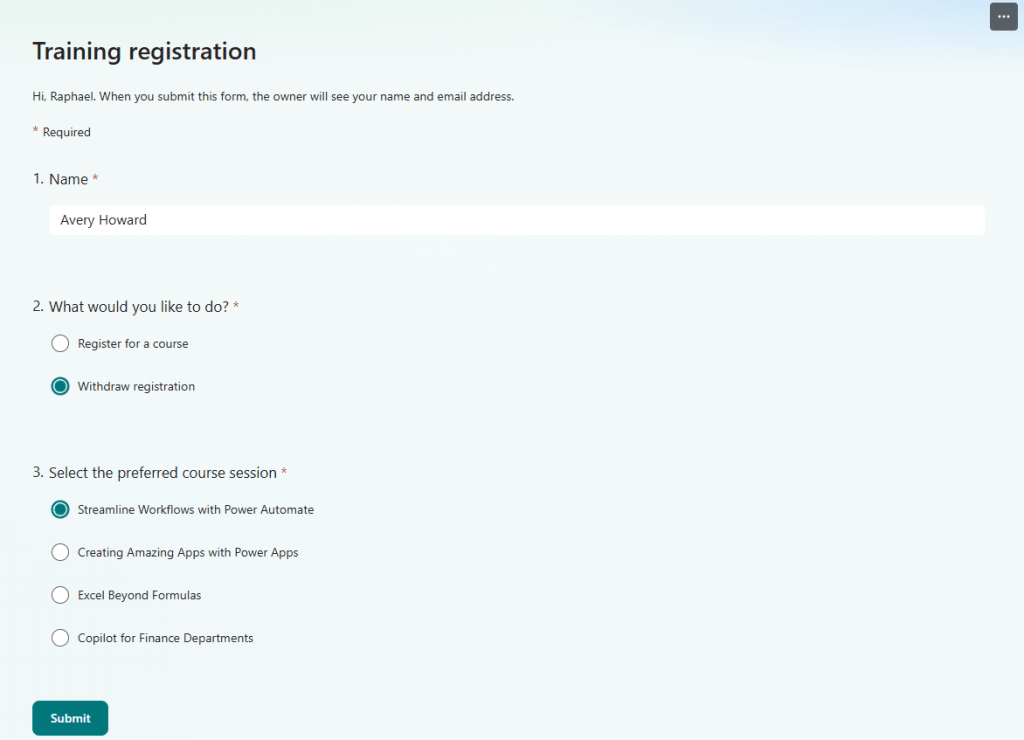
Once we submit it, the flow is triggered again (highlighted in yellow), and at this time the registration flow is still running (highlight in green):

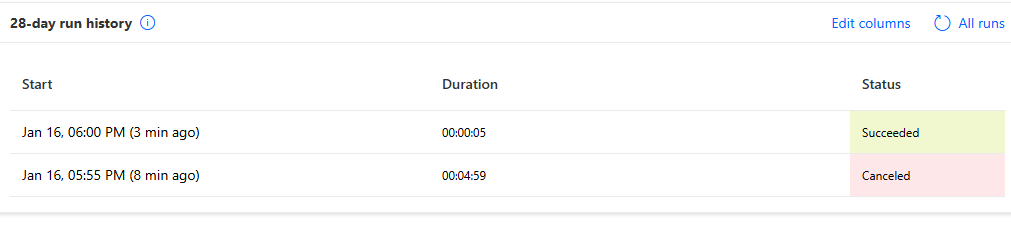
After a few seconds, the withdraw flow run finishes successfully:
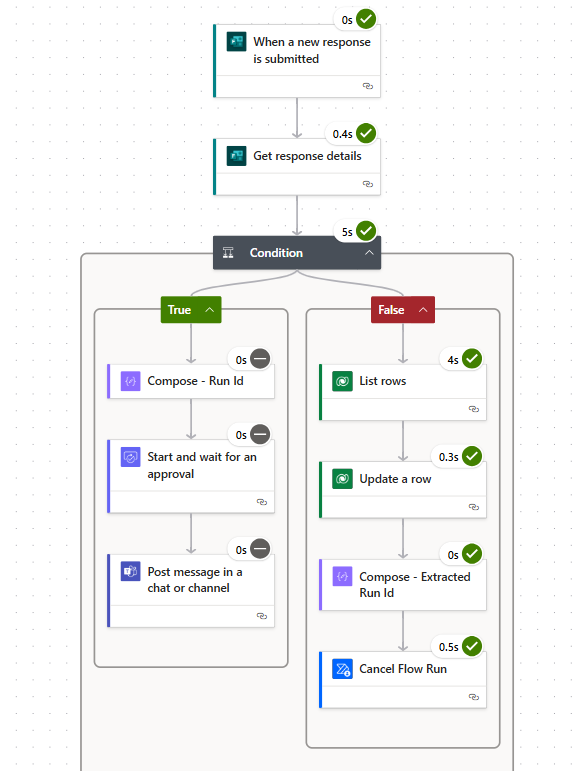
Consequently, the approval request is cancelled:

And the same happens to the enrolment flow run:
Conclusion
In this article, we explored how to ensure more consistency to your Power Automate flows management by incorporating a feature to cancel both pending approval requests and their corresponding flow runs. By cancelling the pending flows, we can clean the flow history and reduces unnecessary complexity in managing pending runs.
 Digital Mill