
As a set of low code tool, Power Platform is great for any “non-IT-experts” enhance their productivity with automations, applications, AI agents and websites, and all of that with a very smooth learning curve. However, once you start to work with more complex projects that may combine different Power Platform assets, such as Power Apps, Dataverse tables and multiple Power Automate flows, you must need a better level of organization in your environment.
This is where the Solutions come into play: as part of the Application Lifecycle Management (ALM), they act as a container for all relevant assets related to a project. By using the Solutions, you can also easily move your whole application to different environments in an organized way, ensuring a proper isolation to your development and production environments.
Application Lifecycle Management (ALM) and the Solutions in Power Platform
Application Lifecycle Management (ALM) controls different stages of an application development and release. It includes mainly the governance, development and maintenance from the moment when the application is initially planned (which includes the requirements gathering and management and considerations on the software architecture), until it is finally built and deployed.
A relevant part of the ALM is the idea of separated environments for each phase of the development process, which includes:
- Development: Environments where the application is mainly created and modified. All flows, apps, chatbots, tables and any other components must be created or edited here. This is where the Citizen and/or Pro Developers can play around and create/edit any features without the risk of disrupting daily operations.
- Test: After the application is developed, you can move the solution to a Test environment, where both developers and non-developers can validate it. The type and extension of tests will depend on your organization needs. It is not mandatory to have a Test environment for ALM in Power Platform, but it is strongly recommended by Microsoft.
- Production: This is where the application is operated by the end-users. Technically, the developers should not have access to this environment, as no application changes must be performed here.
In Power Platform, Solutions are the main tool for implementing ALM, enabling the movement of components between environments. In different environments, users must have the proper security roles assigned to them: for example, developers must have at least the Environment Maker role in the Development environment, but they technically won’t need more than a Basic User role for Test and Production ones.
You can either work with separated solutions for the individual features or increments in your application, or update a same solution and then export it again to Test or Production environments. Separated solutions provide a modular approach and can even include customizations of the same components.
Types of Solution in Power Platform
There are two types of Solutions in Power Platform: the managed, which cannot be edited by the users, and the unmanaged, which can be modified by the users (as long as they have the proper permissions in the environment).
During the application development stage, you must use unmanaged Solutions, since they are not locked for creating and customizing components. It is possible to then export it as both managed or unmanaged packages, so you can define how it will behave whenever it is imported to a different environment. Only unmanaged Solutions can be exported.
For Test and Production environments, the ideal is to use the managed Solutions. The managed Solutions cannot be directly edited, but any attempts to change some components can result in a new unmanaged layer to the Solution, as long as the component allows customizations.
In practice, if you are moving a Solution to a Test or a Production environment, you may export it as managed. However, if you are exporting it to edit in a different Development environment or just to save it somewhere else as backup, make sure to select it as unmanaged.
Finally, the Solution will always receive a version number when exported, so you can keep track on the changes across the different releases of a same application.
Moving Solutions among Power Platform environments
As part of ALM, a single Solution may have multiple versions, since new requirements can come up, features are included or modified, and bugs are fixed. During this process, a few actions are taken in the different environments at your organization:
- Create: This is the creation of a new Solution, which will always be of unmanaged type. In general, the Solutions are created in Development environments, since we should not build components in Test or Production.
- Upgrade: When importing a new version of a managed Solution to an environment, you can choose to import it as an “Update”, an “Upgrade” or “Stage for Update”. The Upgrade is the default action taken during the importing process, implementing the changes in the target environment and removing any components that existed in previous versions but are not included anymore in the upgraded version.
- Stage for upgrade: This approach is similar to Upgrade, but it postpones the deletion of components to a future moment. As a consequence, you will now have two different Solutions for the same application coexisting in your environment.
- Update: This action replaces the Solution in the target environment by the new version, without removing any components that are not present in the new version. For deleting any components, you need to use the Upgrade action.
- Patch: A small change to a parent solution, which is usually applied when you have a minor bug to fix and don’t want to run the whole lifecycle (passing through development, test and production) exclusively for it.
Solutions layering in Power Platform
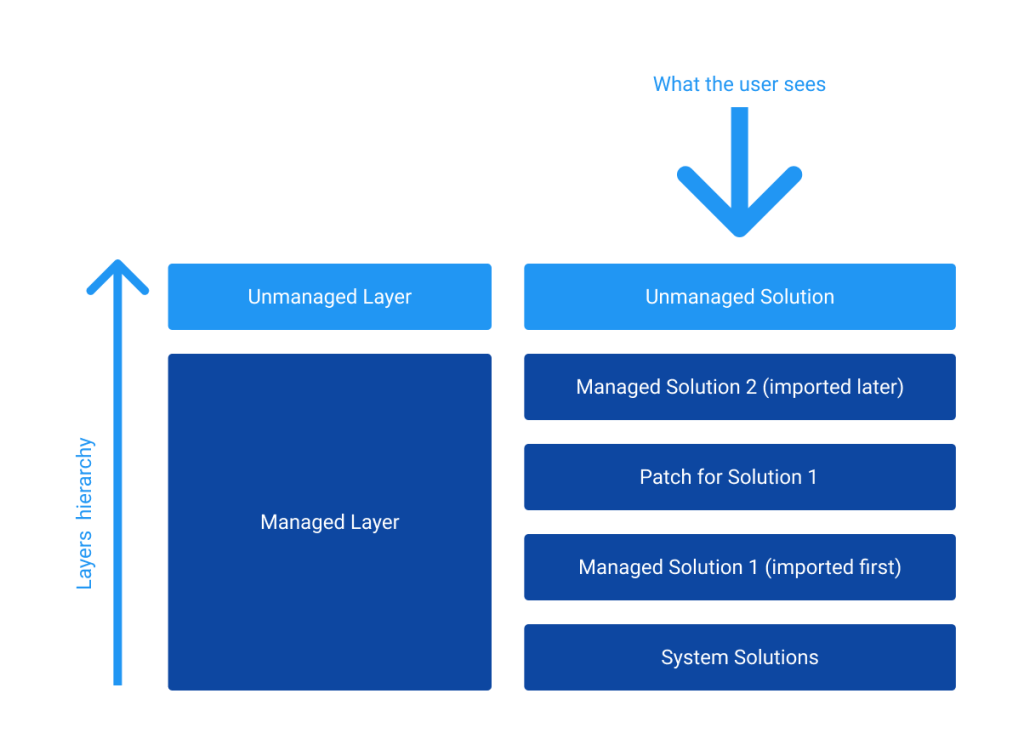
Since you can have more than one solution containing customizations for a same component, Power Platform solves the potential conflicts by working with the layers. The layers are organized in a hierarchical logic and positioned as a stack, observing the following rules:
- Among the managed Solutions, the newer imported to the environment overrides the older ones. If you have two Solutions customizing the same component, one imported on November 2nd and other in November 15th, the user will see the component according to the second Solution version.
- System Solutions will be always on the base of the stack, so any other Solutions override them.
- Patches override the Solutions to which they are related to (parent Solution), but not the managed Solutions imported later (1st rule).
- If there are any unmanaged Solutions in your environment, they will be positioned on the top of the stack, overriding all other solutions.
The hierarchy of the Solution layers looks like this, where the top layers are visible to the user:
Solution publishers in Power Platform
When creating Solutions to Power Platform, you must identify the Solution publisher. The publisher is the Solution owner, and it is important to ensure a better organization in your ALM. For example, for a company that has different Power Platform development teams creating Solutions simultaneously, work with different publishers can be helpful to avoid confusion on which team developed a specific feature.
How to create a Solution in Power Platform?
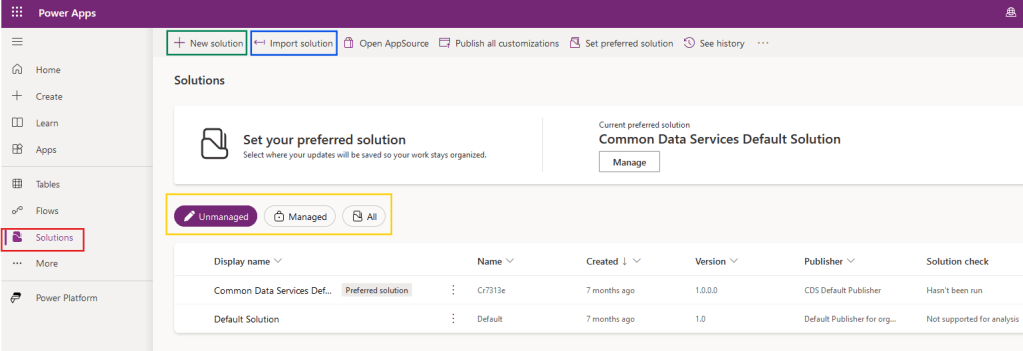
To create a new Solution in Power Platform, navigate to the Power Apps Portal and click in Solutions, on the left-side menu (highlighted in red). You will then see a list of the available Solutions in your environment, which can be filtered by managed or unmanaged (highlighted in yellow). At the top of the same screen, you will find a New solution button (highlighted in green), which you can use to initialize an unmanaged Solution. At the right side of it, you will find Import a solution (highlighted in blue), which you can use for bringing both managed or unmanaged Solutions to the environment:
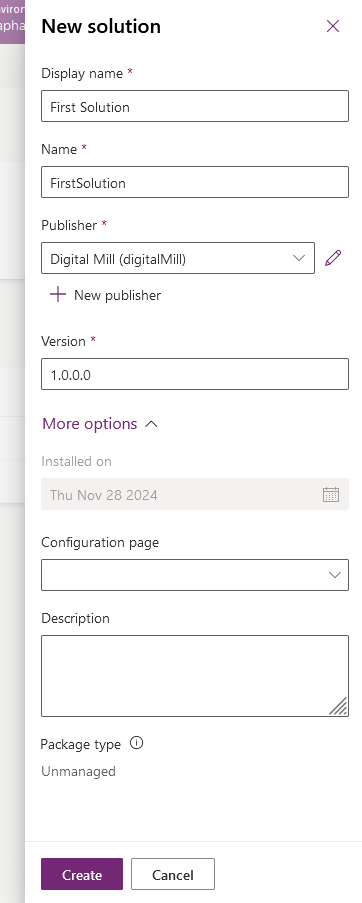
After clicking in New solution, a pane will show up on the right side of the screen, where you must input the Solution display name and its internal name (which usually is automatically populated from the display name by removing any blank spaces). At this point, you must also select the publisher and the version:
After clicking Create, you will see the main Solution page and a view for all of its components (since we just initialized the Solution, there is no components yet). You can either create new components by clicking New (highlighted in red) or add any assets that already exist in your environment by clicking Add existing (highlighted in blue):

After adding all relevant components, you can export it as a managed or unmanaged Solution and then import it in the target environment.
Conclusion
The Solutions are a very important feature for managing applications in Power Platform. When starting to work with Power Platform, many users may ignore the relevance of the Solutions, since they don’t implement an Application Lifecycle Management at all in their operations. However, using ALM and Solutions is important even for the less complex scenarios, since it ensures a better organization, maintenance and governance to your applications.
 Digital Mill