
Data types are a fundamental concept for Office Scripts, as this is a frequent source of errors for both beginners and experienced users. Unlike VBA, where users are always required to explicitly declare data types for variables, Office Scripts doesn’t impose this requirement. This practice, however, is highly recommended and must be followed for a better code readability and maintenance.
In this article, you will learn what are data types, which are the most popular data types in Office Scripts and how to work with them.
For real-world Office Scripts examples, you can also explore the templates available in the Office Scripts Gallery.
What are data types in software development?
Data types in programming are like categories that define what kind of data you are working with. You use data types to tell the computer whether you’re dealing with numbers, text, or other forms of information. For example, if you want to store someone’s age, you would use a numerical data type. If you’re storing a name, you would use a text (string) data type.
Data types are essential for preventing errors. For example, imagine that a part of your script is performing a sum operation: if your code sends a text to this operation by accident, an error will occur because text cannot be summed like numbers. The data types let the computer identify this kind of error early, alerting the user before the script runs.
Another key advantage of the data types is the improvement in script clarity and readability, as it clearly specifies the kind of data being used or expected. When working by yourself with small pieces of code, this advantage may sound trivial, but when people are collaborating on the same project or you have several functions operating at the same script, the data types make it easier to understand and maintain the code.
Why data types are important in Office Scripts?
Office Scripts is built on TypeScript, a strongly-typed programming language. This means TypeScript enforces the type checking, detecting type issues in advance and returning warnings when the user doesn’t utilize it correctly.
Although TypeScript has some built-in basic data types, such as string, number, float, array and boolean, Office Scripts extends this list by adding specific data types. These data types are important to interact with Excel common entities, like worksheets, ranges, tables, charts and more.
Each entity in Excel has its own characteristics and capabilities which are reflected in Office Scripts through specific data types. For example, you can set a fill color for a cell or range, but you cannot do it for images or worksheets (though it applies to all cells within a worksheet). Similarly, you can retrieve the address from a cell, a range or a table, but not from a chart.
All these characteristics (referred to as properties in programming) and abilities (known as methods in programming) can be manipulated by Office Scripts, and the data types are essential to prevent the user from accidentally set a fill color to a worksheet, or attempt to return the address from a chart.
Type annotation: Explicit data types in variables and functions
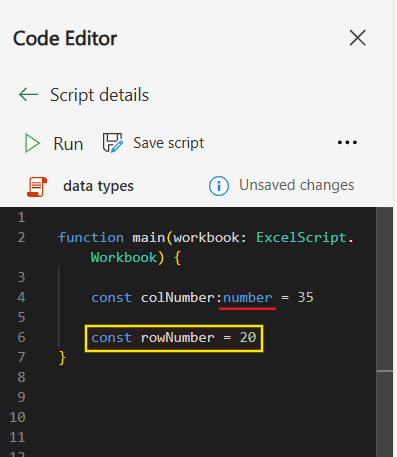
When creating new variables or functions, you can explicitly declare their related data type. This feature is called type annotation, and improves code readability by providing clarity on the expected data types. For example, by annotating a variable as number, TypeScript enforces that only numerical values are accepted in this variable, improving overall code safety and maintainability.
To explicitly declare a variable’s data type, simply add a colon after the variable’s name, followed by the data type, as shown in the example below (marked in red). Although not recommended, you can also omit this annotation, so TypeScript will implicitly assign a data type to the variable based on its value (highlighted in yellow):
It’s also possible to annotate data types for function returns. In this case, you are declaring the expected data type of the function’s return value (refer to this article to learn more on how to work with functions in Office Scripts). In the example below, the function getNumber() returns a numeric value (3), so we specify the return type as number:

Functions that don’t have a return statement must also be annotated. In this case, instead of specifying a standard data type, you use void to indicate that no value will be returned. In the example below, the function setValueToCell() assigns a generic value to the active cell in the workbook, but it doesn’t return anything, so we annotate it as void:

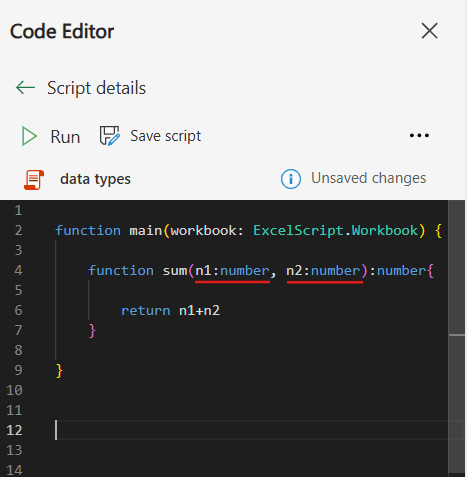
Finally, it’s also possible to explicitly declare the data types of the parameters expected by a function. In the example below, we define a function called sum() that takes two parameters, n1 and n2, both of which are declared as number data types:
Basic data types in TypeScript
The basic data types in TypeScript are similar to those found in other programming languages, and even to Excel. For example, TypeScript includes data types for texts (string), numbers, logical values (boolean), lists (arrays) and more. Let’s take a closer look at how each of these types works.
String
In TypeScript, the string data type is used to represent textual data. It includes single characters or sequences of characters of any length. Strings can store things like names, descriptions, range addresses (like “A1” or “B3:D100”), or any piece of text. They are often used in operations like concatenation (joining strings) or formatting output.
For creating strings in Office Scripts, you must enclose the text value between single or double quotes. In the example below, we’re assigning string values with both single or double quotes to two variables:

Throughout this article, we’ll be using many variables. If you want to learn more about how to work with variables in Office Scripts, check this post.
Number
The number data type is used for both integers (whole numbers like 5 or 100) and floating-point numbers (decimals like 3.14). Unlike some other programming languages (including VBA), TypeScript uses the same number type for all kinds of numeric values, independent on the size of the number or the quantity of decimal points:

Boolean
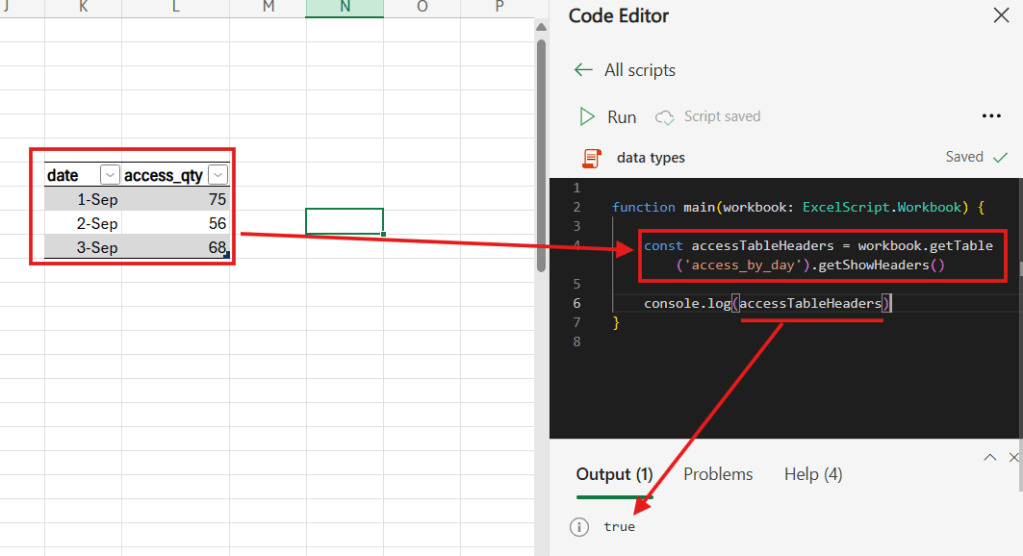
A boolean data type represents a logical value that can either be true or false. It’s often used in decision-making, such as checking whether a condition is met or controlling the flow of a program. For example, you might use a boolean to check if a user is logged in (true) or not (false). When interacting with the Excel file using Office Scripts, a boolean value is used for identifying if the header row of a table is visible or not.
In the example below, we access an existing table in the Excel file called access_by_day and testing if its headers are visible or not by using the getShowHeaders() method. This method returns a boolean value, as the header visibility can only be true (visible) or false (not visible). We are also assigning its boolean value to a variable called accessTableHeaders and, on line 6, using a console.log() to print the variable’s value to the Code Editor Console (to learn more about using console.log() in Office Scripts, check this article):
Array
An array is a data type used to store multiple values in a list. These items can be of the same or different data types, and you can imagine them as a collection of items, like an array of users or of customers. For example, when accessing data from ranges in an Excel file, the cells located in the same row are organized within an array.
In Office Scripts, array must be enclosed by square brackets, with elements separated by commas, like in the example below. You can have values from any data type inside your array, including other arrays:

As a collection of elements, arrays are useful for organizing related data and TypeScript provides you with the ability to perform operations on the items, such as looping through them or accessing elements by their position.
Object
The object data type in TypeScript allows you to store collections of key-value pairs. In practice, objects are useful for storing data related to a single entity, where each key represents a property and its corresponding value, which can be from any data type. For example, an object representing a person might have properties like name (string), age (number), and isEmployed (boolean).
Objects must be enclosed in curly brackets, with each key-value pairs separated by commas. The keys come first (marked in red) and are followed by colons and their corresponding values (marked in green). It’s even possible to have other objects within an object (highlighted in yellow), or functions (highlighted in blue):

Null and Undefined
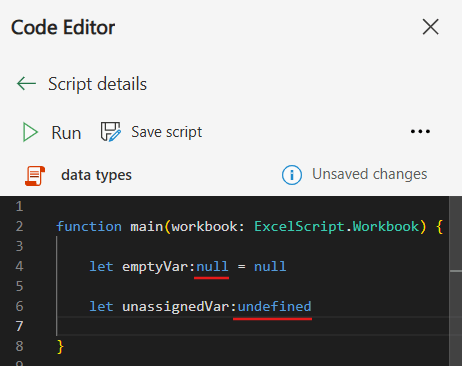
In TypeScript, null and undefined are two distinct data types that represent the absence of a value. null is typically used to indicate that a variable intentionally has no value, while undefined means a variable has been declared but hasn’t been assigned a value yet. These types help manage cases where data might be missing or not yet available in a program.
In the example below, you can see the difference between these two types in practice: we have a variable that doesn’t receive any value (varUndefined), and its console output return as undefined. We also have a variable that explicitly receives a null value (varNull), then its output result is null:

Although both types are used to represent empty values, null is preferred over undefined when you want to explicitly represent the absence of a value. In general, undefined signifies that a variable has been declared but not yet assigned a value, sometimes by mistake.
Both null and undefined values can be assigned to variables of any data type, as demonstrated in the previous example with a string type variable. Additionally, you can explicitly annotate a variable with null or undefined types when initializing it:
Any
In TypeScript, the any data type allows a variable to hold any kind of value, whether it’s a string, number, boolean, object, or any other custom data type. However, in Office Scripts, the any data type is not available, so you must always assign a specific data type to a variable or function.
Custom data types
In addition to the built-in TypeScript data types, you can also create custom data types using aliases. The type alias allows you to define a custom type for specific data structures, like objects, numbers or strings.
One example of usage for aliases is to restrict the available options for a specific data type, where no other alternatives different from the available choices are available. It works similarly to a cell validation in Excel, where you have a set of allowed options to be selected by the user. In the following example, we are creating a type alias named Status using the type reserved word (marked in red), which accepts only three values: active, on hold and approved. When creating the variables orderStatus and deliveryStatus, we are annotating its type to the newly created alias (marked in green), and then assign a value to them:

In the example above, there is no error for orderStatus variable, as it receives one of the values allowed by the Status type alias. For deliveryStatus, however, Office Script returns an error, as we assigned an unallowed value (cancelled) to the type alias, as marked in yellow.
It’s also possible to define a specific structure for an object when creating a type alias. In this case, we just need to open curly brackets (which represents an object), and list the required keys along with their respective data types, as highlighted in red. When creating a variable that uses a type alias for an object, make sure to adhere strictly to the defined keys (as highlighted in green), since any other keys not specified in the alias will return an error (such as startDate key, in line 16):

Special data types in Office Scripts
Since it’s possible to create custom data types in TypeScript, Office Scripts offers a set of special types for interacting with the Excel file elements. These custom data types are structured as interfaces, which are essentially objects containing properties (characteristics) and methods (abilities) related to the entities commonly found in an Excel file.
All special data types in Office Scripts are defined within the ExcelScript namespace (namespaces are a way to organize programming assets, like functions or interfaces). For example, the workbook, which is an object referencing the whole Excel file, has a data type of ExcelScript.Workbook (highlighted in red). You can find a list of all available assets within the ExcelScript namespace in Office Scripts, by simply adding a period after it (highlighted in yellow):

Some examples of data types provided by ExcelScripts are ranges, tables, charts, worksheets, pivot tables, and more. You can find a list of all ExcelScripts interfaces here.
All these Excel assets can be accessed directly from the workbook object, which is the default parameter for the function main (to learn more about functions in Office Scripts, check this article). For example, the workbook object has a method to return a specific worksheet by its name, the getWorksheet(), and we can assign its output to a variable of ExcelScripts.Worksheet type (highlighted in yellow). This worksheet object will also have its own methods and properties, allowing us to access a specific range within the worksheet, by using the getRange() method and assigning it to a variable of ExcelScripts.Range type (highlighted in red):

The cell variable, which has a range data type, you will find a set of methods and properties that are particular from Excel ranges. By adding a period after the variable name, you can see a list of all available methods that correspond to typical operations for an Excel range, like addConditionalFormat (sets a conditional format to the range), clear (clear the range’s content, format or all), getAddress (returns the range address, like “Sheet1!A1:B4”), merge (merge the cells within a range), and many other examples.

The same logic applies to the ws variable, which holds a worksheet object. However, the available methods for ws are specific to worksheets rather than ranges. For example, you can find methods like activate (sets the worksheet as active), delete (deletes the worksheet), getNext (returns the next worksheet in the file), getTables (lists all tables within the worksheet):

Conclusion
Office Script provides robust tools for defining and working with various data types, from basic types like string and number to more complex structures like ranges and worksheets, or even the ability to create your own custom type aliases. Understanding these data types, and how they interact with Office Scripts, is important for take your Excel automations to the next level, as this knowledge enables you to increase the complexity of your script maintaining its readability.
 Digital Mill