
When creating automations in Office Scripts, you may encounter scenarios where the same or similar steps need to be executed at multiple times in your script. This can result in repetitions along the code, which increases complexity and makes the script more challenging to maintain and scale.
In programming, functions are a powerful tool to avoid code repetition by encapsulating logic into reusable blocks. By defining a function, you can write the code only once and then call that function whenever you need it, reducing the total amount of code and simplifying your Office Script.
In this article, you will learn how to work with functions in Office Scripts, with focus on how to avoid repetitions in your code. If you are new to Office Scripts, check this blog post.
For real-world Office Scripts examples, you can also explore the templates available in the Office Scripts Gallery.
What is a function?
In programming, a function is like a reusable set of instructions that you can use to perform a specific task. Imagine you have an Office Script automation that must, in different moments of the process, apply some style format to some variable ranges in a spreadsheet. Instead of writing down the ranges and applying the style in each of these moments, you can create a function for that and just call it whenever you need.
You can think of functions in Office Scripts (and in TypeScript as well) as being similar to Excel formulas. When you want to perform a specific calculation in Excel, like summing up a column of numbers, you can either manually execute this operation (=A1+A2+A3+A4), or simply use a formula like =SUM(A1:A4). Both approaches will return the same result, but the formula is reusable, meaning you can apply it to different sets of data by just change its inputs, without rewriting the steps each time.
It’s not mandatory to work with functions in Office Scripts, but it is highly recommended for any automation that has at least one repeated statement during the code.
Creating functions in Office Scripts
To create a function in TypeScript, you start by using the function keyword (highlighted in green), followed by the function’s name (highlighted in red), parentheses for optional parameters (highlighted in blue), specify the function return data type (highlighted in orange), and finally add curly braces to define the function’s body (highlighted in yellow). For instance, a simple function that sets a value to a cell in a worksheet can be written as follows:

Parameters (or arguments) are used to pass values into functions, allowing the function to use these values as inputs to perform tasks. They are an important role in promoting reusability, as you can have a single logic applied to different inputs. For example, in the Excel formula =SUM(A1:A4), the parameter is the range A1:A4. This means that the SUM formula can calculate the total of different ranges by simply changing the parameter values, and the same logic is applied to functions in Office Scripts.
Additionally, parameters must specify the expected type of data. For example, in the function function greet(name: string): string, “name” is a parameter of type string, meaning the function expects a text value when it is called. In our example above, the function is receiving two parameters: (1) a cell, which is a special type representing a range in the Excel document, and (2) a value, which is the text that must be written inside the cell.
Note: To increase even more the flexibility of your Office Scripts, check how to connect it to Power Automate to access Excel ranges or write data into cells.
You must also notice that parameters received by functions are used inside its process: the cell parameter is calling the method setValue(), and the value parameter parameter is passed to this method. This is an example on how the functions work with dynamic values in practice: any text provided as value parameter will be written to the cell specified as the cell parameter.
Finally, keep in mind that specifying return data types is not mandatory when defining a function, but it is highly recommended. Declaring the return type enhances code clarity and reliability by ensuring that the function’s output matches the expected data type.
Functions without parameters
When creating a function, it’s not mandatory to include expected parameters. There are scenarios where a function can perform its task without requiring any user input. In such cases, you can define a function that operates independently of parameters.
For example, if we wanted to create a function to return the current date and time (similarly to the =NOW() formula in Excel), we won’t need to request any inputs, so we just define the function with empty parentheses (highlighted in green), indicating that no parameters are required:

Values returned by a function in Office Scripts
It’s also possible to set a data type for the value that the function returns (highlighted in yellow below). For instance, if the function is expected to return a text, the data type should be set to string. If the function is expected to return a numerical value, then the data type should be number. This explicit declaration of the return type helps ensure that the function’s output matches the expected data type and improves the reliability and readability of your code. Here’s an example demonstrating this.
To return a value from a function, you must use the keyword return (highlighted in blue), and its value must match the data type specified for the function’s return type, which in this case is an ExcelScript.Range:

In the example above, it’s important to observe that the returned value is a variable created within the function (destination variable). This function takes two parameters: an Excel cell referred to as origin, and a step defined as a number. It then calculates the destination cell by moving “N” rows below the origin cell, where “N” is determined by the step parameter. The getOffsetRange() method is used to specify the number of rows and columns to offset from the origin cell. Alternatively, we could also work with a direct reference to the getOffsetRange() method called from origin parameter instead of creating a variable for that:

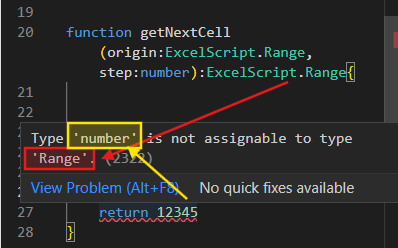
Since the expected return value from getNextCell function is an Excel range, returning a value of a different data type will result in an error. For example, if you set the return value to 12345, Office Scripts will raise an error indicating a type mismatch, as a number was provided number (in yellow) where a Range (in red) is expected:
Using data types to define the expected output from a function is very useful to make your script more readable and easier to be maintained in the future. However, it’s also possible to create a function without explicitly assigning a data type to the return value:

In this case, TypeScript infers the return type based on the value returned by the function. While this can simplify function definitions, it may reduce clarity, especially in complex Office Scripts. Without an explicit data type, it might be harder for others (or yourself in the future) to understand what type of value a function is supposed to return, potentially leading to misunderstandings or errors. Keep in mind that while it’s possible to create functions without specifying a return data type, this is not considered best practice.
Functions without return
In some use cases, a function may not need to return any value, and this is very common in Office Scripts. For example, whenever you want to execute a task inside the Excel file, like updating a cell or formatting a range, you not necessarily will need to return a value.
In the first use case shared in this article, the writeData function is an example of a function that doesn’t return any values. Since the purpose of the function is to write data into a given cell it is defined with a return type of void (highlighted in yellow):

If you insert a return statement into a function defined with a void return type, an error will be issued. This is because a void function is explicitly intended not to return any value:

Calling functions in Office Scripts
As mentioned in the beginning of this article, one of the main advantages of a function is its capacity to be called whenever needed across the Office Script. This reusability simplifies the script and reduces duplicated code.
The first thing to keep in mind is that, from a code-writing perspective, you don’t need to define a function before calling it. In fact, especially in Office Scripts, it is common to call functions within the main() function, while defining them late in the script. In the next example, you will notice that the main() function is defined between lines 2 and 12, but the functions it invokes are defined in the lines 13 and beyond.
For calling functions, simply use the function name followed by parentheses. If the function expects parameters, include them inside the parentheses, observing the same order used when the function was created. In the example below, we are calling several functions defined during this article, to perform different tasks:

Let’s understand what each of these highlighted functions does:
- Line 6 – writeData(range1, ‘Value written by a function’): This line calls the writeData() function, passing two arguments: range1 (which corresponds to cell B5) and the string “Value written by a function”. The writeData() function then writes this text into cell B5.
- Line 8 – const range2 = getNextCell(range1, 2): Here we call the getNextCell() function and store its result in a variable named range2. The getNextCell() function receives two parameters: range1 (the origin cell) and 2 (the number of rows to skip). This command returns the cell that is two rows below cell B5, which then is assigned to range2.
- Line 9 – writeData(range2, ‘Value written by a function, one more time’): This line calls the writeData() function again, this time using range2 (the cell two rows below B5) and the string “Value written by a function, one more time”. Since writeData() is a void function and does not return any value, we don’t need to assign its output to a variable.
- Line 11 – console.log(getNow()): Here, getNow() is a function that does not require any parameters. By wrapping getNow() with console.log(), we print the result to the console. This function returns the current date and time, which can be viewed in the console output, like highlighted in the image below:
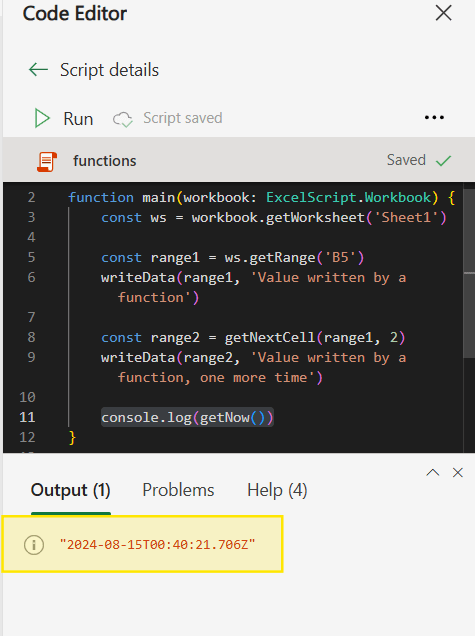
The console is initialized when you run the code, and it’s very useful to identify issues or bugs in your Office Script.
Additionally, after running the code, the writeData() function will insert specific values into the spreadsheet based on the parameters passed to it:

Block scope
When creating a new function, it’s important to pay attention on where are you defining it. For example, if you create the function outside of any other functions, as we’ve done in the examples throughout this article, it you will be accessible from anywhere in your code. In the image below, you can see that we created the writeData() function (highlighted in red) after closing the main() function (highlighted in yellow):

When you define a function within another function, it becomes block-scoped, so it will be only accessible within the outer function. The advantage of creating block-scoped functions is to leverage the existing variables or parameters from the parent block without the need of passing them as parameters in the inner function. For example, when creating a function within the main function(), we can access the ws variable without needing to pass it as a parameter (marked in yellow below):

For Office Scripts, it’s generally preferable to create most of your functions outside of any specific blocks. This way, the functions can be called from anywhere in your script, providing greater flexibility and reusability across different parts of your code.
Code used in this article
function main(workbook: ExcelScript.Workbook) { const ws = workbook.getWorksheet('Sheet1') const range1 = ws.getRange('B5') writeData(range1, 'Value written by a function') const range2 = getNextCell(range1, 2) writeData(range2, 'Value written by a function, one more time') function clearA1(){ ws.getRange('A1').clear() } console.log(getNow())}function writeData(cell:ExcelScript.Range, value:string):void{ cell.setValue(value)}function getNextCell(origin:ExcelScript.Range, step:number){ const destination = origin.getOffsetRange(step, 0) return destination}function getNow():Date{ const now:Date = new Date() return now;}
Conclusion
Functions are an essential tool in Office Scripts and in many programming languages, providing a way to encapsulate and reuse code efficiently. By using functions, you can reduce code repetition, improve readability, and simplify the maintenance of your Office Scripts.
By adopting best practices like defining data types and considering the scope of your functions, you’ll be well-equipped to develop powerful automation solutions that can be reused and adapted to various scenarios.
 Digital Mill