
One of the most used date/time expressions in Power Automate is the dateDifference(), which is used to calculate the duration between two timestamps. This expression returns a timespan, reflecting the quantity of days and time that separate the two timestamps. However, users generally find challenges to manipulate the information contained within a timespan in future actions.
In this article, we will explore how to extract the number of days or time from a timespan in Power Automate, by manipulating text expressions. If you never used expressions to extract data from texts in Power Automate, we recommend you to check this post for further instructions.
What is a timespan in Power Automate?
In Power Automate, a timespan represents a duration of time. It’s typically expressed in terms of days, hours, minutes and seconds. It follows a default pattern, starting by representing the quantity of days (highlighted in yellow) and followed by the quantity of time (highlighted in green, containing hours, minutes and seconds). Both measures are separated by a period:

If the interval is less than one day, the timespan will exclusively present the amount of time, omitting the representation of the number of days, rather than explicitly indicating zero days:

Timespans are represented as text, making their value of string data type (for more information about data types in Power Automate, refer to this article). This allows us to implement text expressions to isolate specific components of the timespan. However, a text expression must be capable of handling both timespan formats: with and without the quantity of days.
Flow overview
To begin with, let’s create two string variables. If you’re unfamiliar with variable creation, you can find detailed instructions in this article. The first variable, named “timespan_days”, will hold the result of the dateDifference() expression comparing April 30th, at 8 A.M. and May 10th, at 10 P.M. This first variable will return a timespan that contains both days and time:

The second variable, named “timespan_hours”, will hold the result of another dateDifference() expression, but this time we’ll set two timestamps that have less than 24 hours of difference. For this example, we’ll use March 30th at 10 A.M. and 12 P.M.:

Extracting quantity of days from a timespan in Power Automate
To extract the quantity of days from timespan, we’ll use a combination of two text expressions: split(), which divides a string into an array based on a specified separator, and first(), which retrieves the first element of an array.
The split() expression takes two arguments: (1) the string, represented by the variable “timespan_days” that holds a timespan (highlighted in yellow), and (2) the separator, which is the character that we will use to isolate the number of days from the rest of the timespan, in this case, the period (highlighted in green). To select the timespan, we utilize the dynamic content feature in Power Automate (highlighted in blue):
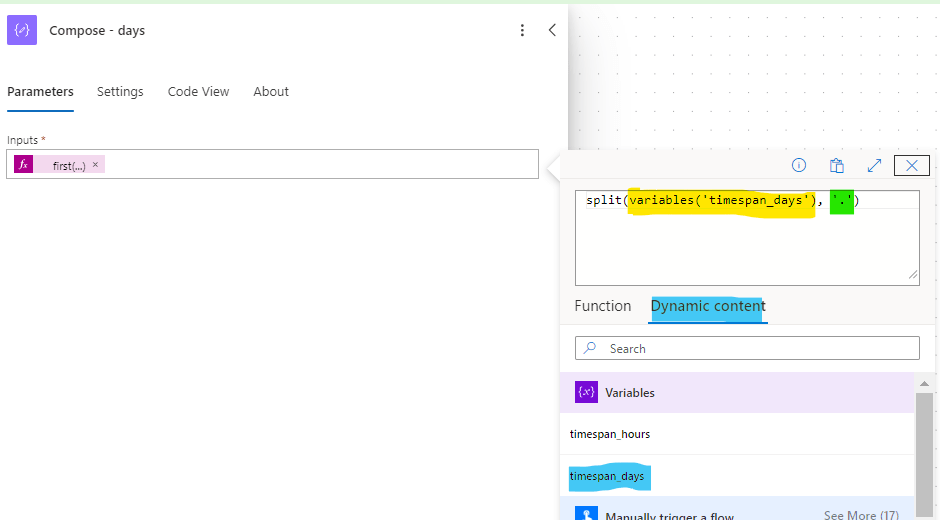
The split() is converting the timespan into an array with two string elements: the number of days and the time (hours, minutes and seconds). Since we need to return just the number of days, we’ll wrap the split() into a first() expression:
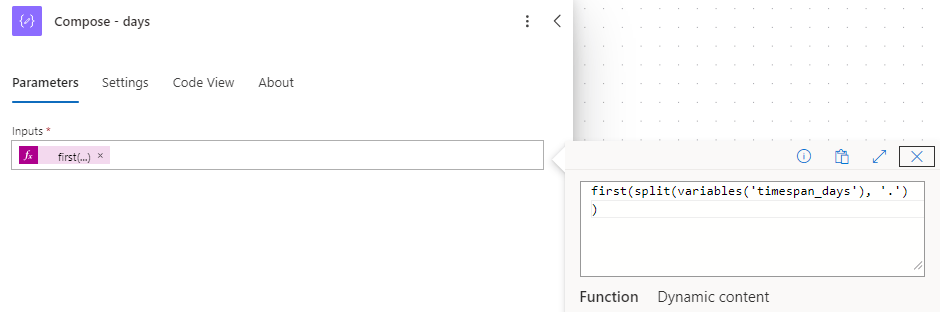
The flow is ready to run. After test it, the result is the difference between the two dates in days (10), as expected:

Extracting amount of time from a timespan in Power Automate
To extract the amount of time, we will also utilize a split() expression to divide the timespan into two parts. Then, we will use the last() expression to return the last array element generated by split(). But let’s add some complexity: suppose we only need to retrieve the number of hours instead of the entire duration.
By combining the last() and split() expressions, the output will be “14:00:00”. Next, we repeat the same process (split and select an element), but now using the “:” as separator. This will result in an array containing “14”, “00”, and “00” as elements, representing hours, minutes, and seconds respectively. To extract the hours, we need to access the first item of this array.The final expression will look like this: split(last(split(variables(‘timespan_hours’), ‘.’)), ‘:’)[0], where:
- split(variables(‘timespan_hours’), ‘.’): breaks the entire timespan in two parts, creating an array with two elements, separating the quantity of days and quantity of time
- last: returns the last element of the array, which contains a string presenting the time duration from the timespan
- split([…], ‘:’): divides the quantity of times into an array, using “:” as separator
- [0]: accesses the first element of the newly created array, which corresponds to que number of hours from the timespan. This number matches the array index of the desired element (counting starts at zero, so “0” corresponds to the fist element). Alternatively, we could use the first() expression to achieve the same result. If you need additional guidance on how to work with arrays and its indexes, refer to this article.
Note: when interpreting complex expressions in Power Automate, always begin with the innermost method and progress outward.
And this is the output of the expression:
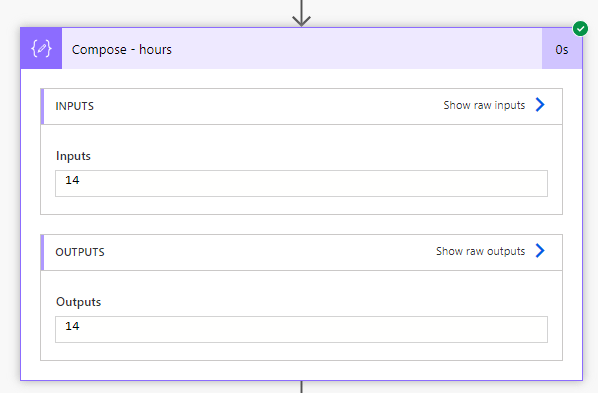
To extract the number of minutes or seconds, you can keep the same expression and simply modify the index reference to [1], which will access the second array element (minutes) or [2], which will access the last array element (seconds).
Finally, as mentioned earlier, timespans won’t count days are comparing two timestamps with a difference less than 24 hours. In such cases, there is no need to split the timespan in days and time, using the “.” as separator.
In practice, however, we can keep the same expression that we used for timespans greater than a day. When trying to apply the split() expression to a string that doesn’t actually contain the specified separator, Power Automate will return an array containing a single element, corresponding to the entire timespan. Consequently, the last() expression will access this single element (the entire timespan) and utilize it in the following steps. Let’s test it by using the exact same expression, but at this time referencing the variable “timespan_hours” instead “timespan_days”:
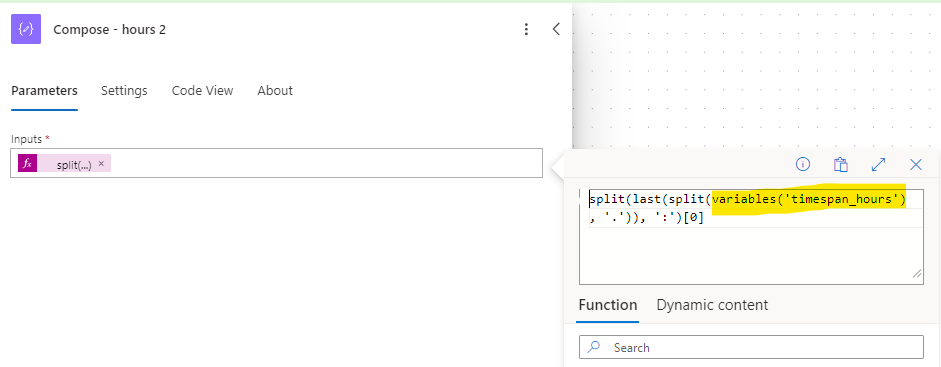
As a result, we get the quantity of hours from the second timespan:

Conclusion
To extract data from timespans in Power Automate, the user must understand how to work with text expressions. As the timespans follow a default template, users can leverage from a combination of text expressions like split(), first(), last(), and array indexing, to extract data from timespan strings and isolate the desired information, which can be very helpful in different use cases.
 Digital Mill