
Manipulating date and time is one of the most confusing topics when you start to work with Power Automate. There are numerous expressions to handle date and time, and understanding them may be essential for some use cases. For instance, the date and time expressions can be very useful in monitoring tasks progress, notifying users about deadlines, creating Outlook events, and much more.
This article explores the main date and time expressions, providing examples on how to use it. If you never used Power Automate expressions before, refer to this post.
Getting current date and time in Power Automate
In many scenarios, a flow requires recording the current time. This can be achieved using a very simple expression: utcNow(), which returns the current date and time in UTC Timezone:

This is the output:

The value generated by ucNow() is a timestamp, encompassing comprehensive information about the date (year, month, and day), as well the time (hours, minutes, seconds and milliseconds, represented after the “T”). Occasionally, the time zone is also included (in the example above, represented by “Z”, which references the UTC).
Converting time across different zones in Power Automate
For many use cases, there’s a need for date/time in a timezone other than UTC. This can be achieved using the convertFromUtc() expression, which requires two parameters: : the timestamp for conversion and the target timezone (you can also include a third parameter to format the date and time, as we will explore in details later). The last must follow the Microsoft default time zones, listed here. In our case, we are taking the timestamp generated by utcNow() and converting it to EST:

And as expected, the result is a converted timestamp:
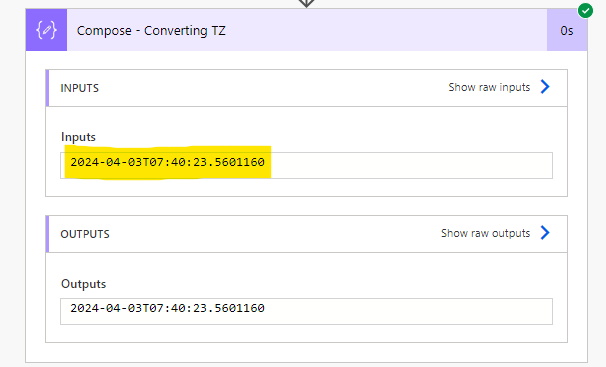
You can also convert a timestamp from any time zone to UTC by using the convertToUtc() expression. It follows the same syntax of convertFromUtc() expression, but here you must specify the source time zone rather than the destination one:

Finally, by using the convertTimeZone() expression, you can convert timestamps various time zones beyond UTC. This method requires the timestamp as first parameter (highlighted in blue), the source time zone as second (highlighted in yellow) and the destination as third (highlighted in green):

Formatting date and time in Power Automate
For most use cases, a date and time representation other than the timestamp notation is preferable. Formatting requirements can vary according to the region, and we can leverage some Power Automate expressions to customize it, like formatDateTime(). This expression receives two arguments: the timestamp and a format string (check this article to learn more about data types in Power Automate).
You can either use built-in format strings provided by Power Automate, or create your own ones. When crafting custom format strings, the user can decide whether a day will be represented as a numeric day of the month (e.g., 28), an abbreviated day of the week (e.g., Mon), or the full day of the week name (e.g., Monday).
For example, to format “2024-03-31” as “Sun – Mar 31, 2024”, you can use the following custom format string: “ddd – MMM dd, yyyy”:

And this is the output:

Also, keep in mind that many expressions offer the choice to specify the date/time format as an optional parameter. This functionality is available in expressions such as convertFromUtc(), addDays(), dateDifference() and others.
Adding and subtracting date and time in Power Automate
You can add time measures from a specific timestamp using the addToTime() expression, which requires as parameters the timestamp and the interval to be added and the time unit (“Second”, “Minute”, “Hour”, “Day”, “Week”, “Month” or “Year”). Similarly, the subtractFromTime() expression follows the same syntax, but it is used to decrease the timestamp. For example, to subtract 3 days from March 31st 2024, you would use the following expression:

As a result, Power Automate will return a timestamp for March 28th, 2024. Since we provided a date (without time) as timestamp parameter, Power Automate interprets it as midnight (00:00:00), in the UTC time zone:

There are also some other expressions to add an interval to timestamp, but more restricted to specific time units:

While these expressions primarily focus on increase the date/time interval, it is also possible to subtract a value from that by using a negative interval. By “adding minus 6 hours” from the timestamp, the value assigned to “Compose” will be March 30th, 2024, at 6:00 P.M.:

And the output:

Difference between two dates and times in Power Automate
In addition to adding or subtracting a quantity of time from a timestamp, you can capture the difference between two dates using the dateDifference() expression. This function requires the start and finish timestamps as parameters, and it returns a timespan, which represents the duration of time in terms of days, hours, minutes, seconds, and milliseconds.
Although the expression name suggests that only a difference between dates is captured, it actually provides you with a difference in time as well. For example, by using the following expression, Power Automate will return how many days and how much time passed between the two timestamps:

Have in mind that in the second parameter we specified both a date (March 24th) and a time (6:00 AM). Consequently, Power Automate computed the difference from March 31st as minus 6 days and 18 hours:

In Power Automate timespans, the quantity of days and the amount of time (hours, minutes and seconds) is separated by a period. Refer to this article for guidance on how to extract days and time from timespans.
Other date and time expressions in Power Automate
Finally, there are expressions to retrieve the beginning of a day (startOfDay()), an hour (startOfHour()) or a month startOfMonth(). It returns the first moment of the respective day, hour or month, based on a timestamp provided by the user:

Using the startOfMonth() expression using February 8th as parameter results in February 1st, at 12:00 AM, as output, which is the first moment of the month of Frebuary:

Conclusion
In conclusion, Power Automate offers many expressions to handle date and time operations within workflows. From capturing timestamps to formatting dates, and even calculating time differences, these expressions provide users with precise control over temporal data, which can be helpful when monitoring task completions performance, highlighting missed deadlines or issuing notifications.
 Digital Mill