
Power Automate is a low-code solution to democratize automation and address its challenges, contributing significantly to save time in daily repetitive tasks. The expressions in Power Automate resemble Excel formulas or Power BI DAX queries, making the learning curve for Office 365 users much smoother.
Understanding expressions empowers users to build highly effective and complex flows, extracting maximum value from Power Automate! In this article, we will investigate how to work with expressions, by creating methods and interacting with objects and arrays.
What are the expressions in Power Automate?
The dynamic content feature in Power Automate simplifies basic data transfer by enabling users to access data from previous actions with a simple mouse click (for more details about how to work with dynamic content, refer to this article). In contrast, expressions facilitate more complex data operations, allowing users to manipulate, transform, and analyze data effectively.
In expressions, users have access to a collection of functions to perform various tasks such as calculations, data type transformations, data formatting, cleaning, and much more.
Overview of the sample table
For this article, we will utilize the following Excel table, which represents a list of employees and their corresponding managers:
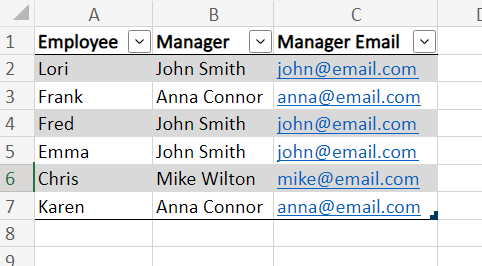
To retrieve its values to Power Automate, we can utilize a “List rows present in a table” action, , specifying the details of the Excel file and the table (for more details about how to integrate Excel tables and Power Automate, check this article).
Using expressions and functions in Power Automate
To add an expression in Power Automate, navigate until an input field in the Flow’s action and click in the “Fx” button, as highlighted in yellow:

A window will appear, displaying a text input area where you can type the expression (highlighted in yellow). Below the input box, you’ll find a list of all available functions, categorized by type (such as string functions, collection functions, logical functions, etc., marked in red). Additionally, there is a separate tab for dynamic content (highlighted in green), which enables you to insert references to properties from previous flow steps within an expression:

As you begin typing in the input box, Power Automate will suggest available functions in the autocomplete:

Like in Excel, most functions in Power Automate require parameters, which is an input values to be transformed by the function. These parameters, similarly to Excel, must be enclosed within parentheses.
Furthermore, when you add a function and place the mouse cursor inside the parentheses, the parameters will be displayed, providing details on what is expected to be passed to the function and its respective data type. Additionally, a brief description of these parameters and the value returned by the function is provided:

You can also insert dynamic content within your expression and use it as a parameter for the function. As mentioned earlier, the list of dynamic content is available in the “Dynamic content” tab (highlighted in green). For this example, we are using the “body/value” dynamic content from the “List rows present in a table” action (highlighted in yellow), which automatically added the expression reference (highlighted in blue) after clicking:

By utilizing the expression mentioned above, we are returning the length (quantity of elements) of the “body/value” property within the “List rows present in a table” action. This yields the following output:

Nested expressions in Power Automate
Similar to Excel, it is possible to combine several expressions to generate a desired output. For example, if we want to extract only the last name of each manager in the Excel table, we don’t have a specific function for it. However, we can achieve this by combining the split() and last() functions within the same expression.
We started by adding a split() function in the expression, followed by the dynamic content of the “Manager” column (highlighted in yellow) within the parentheses. . It’s worth noting that selecting the “Manager” dynamic content automatically generates a “For each” or “Apply to each” loop (marked in red) in the flow, as it is part of an array. Then, we added a second parameter to the split() function, which is a blank space:

The split() function transforms a text into an array based on a separator. In our case, we are transforming the text from the “Manager” column into an array, using a blank space as a separator. This results in an array with two elements.
Following that, we encapsulate the entire split() function within a last() function (highlighted in yellow below). The last() function is utilized to capture the last element of an array, which in our case will be the manager’s last name:

After running the flow, we will have each manager’s last name as output:

If you want to learn more the different string functions in Power Automate and how to transform texts, refer to this article.
Accessing array elements with expressions in Power Automate
Expressions also enable you to access individual array elements by directly referencing their index within square brackets. It’s important to note that arrays in Power Automate are zero-indexed, meaning the counting starts at zero. Therefore, you would use 0 to refer to the first element, 1 for the second element, and so on.
For example, by just adding the “[2]” to the end of the expression, we can access the third record from the “List rows present in a table” action:

The output will be the third element in the array, which in this case is an object corresponding to the Excel table record:

Check this article for more details on how to interact with array elements and loops.
Accessing object properties with expressions in Power Automate
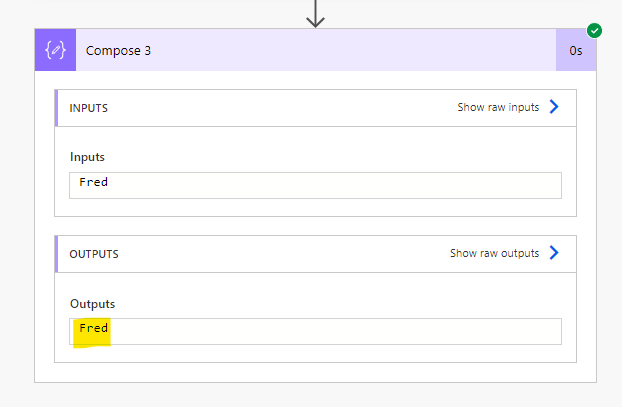
Finally, it is also possible to access object properties using expressions. Rather than using dynamic content, let’s access the employee’s name of the third record from the “List rows present in a table” action. To do so, we simply need to add the property name (“Employee”) between square brackets and single quotes, as highlighted in yellow:

And this is the output:
You can find more instructions on how to work with objects in Power Automate in this article.
Conclusion
Power Automate offers a versatile platform for automating tasks and workflows, and the use of expressions enable the users to leverage the full potential of this tool. A user that understands how to utilize expressions can achieve sophisticated functionality without extensive programming knowledge, like accessing object properties, manipulating arrays, and performing calculations.
 Digital Mill