
Every organization follows internal approval procedures for various purposes, such as reimbursing expenses, reviewing documents, confirming orders, and addressing various scenarios. Microsoft 365 and Power Platform provide the users with an Approvals management feature, allowing them to analyze and respond to approval requests from Power Automate or Microsoft Teams.
The “Approvals” connector in Power Automate brings more integration to this feature, as the users will now be able to launch an approval request from a form submission, an email receiving, or in any other event supported by Power Automate. This connector, however, does not have the capability to cancel approvals, and it restrict the capacity of the organizations to manage scenarios where an approval must be canceled due to a certain event.
Fortunately, the ability to cancel approvals is still possible by interacting with the “Approval” Dataverse table. In addition to the instructions shared in this article to cancel pending approval requests with Power Automate, check this blog to learn how to cancel a flow run tied to a cancelled approval request.
There is also a video in our YouTube Channel about this topic:
Note: this solution relies on a premium connector (Dataverse), so users that don’t have a Power Automate Premium license may not be able to implement it.
Approval table in Dataverse
Dataverse, part of the Microsoft Power Platform, is a cloud-based data platform that uses a relational database logic. It serves as a common data repository, allowing users to define data models, create relationships, and enforce business rules for their applications.
Although the user can create custom tables, Dataverse offers a range of pre-built tables that can be used for different business needs and for several industries. Some examples of these tables include Account, Contact, Project Request, and so on. Some of these tables have a direct relationship with actions took into Power Platform, like the “Approval” table, that stores data about all existing approvals in the organization.
Whenever a user creates a new approval request, a record will be inserted into “Approval” table. This table serves as a tracking mechanism for the request, capturing essential details such as status and stage. As Power Automate has a connector for Dataverse, the solution for handling approval cancellations is to work directly with its respective table, modifying the values in the relevant columns to ensure that the that the cancellation is accurately reflected to the end user.
For example, when a new approval request is created, the approver user can manage it in Microsoft Teams or in Power Automate environment.
Teams:

Power Automate:

In both interfaces, we identify that there is only a single pending approval for the user (Test – 20240125_010250). While in Teams we can also see the previous approved/rejected/cancelled approval requests into the same view, in Power Automate the closed approvals are allocated into the “History” tab.
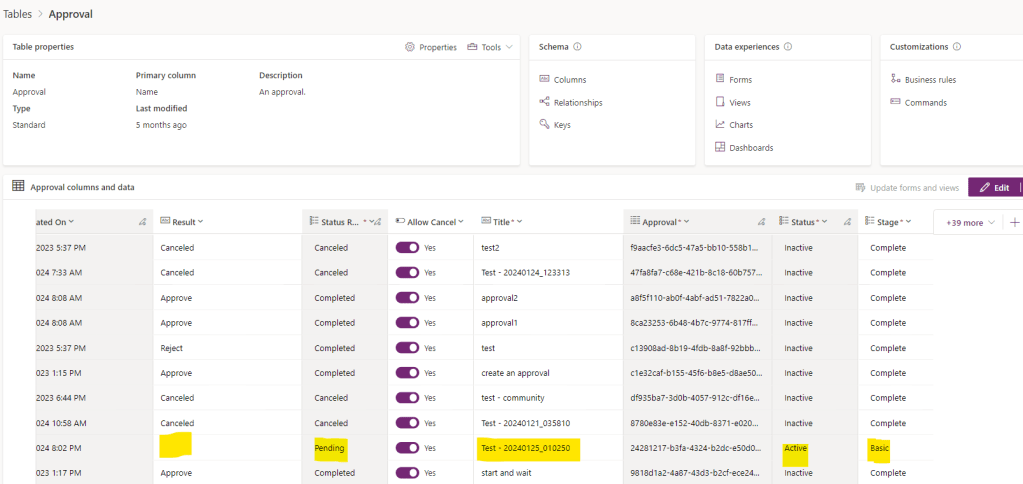
The same data presented in these apps can be also found in the “Approval” Dataverse table, which allows the user to handle the approvals generated in the specific environment (as multiple Dataverse environments can be created, it is also possible to have one “Approval” table for each of them). Differently from the finished approval requests (with an approved, rejected or cancelled status), the pending approvals have specific configuration for some of the table columns. For the purposes of cancelling an approval with Power Automate, we must focus in the columns “Result, “Status”, “Status Reason” and “Stage”.
Cancelling an Approval with Power Automate
As a first step to cancel an approval from Power Automate, let’s create a new flow and add a “List rows” action, from Dataverse connector. This action configure must reference the approvals table and, in a first moment, it won’t include any additional parameters:

When inspecting the raw outputs from the action (for mor details about how access the raw outputs, refer to this article), you will find an array of objects corresponding to the records in the Dataverse table, and each of these objects contains a property called satecode, that receives numeric values of 0 and 1 only:
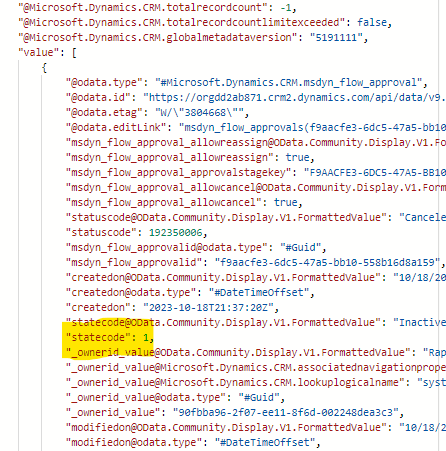
Although we apparently do not have a column named statecode in our “Approval” table, it is important to understand that the Power Automate raw outputs will provide the logical name of the Dataverse table columns, and not their display names. While users typically work with display names, the integration within the Power Platform uses the logical names.
To identify the logical name of a column, you can click on the column within the Dataverse table, and then select “Edit column”. A new pane will appear on the right side of the screen, where you will find its display name (highlighted in yellow) and its logical name (highlighted in green). For choice or lookup columns, you will also find its values and labels (highlighted in blue):
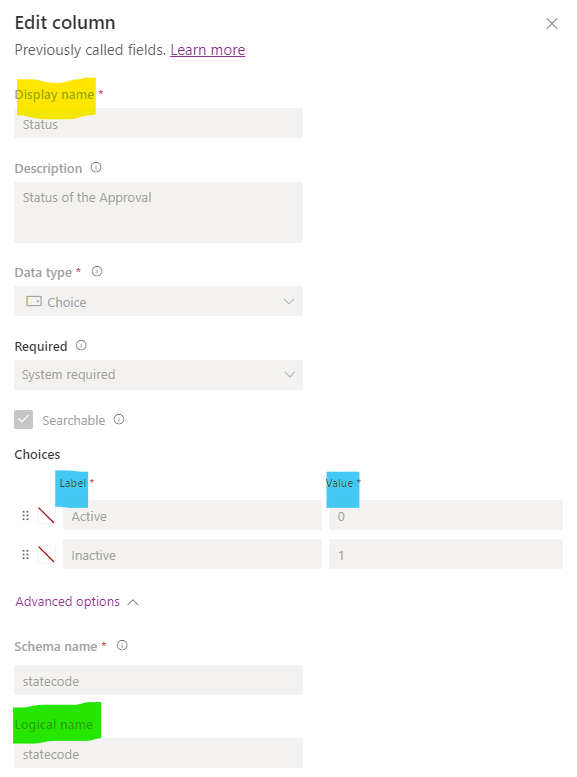
The Status column (with its logical name as statecode) is important because you ideally wouldn’t cancel flows that are already finished, so a recommended practice is to filter the “List rows” action to return only records with a status equal to “Active”. As the Status column is of the Choice data type in Dataverse, you will need to use its value, not the label, when building a filter query for the “List rows” action. In this case, the filter query would be statecode eq 0 (highlighted in green), where 0 corresponds to the “Active” status:

Note: Although it is not possible to use a choice or lookup column label as a filter parameter in the “List rows” action, you can still access this property in Power Automate for other purposes. Refer to this article for more details.
At this point, you can also add additional parameters to the filter query in order to isolate the approvals that must be cancelled. For this example, we will work only with the status filter, which means ALL pending approvals within the environment will be canceled unless you introduce further parameters into the filter query. It’s important to note that depending on your environment permissions, this flow has the potential to impact approvals created or managed by other users. Exercise caution when executing this flow to avoid unintended consequences.
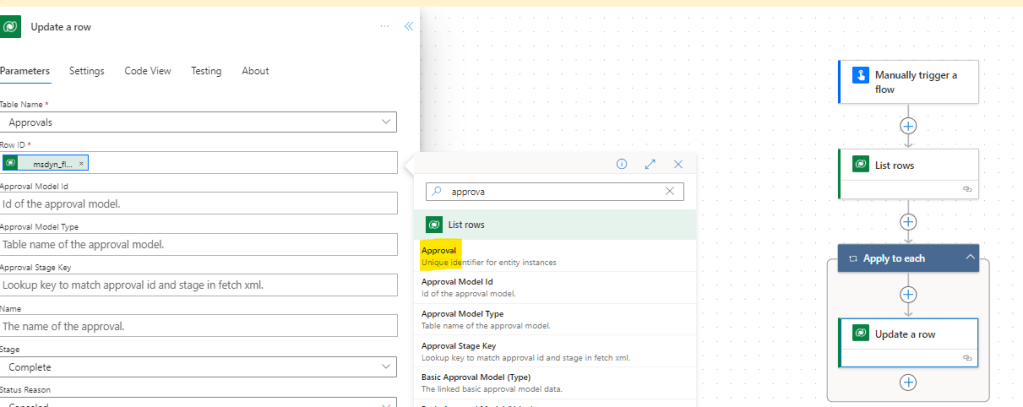
After the “List rows” action, add an “Update a row” and pass the Approval dynamic content as “Row ID” (highlighted in yellow). By entering the “Row ID” in the input, Power Automate must automatically generate an “Apply to each” or “For each” loop to your flow, allocating the “Update a row” inside the loop:
For canceling the approval, you will need to fill only the following fields in the “Update a row” action: Stage, Status, Status Reason and Result. Have in mind that some of these fields are hidden by default, and you need to enable them in the “Advanced parameters” of the action (highlighted in green):

For each of these inputs, you must enter the following values (as highlighted in yellow):
- Result: Canceled (text value)
- Stage: Complete (choice in dropdown)
- Status: Inactive (choice in dropdown)
- Status Reason Cancelled (choice in dropdown)
For the “Result” field, which is a free text input, you must ensure that the value is set to “Canceled” (with a single L). If any other result is entered, the changes in the Dataverse table will be made, but the approval request will still appear as “Requested” in MS Teams (although in Power Automate approvals manager it may appear as finished).
After run the flow, as expected, the Dataverse table will be updated and the approval request status will be displayed as “Canceled” in MS Teams and Power Automate:

Conclusion
By using the Dataverse connector, it is possible to extend the capabilities of approval management in Power Automate, enabling the user to canceling approval requests. This approach can be combined with different triggers and actions, allowing a recurrent review on the non-finished approval requests, or proceeding with the cancelation when an event occurs. Independent on the use, this is a great workaround for the “Approvals” connector limitations!
 Digital Mill