
Calling Power Automate flows from Excel or other sources is a powerful integration that allows users to automate and streamline various tasks, enhancing productivity and efficiency by triggering Power Automate flows directly from their spreadsheets. This approach brings the Power Platform capabilities to any Excel entry-level user, allowing them to trigger flows that generate reports, notifications, support tickets, or even complex tasks inside Excel Spreadsheets by using the Office Scripts; everything with a single click!
Although Power Automate does not have a specific trigger to create a button in an Excel file and run a flow, it is possible to achieve it by using an HTTP call trigger.
Important: this strategy requires a premium Power Automate trigger, so you will need a premium license to implement it.
Quick start with HTTP Calls
HTTP calls are like the language computers use to talk to each other on the internet. Imagine your computer is asking a server (or another computer) for information, like requesting a webpage. This conversation happens using a specific protocol, which is HTTP.
Throughout this iteration, different methods can be user to transfer data, like GET, POST, PUT, DELETE and PATCH. When calling a Power Automate flow from an Excel file, it won’t be essential to you to understand in details what each of these methods mean, but if you want to learn more about it, check this article.
Setting up an HTTP call trigger in Power Automate
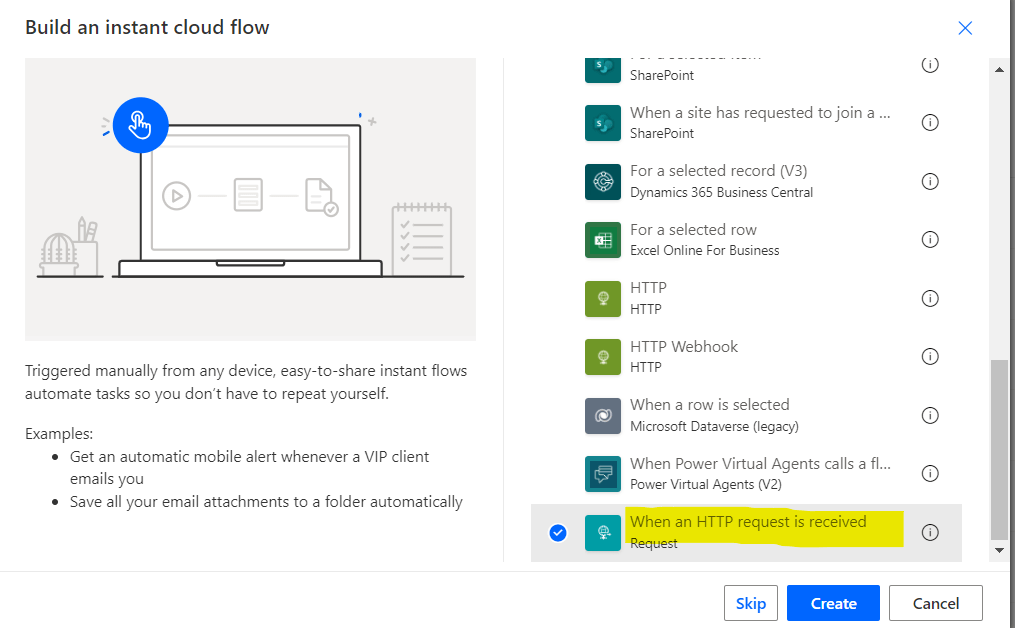
Start by creating a new instant cloud flow (to learn more about the different types of flow, refer to this article) and select the When an HTTP request is received trigger, as highlighted in yellow:
After creating the flow, it’s time to select who will have access to your HTTP request, and here you can restrict it (1) to your tenant only, (2) to some users from your tenant, or (3) allows anyone to access it. For this approach purposes, it is recommended to set the permissions to “Anyone”, as otherwise you won’t be able to execute this HTTP Call from the Excel button click:

Note: Make sure to restrict the access to your Excel file (or to the individual Spreadsheet containing the button) only to users that are supposed to be authorized to trigger this flow. As we are setting broad permissions in this strategy, anyone with will be able to start the flow the trigger URL.
After that, unhide the “Method” advanced parameter (highlighted in yellow) and select it as GET (highlighted in green):


At this point, you can add all other actions you wish to execute once the button is clicked in the Excel file. For this tutorial, we’ve included only a “Post message in a chat or channel” action, which will result in a message send in MS Teams:

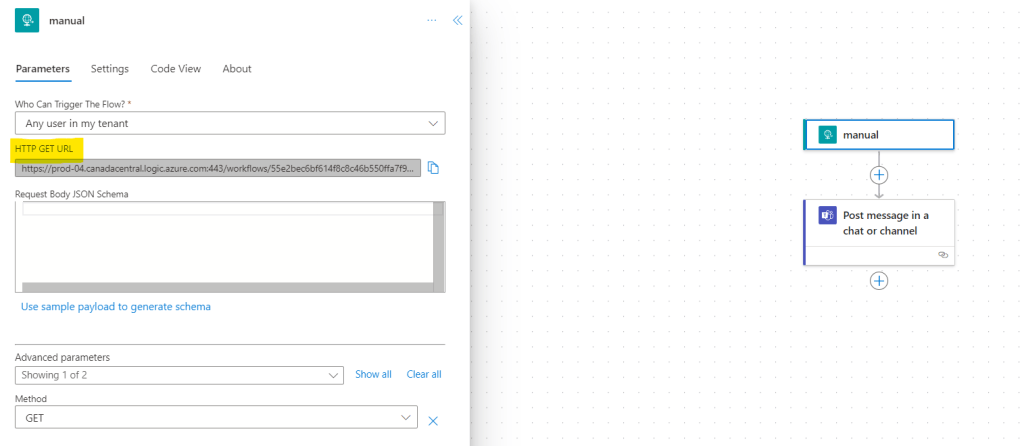
After saving your flow, and checking again the trigger parameters, you will notice that a new “HTTP GET URL” field was created, with a prepopulated and immutable URL (highlighted in yellow). Copy it, as we will need this URL for the button setup in Excel:
Calling a flow from Excel Spreadsheets
Now it’s time to create a button in Excel. Open the Excel file in Desktop App (currently, assigning a link to a shape is not available in the Excel Web), and insert a new shape of your preference to function as a button. Optionally, you can add some instructive text or customize the shape’s colors to make it clear to users that the shape serves as a button:

Then, click in the shape with the right button of the mouse and select “Link” (highlighted below):

A new window will appear for file exploring. You won’t be selecting any file: instead, paste the URL generated by Power Automate in the address field (highlighted in yellow) and click “OK”.

Upon clicking the shape (that is now functioning as a button), the flow will be triggered and, as expected, we will receive a notification in MS Teams:

Conclusion
Leveraging the Power Automate to initiate flows directly from an Excel file is a great alternative to automate tasks. The integration’s flexibility, allowing for the incorporation of various actions upon a single button click, opens up a set of possibilities for users to streamline their workflows.
When taking this approach into consideration, however, it is very important to ensure that only authorized users will have access to the trigger URL, for cybersecurity purposes.
 Digital Mill