

Many companies have a least one process where a data must be transferred from an email template to an Excel file. This is a repetitive, tedious but essential task, and it is a great candidate for automation with Power Automate.
Fortunately, Power Automate is able to integrates with both Outlook and Excel, which allows you to create automated flows that extract specific information from your Outlook emails and populate Excel spreadsheets. For example, you can configure a workflow to actively monitor your inbox for emails with specific keywords or originating from designated senders, and then automatically extracts relevant data, such as attachments, text, or metadata, and inserts it into a specified Excel sheet. This automation not only streamlines your workflow but also mitigates the potential for manual data entry errors, guaranteeing the precision and consistency of your data.
In this article, we will see some practical steps to setup a flow like this, creating a “no-click solution” that automatically populates an Excel table with email data about product reviews. There is also a video about this topic in our YouTube channel:
Case Overview
For the purposes of this article, let’s imagine that you work for a company that operates in online mobile phones sales in a hypothetic Marketplace known as “Savanah”. Following a customer’s purchase, they often share their thoughts and experiences by leaving product reviews, and Savanah keeps you informed of these new reviews through email notifications.
These emails always follow a standardized template, containing the review ID, customer username, reviewed product details, rating, and a brief description of the customer’s experience:

After receiving the email, the flow should automatically populate the following Excel table, stored in OneDrive:

Make sure to structure your columns in a table format for easy access by Power Automate. If you don’t know how to work with Excel tables, refer to this article.
Capturing texts from email body with Power Automate
To begin the flow, create an automated trigger. In your Power Automate environment’s side menu, click “Create” and then select “Automated cloud flow”:

Choose ‘When a new email arrives (V3)’ from the Outlook connector:

Now it’s time to configure our trigger, in order to make sure that only the relevant incoming emails are processed by the flow. In many cases, these automatic emails contain a standard subject line, so you can insert a text filter to capture them. In our scenario, we are using the text “Savanah Marketplace: New product review received!”, and including it in the “Subject Filter” input (below highlighted in blue).
Depending on your specific context, it may also be necessary to change the email folder where the message will be directed (highlighted in yellow) or filter the email sender’s address (highlighted in green). Keep in mind that you should apply all the necessary filters to ensure that only the pertinent messages are captured by the flow.

Converting HTML to text with Power Automate
In Power Automate, the email messages pulled from Outlook are written in a HTML format, the same format used for structuring websites. For example, to represent the Review ID, Customer and Product lines from the email template, Outlook uses the following HTML notation:
<div class="ContentPasted0" style="margin:0px"><b class="ContentPasted0">Review ID:</b><span class="ContentPasted0"> </span>#4481</div><div class="ContentPasted0" style="margin:0px"><b class="ContentPasted0">Customer:</b><span class="ContentPasted0"> </span>happycustomer123</div><div class="ContentPasted0" style="margin:0px"><b class="ContentPasted0">Product:</b><span class="ContentPasted0"> </span> Apple iPhone 13 128 GB</div></div>
We need to convert these HTML elements in a plain text facilitate our data extraction. To do this, we can use the “HTML to text” action and pass the “Body” dynamic content (highlighted in green) as input:

You can access the dynamic content pop-up by just clicking in the ‘Content’ input, just like you would in any other action within your flow. This pop-up contains some data related to the previous flow actions (in our case, as we only have the trigger before the current action, it will include only data related to the received email).
For more instructions about how to work with dynamic contents in Power Automate, refer to this article.
Insert data into Excel table with Power Automate
Finally, include an “Add a row into a table” action, from Excel connector and populate it with the data related to our Excel file and table:

When you select the table to be populated, Power Automate will automatically generate new input fields corresponding to each of the table’s columns. To learn more about how to insert data into Excel tables with Power Automate, check this article.
In the next section, we will populate these fields with the data present in the email.
Getting email body texts with Power Automate
Since the email notifications sent by Savanah Marketplace always follows the same template, we need to create some text expressions to extract only the pertinent data from these messages. These expressions will isolate specific segments of the text until we obtain the precise data, we need for allocation into each of the columns within the “Add a row into a table” action.
All the expressions will use the outputs from the “Html to text” action, , mainly involving successive split() methods to transform texts into arrays, and methods to access array elements, like first() and last(). In Power Automate, arrays represent a list of items, and there are specific notations and methods to work with them (you can find more details about how to manipulate arrays with Power Automate in this article).
As a first step, let’s isolate the Review ID number, which can be achieved with this expression: trim(replace(first(split(last(split(outputs(‘Html_to_text’)?[‘body’], ‘Review ID:’)), ‘Customer’)), ‘#’, ”)).

Let’s break down each component of this expression, beginning with the most internal methods:
- outputs(‘Html_to_text’)?[‘body’]: This part of the expression retrieves the content from the “body” of the “Html_to_text” action, providing access to the plain text of the email body.
- Output of this step: The entire email body text.
- split(outputs(‘Html_to_text’)?[‘body’], ‘Review ID:’): his expression divides the plain text of the email body into two segments, resulting in an array with two elements. The separator used is the text “Review ID:”, and it’s essential to include the “:” in the expression.
- Output of this step: An array with two elements, one containing the email body text before “Review ID:” and the other containing the email body text after this separator.
- last(split(outputs(‘Html_to_text’)?[‘body’], ‘Review ID:’)): The last() expression function extracts the last element of the array, which, in this context, represents everything from the email body after “Review ID:”.
- Output of this step: The text from email body after the “Review ID:”, which is: “#4481 Customer: happyshopper123 Product: Apple iPhone 13 128 GB Rating: 4.5/5 stars Review Description: “I purchased this iPhone, and I must say it exceeded my expectations. The quality of the product is outstanding, and but it arrived a day later than expect. In any case, I recommend it!!” Thank you for being a valued member of Savanah Marketplace! Savanah Marketplace”
- split(last(split(outputs(‘Html_to_text’)?[‘body’], ‘Review ID:’)), ‘Customer’): Now, we are splitting the previous output again, but using word “Customer” as separator. It will also result in an array with two elements.
- Output of this step: An array containing these two elements: [“#4481” {first element}, “: happyshopper123 Product: Apple iPhone 13 128 GB Rating: 4.5/5 stars Review Description: “I purchased this iPhone, and I must say it exceeded my expectations. The quality of the product is outstanding, and but it arrived a day later than expect. In any case, I recommend it!!” Thank you for being a valued member of Savanah Marketplace! Savanah Marketplace” {second element}]
- first(split(last(split(outputs(‘Html_to_text’)?[‘body’], ‘Review ID:’)), ‘Customer’)): The first() method is used to access the first element of the array generated by the previous split.
- Output of this step: The text “#4481”
- replace(first(split(last(split(outputs(‘Html_to_text’)?[‘body’], ‘Review ID:’)), ‘Customer’)), ‘#’, ”): The replace() method operates similarly to an Excel REPLACE formula. It takes a text, a subtext to replace, and a second subtext to substitute the original one. In this case, we are replacing “#” with an empty string.
- Output of this step: The text “4481”
- trim(replace(first(split(last(split(outputs(‘Html_to_text’)?[‘body’], ‘Review ID:’)), ‘Customer’)), ‘#’, ”)): Finally, the trim() method is used to ensure that any leading or trailing blank spaces in the text are removed. This is a good practice to avoid issues with future analytics tasks.
- Output of this step: The text “4481”
For the subsequent columns, we will apply a similar strategy:
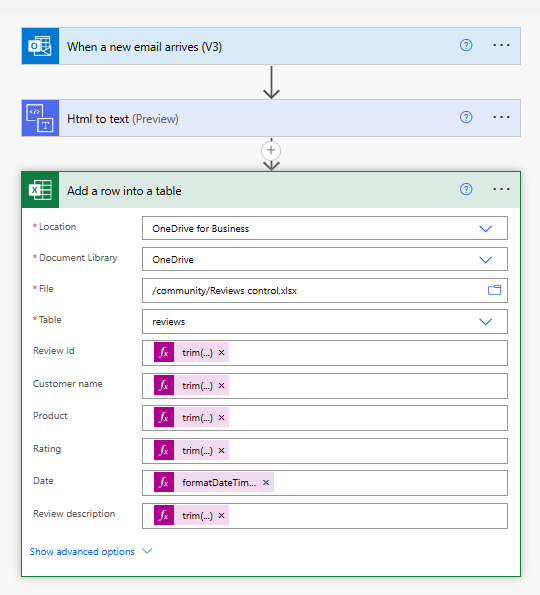
- Customer name: trim(first(split(last(split(outputs(‘Html_to_text’)?[‘body’], ‘Customer:’)), ‘Product’)))
- Product: trim(first(split(last(split(outputs(‘Html_to_text’)?[‘body’], ‘Product:’)), ‘Rating’)))
- Rating: trim(first(split(last(split(outputs(‘Html_to_text’)?[‘body’], ‘Rating:’)), ‘/’)))
- Note: Unlike the previous cases, here we use a slash as separator for the second split, as the email template contains a “[rating]/5”. In this case, we only need the number before the slash.
- Date: formatDateTime(triggerOutputs()?[‘body/receivedDateTime’], ‘yyyy-MM-dd’)
- Note: In this case, there are no text mining expressions involved. Instead, we directly retrieve the email’s received time and convert it to the “year-month-day” format.
- Review description: trim(split(last(split(outputs(‘Html_to_text’)?[‘body’], ‘Review Description:’)), ‘”‘)[1])
- Note: Here we use a quote as the separator for the second split because the email template encloses the review description within quotes.
- Note2: After splitting the text by quotes, we obtain three parts: everything before the quotes, everything between the quotes (which is what we need) and everything after the quotes. To access the second element of the array (representing what’s between the quotes), we use the index notation (a number between square brackets) instead of the first()/last() methods. In Power Automate, index counting starts at zero, so we use [1] to access the array’s second element.
Your entire flow design may look like this:
Testing the flow
After receiving some emails from Savanah Marketplace, we can confirm that the flow is working fine and the table is correctly being populated with the data:


Now, any email arriving in the Inbox that matches the subject filter will trigger the Flow, creating a new record in the Excel table.
Conclusion
This logic can be applied to any email message following a standard template. Keep in mind that some templates might need more intricate expressions for data extraction, so be sure to consult our article on working with text expressions to explore the available tools for this purpose.
 Digital Mill