

Dataverse is one of the greatest tools introduced by Microsoft in the recent years. As a relational database with an easy user interface, it allows non-technical operators to efficiently manage data. One of the typical features of a relational database is the ability to make connections between records from different tables through relationships, and Dataverse performs it very well.
These relationships can be found when the table contains columns with Lookup or Choice data types. A prime example of a Lookup column, included by default in all Dataverse tables, is the “Created by” field, which links a record to the user who generated it, drawing information from the “User” table.
When integrating Dataverse and Power Automate, however, some users find trouble to actually return these “related records”, as by default, the display values are not accessible via dynamic content. In this article, you will find how to correctly return these lookup or choice values from Dataverse tables in Power Automate.
Dataverse table overview
Let’s take the “Account” table, which is one of the tables that Power Platform gives the option to populate with sample data. There is a column called “Industry”, which categorizes the professional field associated to each account company:

By clicking in “Industry” column header (highlighted in yellow above), you will find the edit column option. Selecting it opens another pane containing some details about the “Industry” column, including its data type:

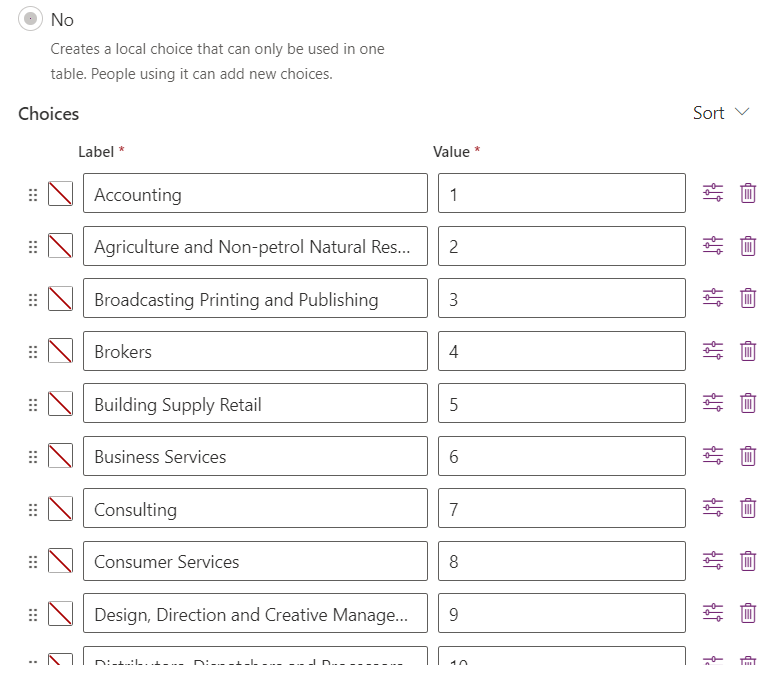
As you scroll down the pane, you see all available choices for the column, each with a “Label” and a “Value” property. In general, users are interested in the “Label” data, as it represents the display value of the choice (the industry fields names), while the “Value” property represents a kind of unique identifier (ID) for these labels:
Accessing Dataverse records with Power Automate
Let’s take a simple flow design to return the industry of each record: we begin setting a manual trigger, followed by initializing a string variable called “Industry”. After that, we return all records from “Account” table (when selecting a Dataverse table in the Power Automate dropdown, its name will be in plural form) and iterate it with an “Apply to each” loop:

Inside the “Apply to each” loop (if you don’t know how to work with arrays and loops, check this article), our objective is to assign the industry field to the variable. When we search for its dynamic content, we find only one record matching to this column (highlighted in yellow):

Select it, save the flow and run it. However, in the flow run details, you will notice that the value assigned to the “Industry” value is actually “4”, matching to the choice ID, and not to the choice label:

Accessing Choice and Lookup Labels from Dataverse Columns with Power Automate
To solve this issue, we will first need to access the “List rows” action raw outputs (to learn more about how to access raw outputs, refer to this article). When searching for “Industry”, we will find this column value for each record of the table, and two properties related to it: the “industrycode” (which represents the Choice ID returned in the dynamic content) and the “industrycode@OData.Community.Display.V1.FormattedValue” (highlighted in yellow), which corresponds to the choice label (highlighted in blue):

To represent this display value (or label) into Power Automate, you just need to reference this property inside an expression (check this article for quick instructions about how to build expressions in Power Automate). The property must be enclosed within brackets, and referencing the element where the record is stored, in our case, since we are accessing the record inside a loop, we can reference it with item(), (highlighted below):
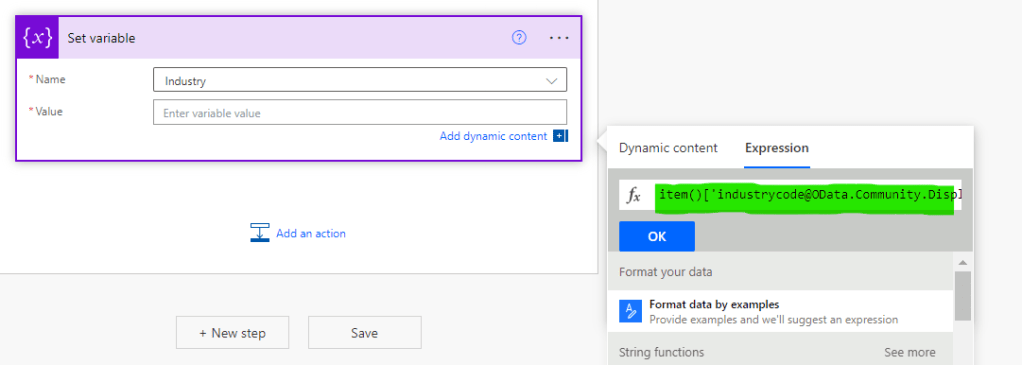
It will solve the problem, returning the display value from the Choice column (highlighted in yellow):

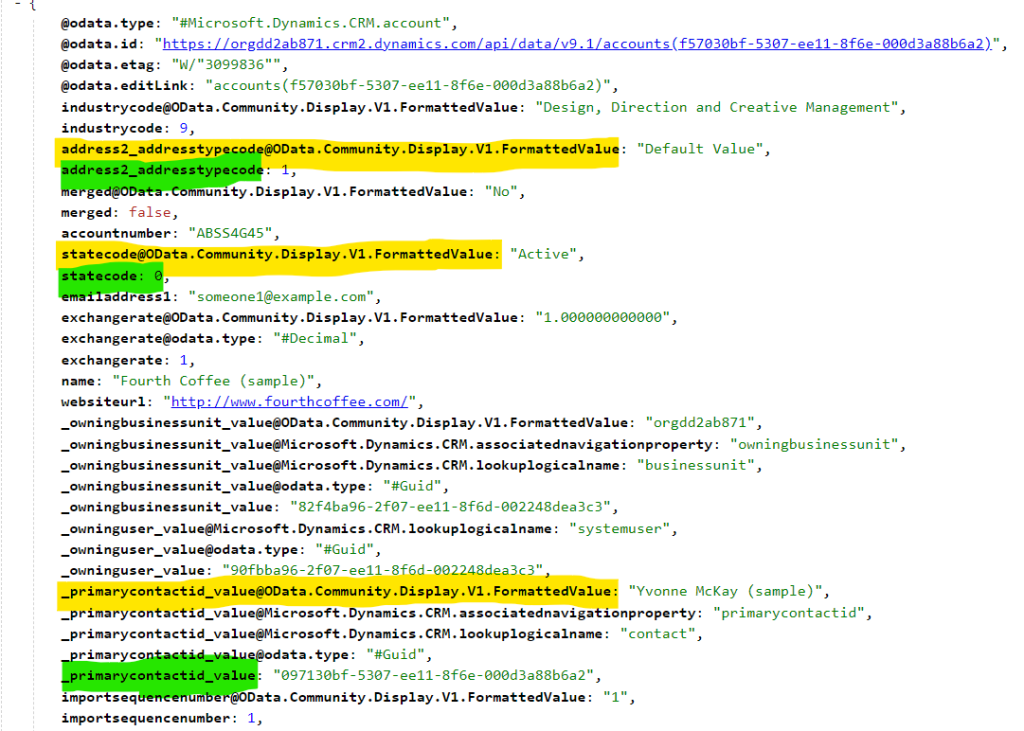
Notice that even other Choice/Lookup columns have the same structure, such as “statecode” and “merged”, where the column name returns an Id, while the column name with “@OData.Community.Display.V1.FormattedValue” (or a similar name) returns the display value. In the image below, the properties highlighted in green are related to the Choice/Lookup ID, while the properties highlighted in yellow corresponds to its display value:
Conclusion
This article has unveiled a practical solution to extract display values from Choice and Lookup columns in Dataverse when integrated with Power Automate. By using expressions, it is possible to access even the properties not available in the dynamic content by default, expanding the capabilities of your Power Automate flows.
 Digital Mill