

In a world surrounded by cloud computing, remote work, artificial intelligence, and other technology uses, legal departments are embracing innovative solutions to streamline their processes. Most part of the managers don’t know, Microsoft offers a powerful tool that simplifies this task, allowing even users without any solid IT background to create automated workflows.
What’s even better is that this tool comes bundled with most Microsoft Office subscriptions, so adopting it won’t result any cost increase for businesses that are already using Word and Excel. This is the Power Automate, a powerful tool that has the potential to revolutionize how legal teams operate. This article introduces you to Power Automate and demonstrate how legal departments can maximize efficiency, reduce manual workloads, and focus on high-value tasks that drive strategic success.
What is Power Automate?
Power Automate is a Microsoft tool that empowers businesses by automating repetitive processes, reducing manual errors, and freeing up valuable time. It is part of the Power Platform, which includes solutions like App development, Chatbots and Virtual Agents, Websites to interact with external operators and AI models. All these solutions are low code, which means that you don’t need to be a Tech Expert to run them.
It has a user-friendly structure to create these automations, allowing you to just add steps of a workflow to generate a completely automated solution. For example, with only these 3 steps below, you can create an automated flow to fill contract templates when a message is posted in a Teams channel (and using data from this Teams message to populate the contract):

How Power Automate can help legal departments?
There is an infinity of solutions that you can create to optimize your legal operations, but some of the most frequent examples of tasks that can be automated by Power Automate are the following:
- Contract Approval Workflow: When a contract is uploaded to a designated folder, Power Automate can notify the relevant parties for review and approval. It can also track the progress and send reminders if approvals are pending. It can also include a “pre-review” layer that uses GPT intelligence to anticipate some issues that the contract may have.
- Document Review and Collaboration: Automate the process of document reviews by sending notifications to team members when a document is ready for review. Power Automate can handle the workflow to track changes, collect feedback, and consolidate comments from multiple reviewers.
- Court Date Reminders: Set up automated reminders for important court dates, deadlines, and hearings. Power Automate can send notifications to relevant team members, ensuring that important legal proceedings are not missed.
- Client Communication: Automate client communication by sending personalized emails with updates on case progress, upcoming meetings, and important documents.
- Document Management: Organize and manage legal documents. When new documents are added to a specific folder or received by email, it can automatically create metadata, update document libraries, and ensure proper version control.
- Time Tracking and Billing: Automate time tracking by integrating Power Automate with time-tracking tools. This can help lawyers log billable hours more efficiently and ensure accurate billing for clients.
- Conflict Checking: Automate conflict-of-interest checks by integrating Power Automate with databases of existing clients. Before a new client is added, the system can quickly check for potential conflicts.
- Client Onboarding: Generate and send engagement letters, service agreements, collect client information, and create client profiles in the firm’s CRM or case management system.
- Legal Research: Set up alerts and organize a database for new case law, regulations, or legal news related to specific practice areas.
- Task Assignment and Tracking: Distribute tasks among team members based on predefined criteria. For example, when the client “A” send a new email containing a specific keyword, a new task is created in Microsoft Planner, Trello or other task management tool and assigned to the team member “B”, notifying them. The system can also send reminders and track task completion.
- Client Surveys and Feedback: Automate the process of collecting client feedback by sending automated surveys after a case is closed. Power Automate can compile survey responses and generate reports for analysis.
How can Legal Departments start with Power Automate?
You can start to use Power Automate by clicking here. As first steps, departments can start by checking out the available templates by clicking in “Create” in the side menu (highlighted in yellow):
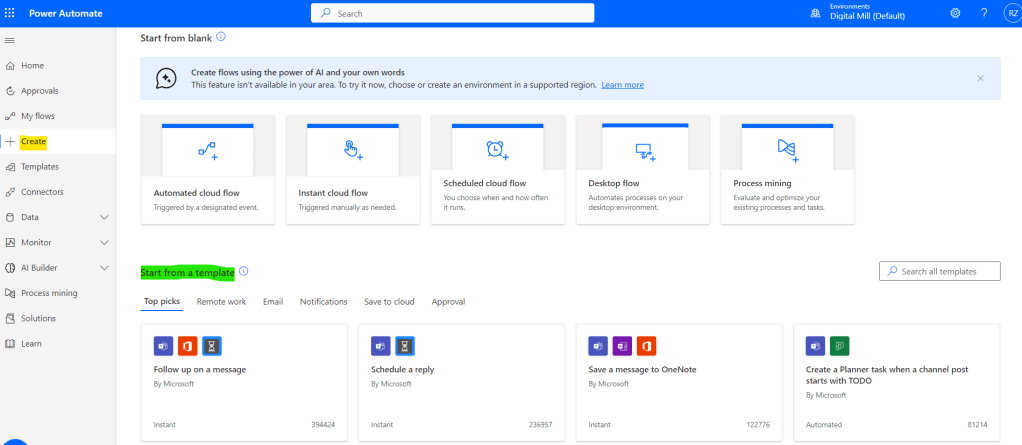
These templates cover a range of common tasks and can provide valuable insights into how flows are structured and designed. A flow that sends a Teams notification when an email is received is an example of a “first challenge” for starters.
Where can you find help with Power Automate?
To learn more about Power Automate, consider joining online communities or forums dedicated to Power Automate. Websites like the Microsoft Power Automate Community are excellent places to ask questions, share your experiences, and learn from others’ expertise. Engaging in discussions and seeking advice from seasoned users can accelerate your learning and help you discover advanced techniques.
Also, you can reach the Digital Mill project to discuss about any trouble during your Power Automate use or to find new ideas about how to streamline your processes with this amazing tool.
Conclusion
Remember, the key is to start small, experiment, and gradually challenge yourself with more complex flows as you become more comfortable. As Legal Departments have a large quantity of document handling, a lot of processes may be good candidates for automation.
 Digital Mill