

One of the most frequent uses from Power Automate is to manipulate texts and extract data from it to perform tasks. With Power Automate, it is possible to extract text from emails, PDFs, images Excel or SharePoint Lists, and many other sources.
However, these texts usually require some treatment before use. In this article, you will learn how to extract specific texts from strings with Power Automate, by combining advanced expressions that results in a clean output (to more details about expressions in Power Automate, check this article).
String variables in Power Automate
During this article, we will work with variables. The variables are used to store and manipulate data during the execution of a flow, holding temporary values (if you want to learn more about how to work with variables in Power Automate, check this article).
In Power Automate, each variable has a specific data type, which means that a variable for numbers can’t hold text, and those geared for Boolean values won’t handle objects (refer to this article to understand which are the data types in Power Automate and how to interact with them). The text values have a string data type, and along this post, we will be using the words “string” and “text” interchangeably.
For the examples along this article, we will use the following text, stored in a variable with string data type called ‘main_text’:
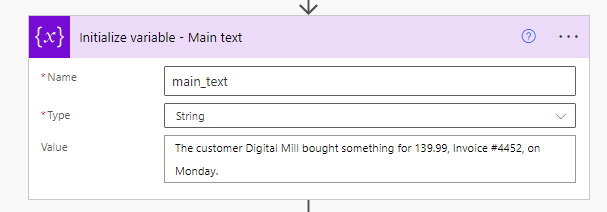
Here is the text in case you want to replicate it in your end:
The customer Digital Mill bought something for 139.99, Invoice #4452, on Monday.
Getting the quantity of characters from a text in Power Automate
A very useful expression in Power Automate is the length(), which returns the quantity of characters from a string. It is ideal for tasks like verifying social insurance numbers, zip codes, or product IDs. Additionally, it’s handy for setting character limits, be it for concise product reviews or optimal input for an OpenAI GPT model.
The length expression requires a single parameter: the text to checked (the same expression can also count elements inside an array). We will use the expression to capture the length from the ‘main_text’ variable and store it into another variable called ‘text_length’, which may have an integer data type, as this expression returns a whole number:

The output is the quantity of characters in the ‘main_text’, which is 80.

The expression will also work for empty strings, returning 0 as value. To identify empty strings, it is also use the expression empty(), which returns a true-false boolean response. As the length() expression, the empty() requires only one parameter, which is the text to be checked:

As the ‘empty_string’ variable does not contain any text, the outcome from the empty() expression is true:

Combining two texts in Power Automate
In Power Automate, you can also combine two texts seamlessly. There are two methods for this: one involves the action’s input box directly, and the other utilizes the concat() expression. For instance, if we want to add the text “Description: “ before the ‘main_text’ variable content, we can either do it by inserting the text into an action input followed by the dynamic content of ‘main_text’ (highlighted in yellow), or using the concat() expression (highlighted in green) and passing each string as parameters for that (first parameter highlighted in pink and second highlighted in blue).

As expected, both approaches bring the same result:

Find text inside a string in Power Automate
There are basically two methods to identify if a string has a specific text inside. One is the contains() expression, returning a true/false value indicating text presence. The expression requires two parameters: first, the string where the text will be searched; and second, the text to search. In our case, we will test if ‘invoice’ (highlighted in green) exists inside the variable ‘main_text’ (highlighted in yellow):

In this specific example, the return from contains() expression will be false, as we are searching for ‘invoice’ (with lowercase ‘i’), while the variable has ‘Invoice’ with uppercase ‘I’:

To identify a text ignoring lower or upper cases letters, we just need to convert the whole string that we will search in to either lower or upper case (we will explore this task in a further section).
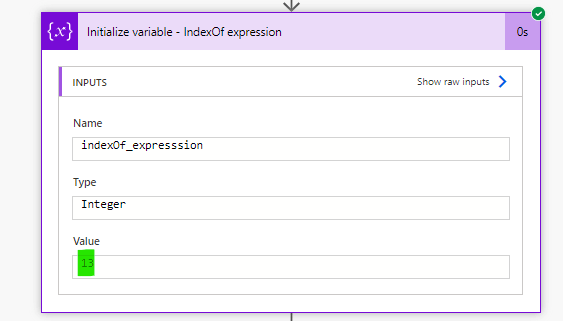
The other strategy to identify texts inside strings is to use the indexOf() expression. Similar to contains(), this expression also demands two parameters: the string to search within (in our case, the ‘main_text’ variable, highlighted in yellow) and the target text (in our case, ‘Digital Mill’, highlighted in green):

This expression returns the character position where a text is located. For our example, since the result was 13, the text ‘Digital Mill’ can be found in the 14th character of our variable (the value returned by indexOf() is zero-indexed, which means the counting starts in zero):
Returning part of a text based on its position in Power Automate
There are two expressions that allow you to retrieve a text based on the characters positions inside a string.
The substring() expression receives three parameters: the source string, the starting position for extraction and the quantity of characters to be extracted. Here, we’ll use the ‘main_text’ variable as the source (highlighted in yellow), set the value extracted in the ‘indexOf’ example as the start position (highlighted in green, we stored this value in a variable called ‘indexOf_expression’) as set the quantity of characters to extract as 20 (highlighted in blue):

The result will be ‘Digital Mill bought ’ (with a blank space at its end). The expression is capturing 20 characters starting in the 14th character of the string. While Power Automate uses zero-based indexes for counting, other numeric operations typically begin at 1. In this expression, the second parameter follows the zero-indexing convention, while the third parameter doesn’t.

Another expression, slice(), achieves text extraction by character positions, similar to substring(). However, slice() returns a text based on an initial and final character positions. Its also receives three parameters: the source string, the starting position, and the final position of the text to be extracted. In our case, we will once again use the ‘main_text’ variable as source (highlighted in yellow), set the value extracted in the ‘indexOf’ example as the start position (highlighted in green, we stored this value in a variable called ‘indexOf_expression’) as set the final position as 20 (highlighted in blue):

Even that we are using the same parameters from the substring(), the output is different: now we are not capturing the 20 characters after the 14th one, but setting the starting and the final position (13rd and 21st characters). The result is “Digital”:

Converting text to lower or upper case with Power Automate
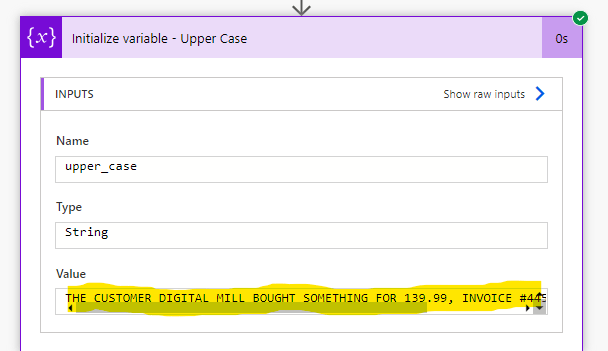
A good practice when extracting parts of a text is to standardize the case of the entire string. This is important due to Power Automate case sensitivity, so “invoice” is considered different from “Invoice”, as we saw some sections ago. To convert a text to lower or upper case, we can use the expressions toUpper () and toLower (). Both expressions receive only one parameter, which is the text to be transformed. In the example below, we intend to transform the string from the ‘main_text’ variable in upper case:

And this is the output:
Replacing part of a string in Power Automate
Replace texts inside a string is an easy task in Power Automate. We can use the replace() expression, which requires three parameters: the source text, the text to be replaced and the new text. For this example, we are using the ‘main_text’ variable as source string (highlighted in yellow), “Monday” as text to be replaced (highlighted in green) and “Friday” as new text (highlighted in blue):

As result, we will have the whole source text, but with ‘Monday’ replaced for ‘Friday’:

Trimming a text in Power Automate
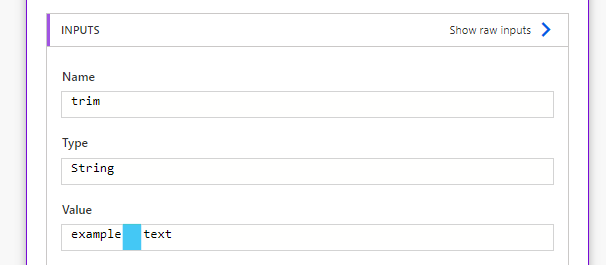
When cleaning texts in Power Automate, the trimming is one of the most relevant tasks. The trim process removes all blank spaces at the beginning or at the end of a text, retaining the relevant content only. In Power Automate, this task can be executed with the trim() expression, which requires only one parameter: the text to be trimmed. In the example below, we have blank spaces at the beginning of the text (highlighted in yellow), at the middle (highlighted in blue) and at the end (highlighted in green):

After run the flow, only the blank spaces at the middle will be kept, as those from beginning and end are removed by the trim() expression:
Transforming strings into arrays in Power Automate
The last expression that we will study in this article is the split(). This expression will transform a text into an array, which sometimes can be useful for text transformation. This expression requires two parameters: the text to be split and the separator to be used for the operation. In the example below, we are splitting the ‘main_text’ variable by blank spaces (highlighted in yellow), so each word will become an array element (to learn more about arrays, refer to this article):

And this is the output:

Exercise: Isolating invoice number and price from ‘main_text’ variable
Now let’s practice with a common business scenario: extract specific parts from a text, which in our case will be the invoice number and the price from ‘main_text’ variable. We will need one variable per data that we want to extract, and they will have some nested formulas to achieve its result.
Just as a reminder, the text stored into ‘main_text’ variable is the following:
The customer Digital Mill bought something for 139.99, Invoice #4452, on Monday.
Invoice Number
As a first step, we need to identify which are the characters that are surrounding the invoice number, which in this case is the “#” at the beginning and a comma at the end. As we have only one occurrence for the”#” character during the whole text, we can start from it, by using the following expression to divide the text in two: split(variables(‘main_text’), ‘#’).
But we won’t need the first part of the text (it means, everything that is before the “#”), so we can add a [1] at the end of the expression to access the second element from the array generated by the split() expression: split(variables(‘main_text’), ‘#’)[1]. Remind here that the array elements counting is zero-indexed, so we need to use zero to access its fist element, 1 to access the second, and so on. Until this moment, the value of our expression is “4452, on Monday.”
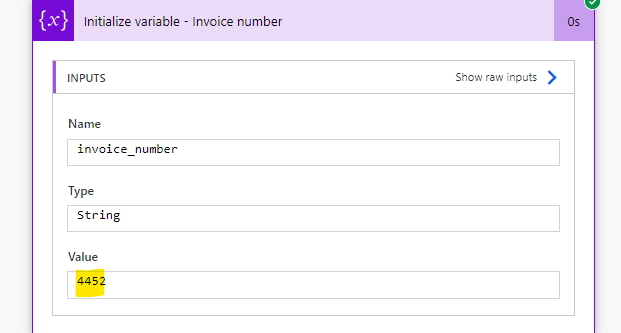
Now we will repeat the same process, but using the comma as separator (we have only one comma in this reduced text) and accessing the first element of the array generated by the split(). The expression will look like this: split(split(variables(‘main_text’), ‘#’)[1], ‘,’)[0]. So we will assign this expression to a variable:

And the result will be exactly the invoice number:
Price
The process to extract the price will be very similar, but working with different separators. First, we can split the ‘main_text’ variable by commas, which will result in an array with three elements. The expression will be split(variables(‘main_text’), ‘,’), and it output will look like this:
[
“The customer Digital Mill bought something for 139.99” ,
“Invoice #4452”,
“on Monday.”
]
As we want to access the first array element, we will include a “[0]” at the end of the expression, that will look like this: split(variables(‘main_text’), ‘,’)[0]. The output will be “The customer Digital Mill bought something for 139.99”.
Now we need to split it again, but using a blank space as separator, which will result in an array with 8 elements. We could just use a “[7]” at the end of the expression to access its price element, but actually there is an easier way that will avoid the need to count elements: the last() expression. This expression will return the last element from an array, independent on its quantity of items. So our final expression will looks like this: last(split(variables(‘main_text’), ‘,’)[0], ‘ ‘)):
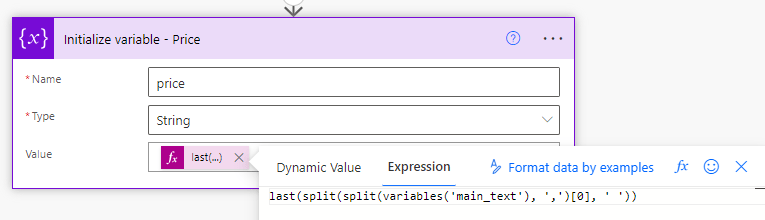
And this is the output:

Conclusion
A lot of business problems can be solved by using text expressions. Even that they look complex at the beginning, the minutes that we need to fix an expression can result in hours of saved time by avoiding the need of executing a data entry process manually.
Now that you know how to use text expressions, think about the daily tasks that you can assign to Power Automate!
 Digital Mill