

In Technology, variables are a well-known concept that is present in basically in every programing language. It’s a versatile tool that allows you to store and manipulate data dynamically, so the same variable can have different values assigned to it according to the context.
In Power Automate, you also can use variables, and in this article, we will explore the concept of variables in Power Automate and discover how they can enhance the efficiency and dynamism of our flows.
What is a variable?
Variables are essential containers that hold data and enable dynamic manipulation and storage of information. From a computer science standpoint, variables serve as abstractions that empower programmers to manipulate and retrieve data during program execution.
In Power Automate, variables are containers used to store and manipulate data throughout the flows. Just like in traditional programming languages, variables in Power Automate act as temporary storage spaces. They facilitate storing, retrieving, and modifying data throughout flows, providing a flexible and dynamic environment for your automation tasks.
With the aid of variables, Power Automate grants you the ability to perform calculations, iterate through lists, transform data, and seamlessly interact with other actions. By harnessing the potential of variables, your flows become more intelligent and adaptable. Variables offer an easier path to achieve efficiency and flexibility, enabling you to create workflows that effectively handle changing data and requirements in your automation processes.
Overview of data types in Power Automate
Data types play a crucial role in technology, classifying the kind of information a variable can hold. While there are several possible data types in Technology, some common examples include “text,” “integer numbers,” “lists,” “date,” and “currency.”
In Power Automate, variables are bound to specific data types. Once a variable is initialized and its data type is declared (we’ll explore this process later in the post), it cannot be changed during the flow execution. While you can modify the value of a variable, its data type remains fixed. For instance, you can initialize a text variable with the value “have a good day!” and change it to “have a good night!” within the flow. However, you won’t be able to convert it to a number like 789 or a logical value like true.
The available data types in Power Automate are the following:
- Strings: Used for storing and manipulating text data, such as names, addresses, or descriptions. Example: “pizza”.
- Integers: Used for storing whole numbers, not comporting any decimal points. Ideal for storing whole numbers, like quantities, ages or counts. Example: 23.
- Floats: Used for storing decimal numbers or values requiring precision, such as currency amounts or percentages. Example: 3.14.
- Booleans: Used for storing a logical value, either true or false. Booleans are commonly used in conditions. Example: true.
- Objects: Used for storing entities with properties as key-value pairs, allowing different types inside. The objects are delimited by curling brackets (“{}”). Example: {“id”: 112, “name”: “Digital Mill”, “premium_member”: true}
- Arrays: Used for storing multiple values in a single variable. It is basically a list of values, which allows different data types inside. The arrays are delimited by square brackets (“[]”). Example: [1, 2, 3, “pizza”, 5, 6.16, true].
In general, if you try to assign to a variable a value different from its data type, you will receive an error message and the flow will fail.
Creating variables in Power Automate
To start using variables in Power Automate, you must initialize them using the “Initialize variable” action. This action requires you to provide the variable’s name and data type:

You can choose to assign an initial value to the variable when initializing it, but it’s not mandatory. Initializing an empty variable is perfectly acceptable in Power Automate:

To assign a value to a variable during initialization, simply input the desired value. Ensure that the assigned value matches the specified data type to avoid errors and flow failures:

Be cautious when attempting to assign a different data type to a variable than what was declared. Doing so can result in an error and cause the flow to fail. For example, changing the data type from string to integer can lead to issues:

When assigning a numeric value like 12345 to a string variable in Power Automate, no error will occur. It happens because the input is automatically converted to text. Although they may initially appear the same, Power Automate will not allow mathematical operations on a string variable, even if the value is numeric.
For instance, if we assign 12345 to two variables, one as a string and the other as an integer, and compare them in a Condition action (if you don’t now how to use conditions in Power Automate, check this article), the result will be false. This is because the string representation of 12345 is not equal to the integer value of 12345:

As expected, the condition will return as false, as 12345 (string) is not the same of 12345 (integer):

By examining the raw inputs of each variable, you may notice a slight difference (if you don’t know how to access the raw input/output of an action, check this article). The integer variable will contain the value 12345, while the string variable will have it enclosed in quotes (“12345”). These quotes indicate a string and make the two variables distinct:

Power Automate also allows the assignment of expressions or dynamic values to variables. In the example below, we assign the expression 10+5 to a variable of integer data type.

The variable will effectively store the sum of 10 and 5:

Changing variables values in Power Automate
After initializing variables, you can modify their values using the “Set variable” action. This action allows you to assign specific values to variables. For instance, you can change the value of a numeric variable from 15 to any other integer using the “Set variable” action:

This approach can be used in variables of any data type.
It’s important to note that the “Set variable” action has a limitation: you cannot assign a variable to itself. Attempting to do so will result in an error. For example, trying to assign the value of a dynamic content directly to a string variable will cause the action to fail (to learn more about dynamic contents in Power Automate, refer to this article):
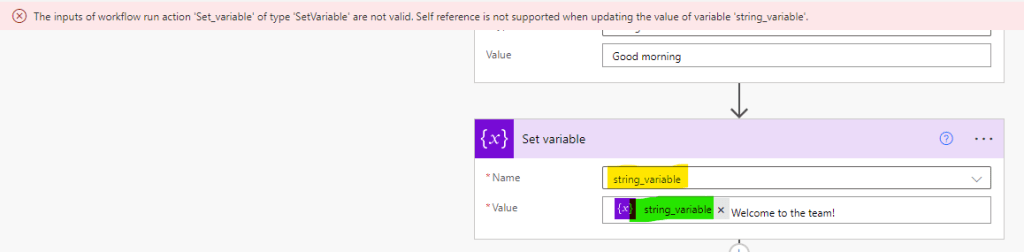
In the example above, we are trying to assign to the “string_variable”’” (highlighted in yellow) its same value as dynamic content (highlighted in green), which is returning an error (red strip at the top). The action will fail even if the “Set variable” contains additional values to the variable itself, like the “Welcome to the team!” text.
To overcome this limitation, you can create a temporary variable to hold the original variable’s value. By creating a clone, you can then use the clone as input for the “Set variable” action, effectively updating the variable’s value.

Adding and subtracting variables in Power Automate
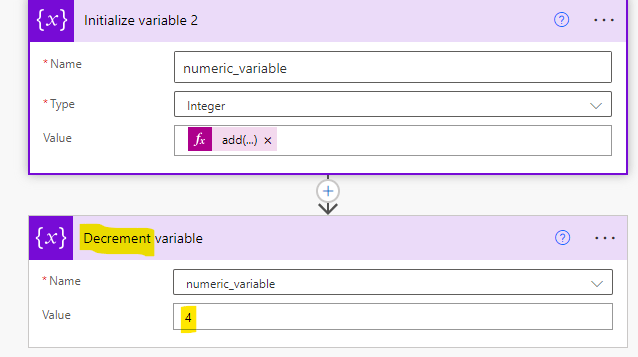
To manipulate numeric variables (integer and float data types), you can utilize the “increment variable” and “decrement variable” actions. These actions allow you to add or subtract a specific amount from the variable:

To perform these operations, you need to provide the desired value in the “value” input field. For example, if you want to subtract 4 from a variable called “numeric_value,” which was initialized with a value of 15, you can use the “decrement variable” action:
And this is the result:

Adding values to strings in Power Automate
It is also possible to insert values at the end of an existing string or list. This strategy is called “Appending”, and basically allows you to add new data to the end of an existing variable, keeping its current value intact.

To append new text to a string variable, you can use the “Append to string variable” action (highlighted in green). It functions similarly to the “Set variable” action, where you specify the variable you want to append to and provide the text to be appended. You can see the result using a “Compose” action to display the final value of the string variable after the append operation (highlighted in blue).
This is the output:

The two texts were merged. Notice that there is no automatic separator: not even a blank space between the original value and the appended one. If you want to include separators like blank spaces, commas, or other characters, you need to include them in the input of the action.
In addition to static text, you can also append dynamic content to a variable. For example, if you have another string variable named “new_employee” with the value “John,” you can pass it as dynamic content to the append operation. By including separators like a comma and a blank space at the beginning of the appending value, you can ensure a more readable final text.

This is the output: the value assigned to “new_employee” variable will be included in the appended text.

Adding values to arrays in Power Automate
The “Append to array variable” action enables you to add elements to an existing array variable. Suppose you have an array called “Employees List” containing the names of the current employees in your organization (4 employees in total). If a new employee, John, joins the organization, you can use this action to add his name to the array:

To work with arrays, you need to initialize the array variable by enclosing its values within square brackets (‘[]’). Each value should be separated by a comma. In our case, since we are working with string values, each element is enclosed in double quotes (highlighted in yellow). To insert a new value into the array, you can use the “Append to array variable” action, passing the value you want to add without brackets or quotes (highlighted in green). To display the final value of the array, we are also using a ‘Compose’ action (highlighted in blue).
This is the output: as expected, John is added to the end of the list.

Conclusion
Variables are used in many flows, making it design much easier and smooth. In some cases, you can use variables even if it is not strictly required, as they will be helpful to make your flow more readable and help for future fixes or modifications.
 Digital Mill